10 cool Apple iPhone tips and tricks
The iPhone’s operating system has become increasingly complex over the years. Apple adds new features with each iOS version, many of which aren’t immediately obvious. This leads to hidden iPhone functions that, in the worst-case scenario, you’ll never discover. Here are 10 cool iPhone tips and tricks. All you need is an iPhone and iOS 26 or later.
How to convert an iPhone app into a widget

Most app icons can be turned into widgets directly from the iPhone home screen. To do this, simply press and hold an app icon and select one of the squares at the top to set the widget size. This works with all Apple and third-party apps that offer a widget option. Press and hold the icon again and select the icon with the four squares in the top left corner to turn it back into a regular app icon.
Visited places in the Apple Maps app
The Apple Maps app lets you view your location history and find places you’ve already visited. This is handy if, for example, you’ve taken a weekend trip, discovered a great restaurant, and want to remember where it was for your next visit.

You can access this feature by opening the Apple Maps app, tapping on your profile, selecting “Places,” and then “Visited Places.” The places are sorted by category, such as Leisure or Shopping, and by city.
You can clear your history by scrolling to the bottom of the interface, or select a time period for which visits should be saved. To disable the feature completely, go to Settings > Maps > Location > Visited places.
Set custom vibrations
You probably know that you can set custom tones for callers or SMS recipients on your iPhone, but you can do the same for vibration patterns if you keep your iPhone muted all the time, like civilized people do.
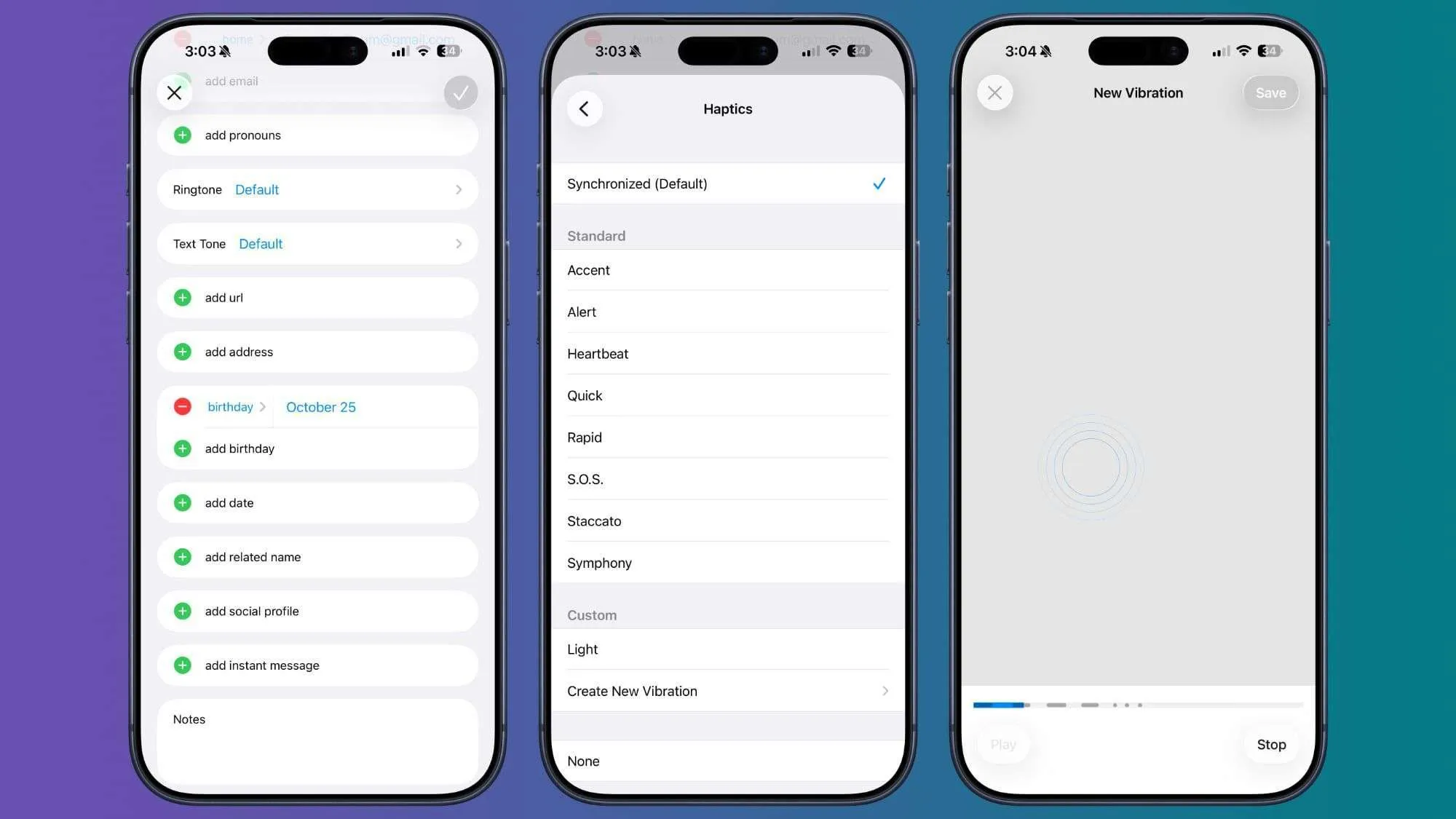
Important people you message can each have a different vibration pattern, so you know who is writing to you without having to look at your phone.
To set a vibration pattern for someone, open the Contacts app and select the person. Tap “Edit” in the top right corner, then tap “Text tone” or “Ringtone.” Tap “Haptics” and then select “Create new vibration.” Here you can create your own vibration patterns by tapping and pressing.
Customize lock screen buttons
The buttons on your iPhone lock screen don’t have to open the flashlight and camera apps. You can assign them to any option from the Control Center, including those from third-party apps.
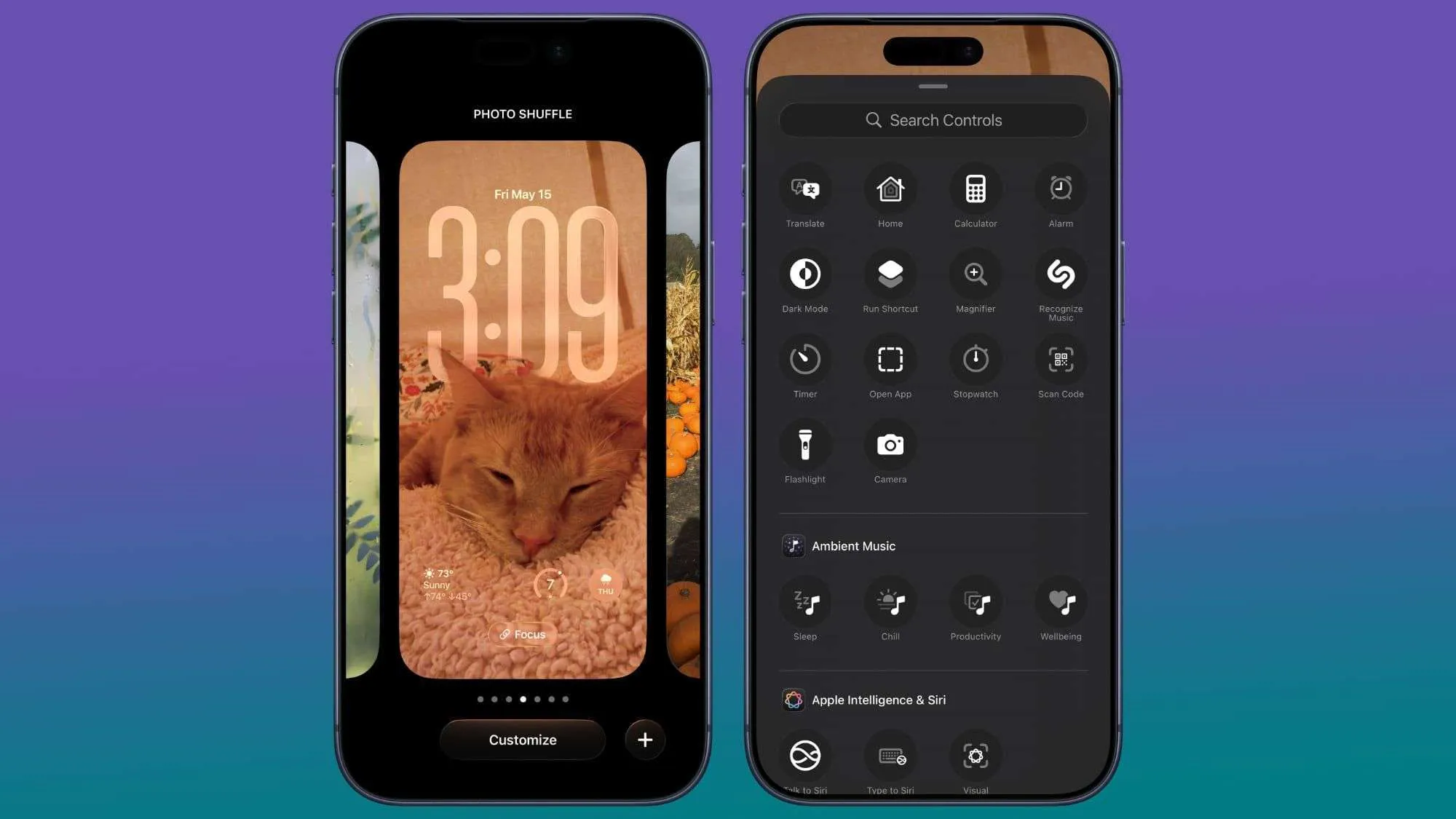
To do this, go to the lock screen and press and hold it. Tap “Personalize” to edit your current wallpaper and lock screen, or tap the “+” button to create a new one. Then, tap the “-” button next to the apps on the left or right of the screen to remove them, and then tap “+” to add a new app.
Back Tap gesture
The iPhone’s “Back Tap” feature has been around for a while, but it’s easy to forget about. It lets you trigger any action by tapping the back of your iPhone, from taking a screenshot to turning on the flashlight. It even works with custom shortcuts.
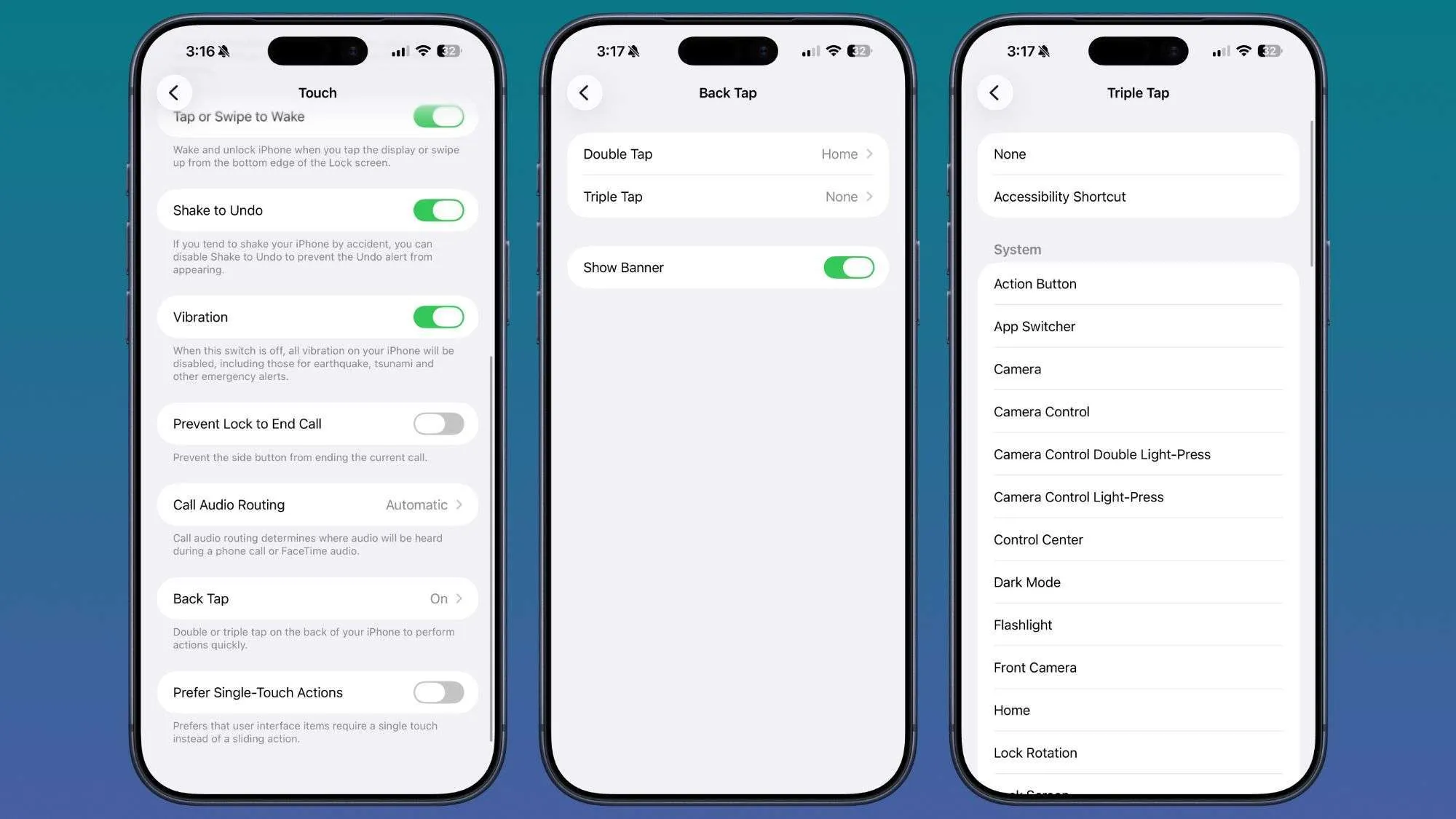
Go to “Settings” > “Accessibility” > “Touch” and then scroll down to “Back Tap” to set up the feature. You can define actions for a double tap or a triple tap.
Screenshot of a website

Pressing the side button and volume buttons on your iPhone simultaneously to take a screenshot captures the current screen content by default. To take a screenshot of an entire webpage or PDF, follow these steps: Take the screenshot as usual, then tap it (if full-screen preview is disabled). Select “Full Page” at the top of the interface, and then choose the location to save your longer screenshot.
Hide apps
Apps that you don’t want to appear on your iPhone’s home screen can be hidden individually by long-pressing the home screen and selecting the Face ID option. Alternatively, you can hide an entire app page. To hide an app page, press and hold the home screen to activate wiggle mode.

Tap the three dots at the bottom of the screen, then select the app page you want to hide. Hidden apps won’t appear in the Hidden folder of the App Library. You can still find them using Spotlight search, and they’ll be visible in their respective categories within the App Library. To unhide a page, follow the same steps and select the checkbox.
Quickly set a timer
Adding the timer option to the iPhone Control Center allows you to long-press it to bring up a simple slider that lets you select the desired time period.
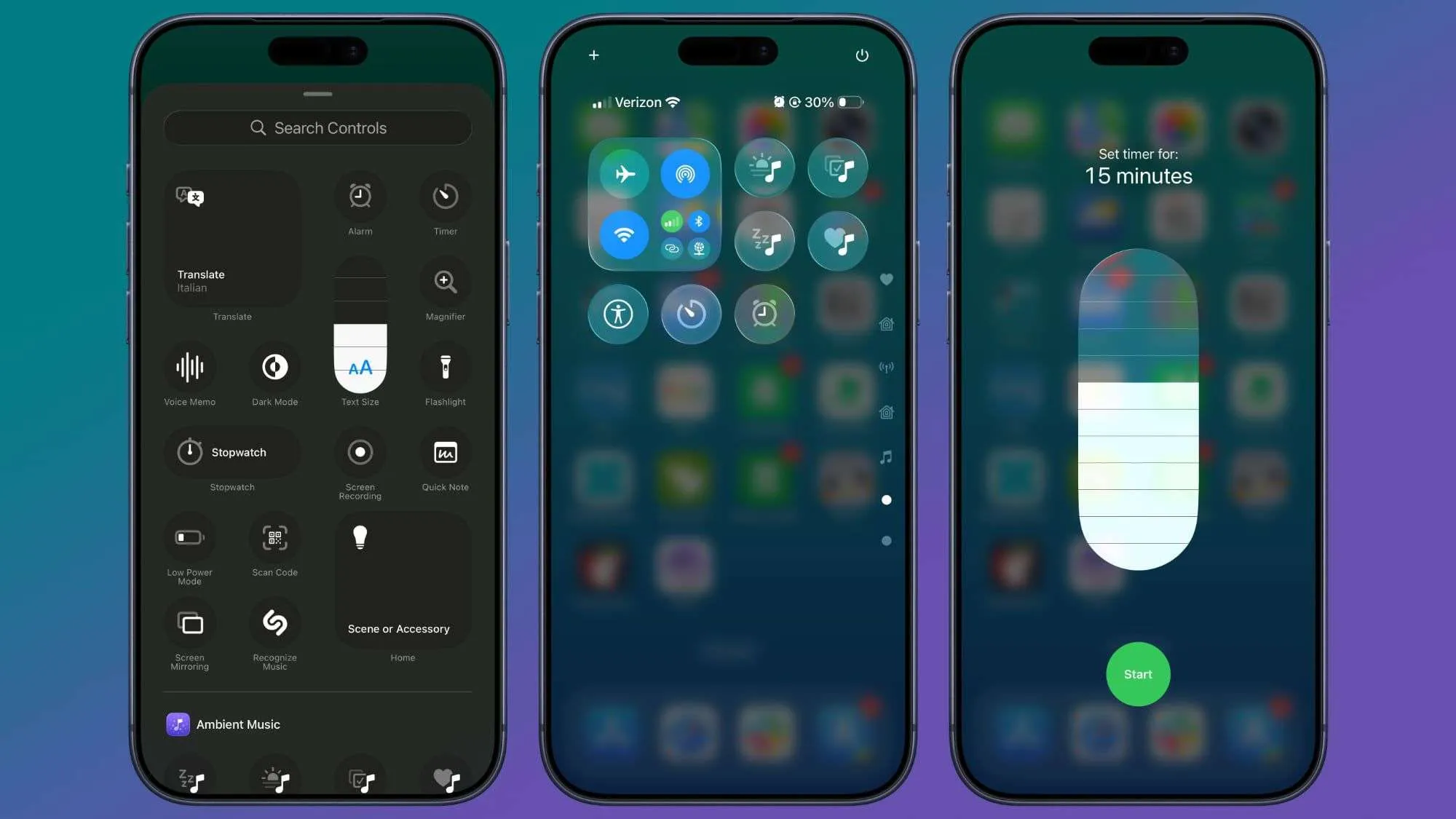
In Control Center, tap the “+” button, then select “Add control.” Select the Timer icon to add it to Control Center. Press and hold the timer, select a time duration using the slider, and then tap “Start.” The time duration ranges from two hours to one minute.
Remove location data from photos
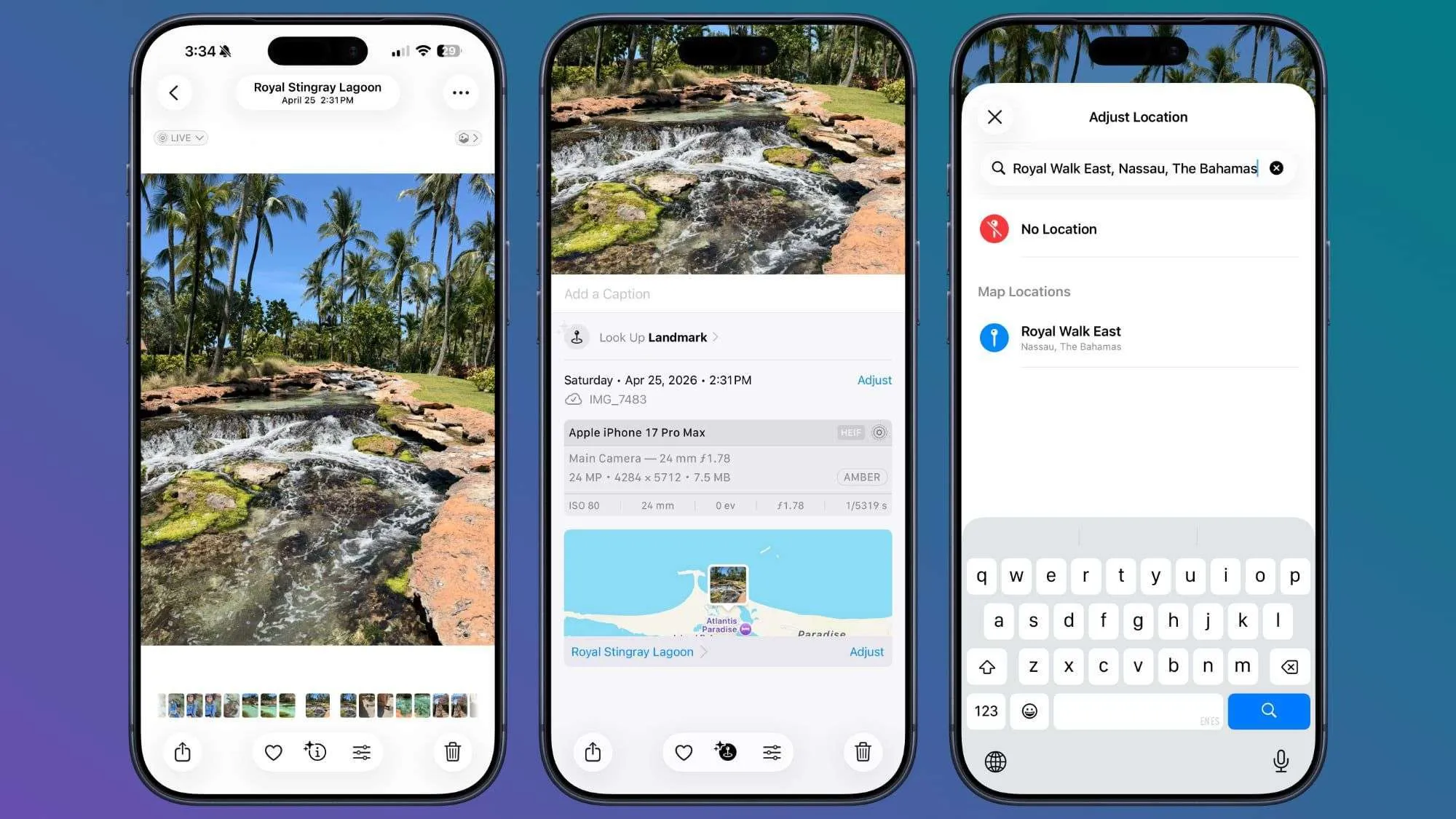
When sending a photo to someone, you should remove metadata such as location beforehand. To do this, select an image in the Photos app, swipe up, and tap “Adjust location.” There you can select “No location.”
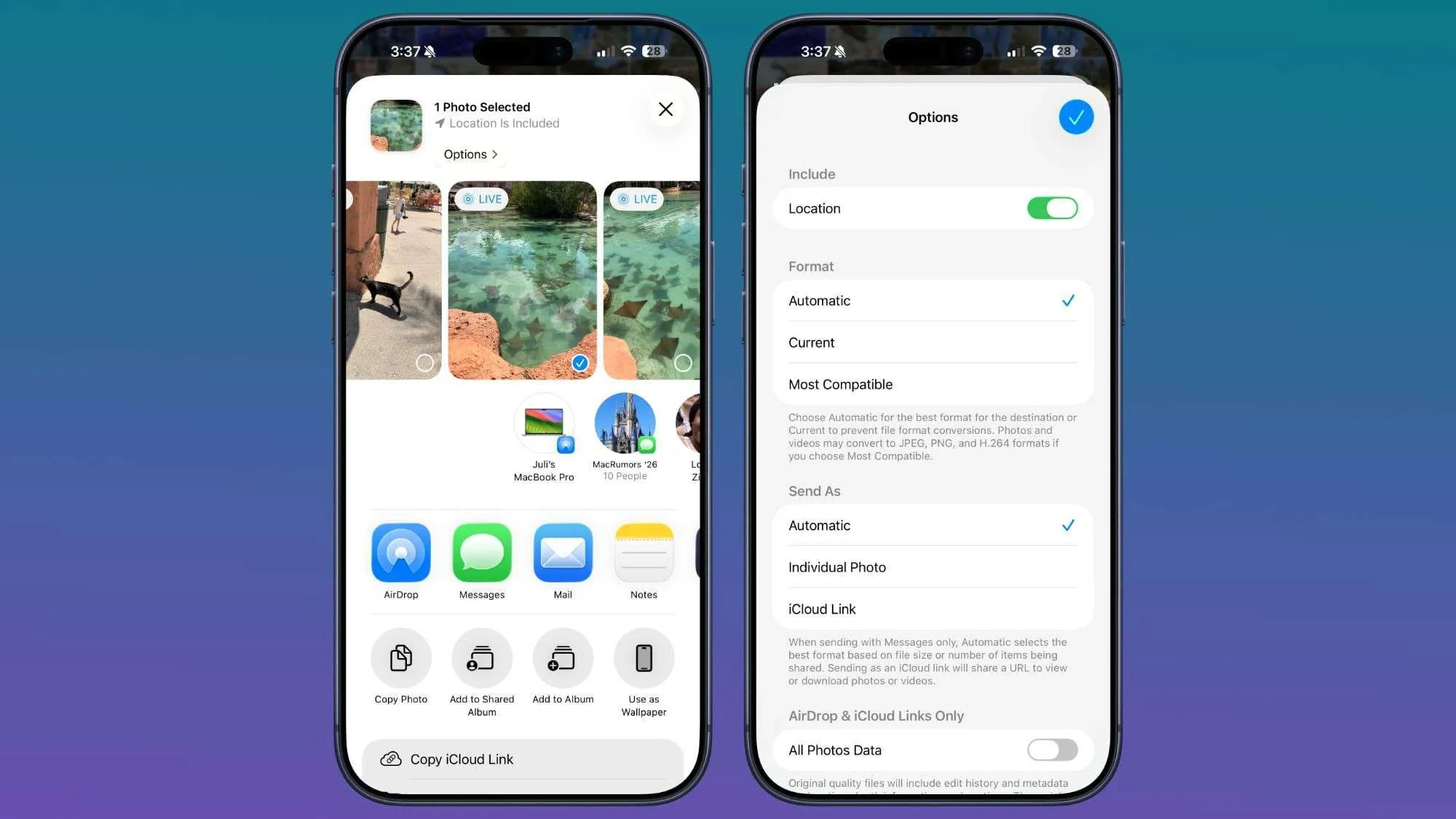
Alternatively, you can disable metadata when sharing a photo. To do this, select a photo and tap the “Share” button. Then tap “Options” and disable location sharing.
Turn off media playback via timer
Timers allow you to control the playback duration of music, podcasts, audiobooks, and other media. This is useful if you only want to listen to music briefly at night.
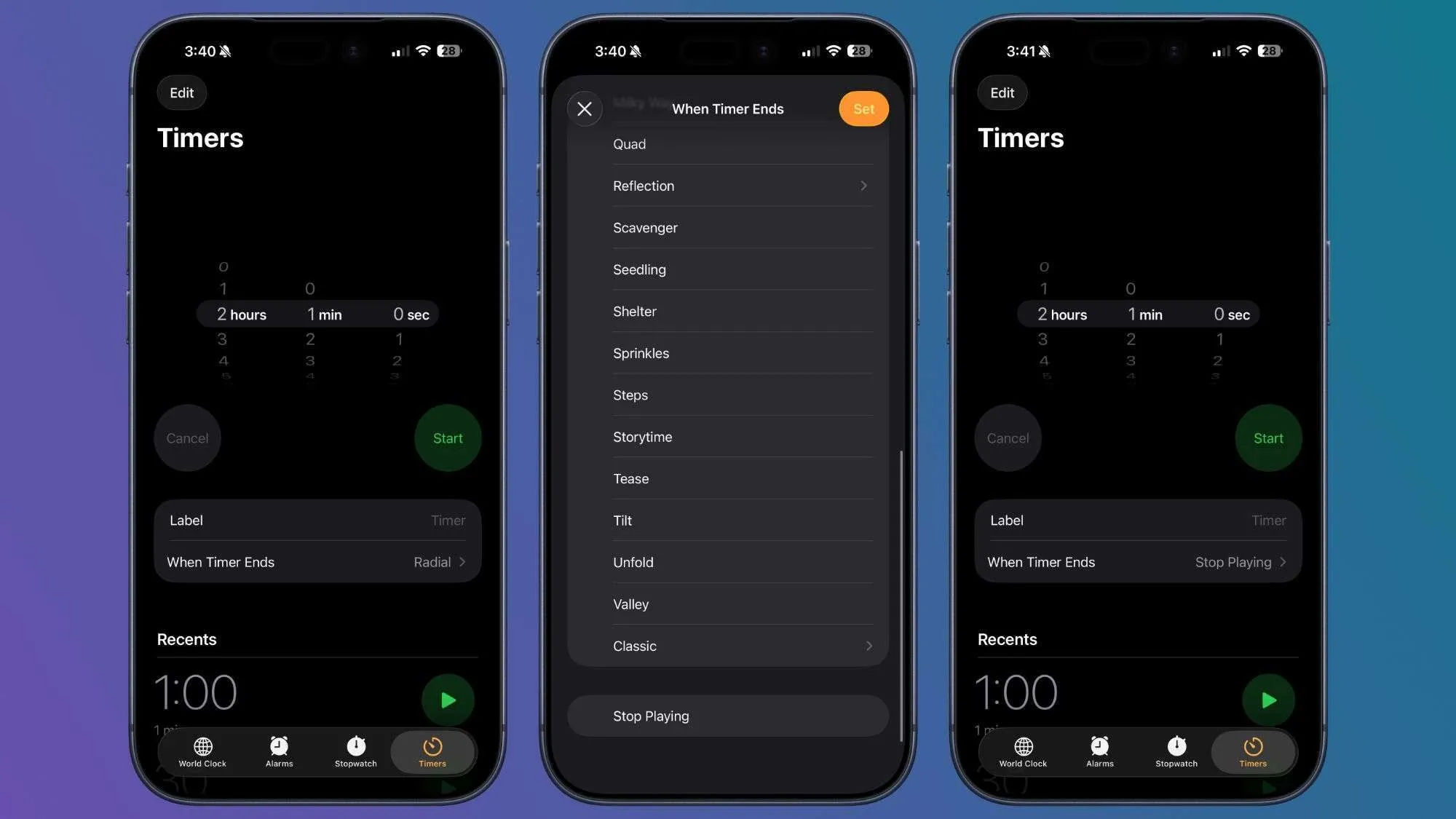
In the Clock app, tap “Timer.” Set a time period and then tap “When timer expires.” Scroll down and select “Stop playback.” Once the timer expires, all media playback will stop.


