iOS 26 Photos app: 3D images, tabs, and spatial scenes
The Photos app was redesigned in iOS 18. In iOS 26, Apple adapted some of these original design changes and updated the navigation. The Photos app also includes new 3D imaging features and several other useful updates.
Photos app with new navigation
In iOS 18, Apple introduced a unified app view for Photos. which did without tabs. The tab bar is back in iOS 26 and offers buttons for switching between the newly separated “Library” and “Collections” sections in the Photos app. Apple has also added a separate search button at the bottom of the Photos app, rather than at the top.
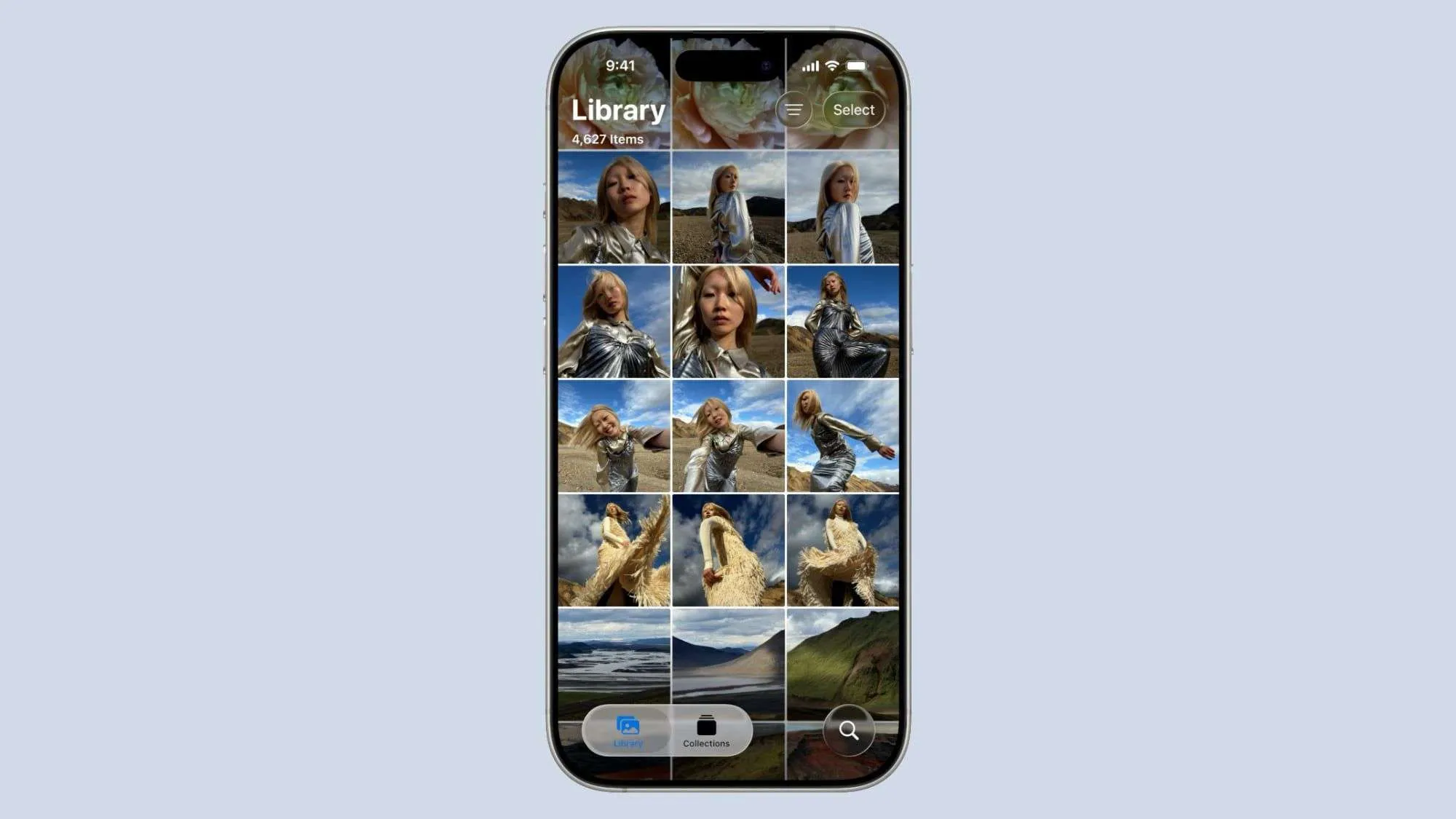
The Library view provides an overview of all the images and screenshots you’ve taken, similar to the iOS 17 Photos app. At the top of the interface is a larger “Select” button, along with a prominent button for accessing filters and display options for zooming in, out, and excluding things like screenshots and “Shared with You” images.
Filters were already available in iOS 18, but the button was hidden unless you scrolled through the photo library. This could be confusing. The new layout makes it easier to find the various options in the Photos app.
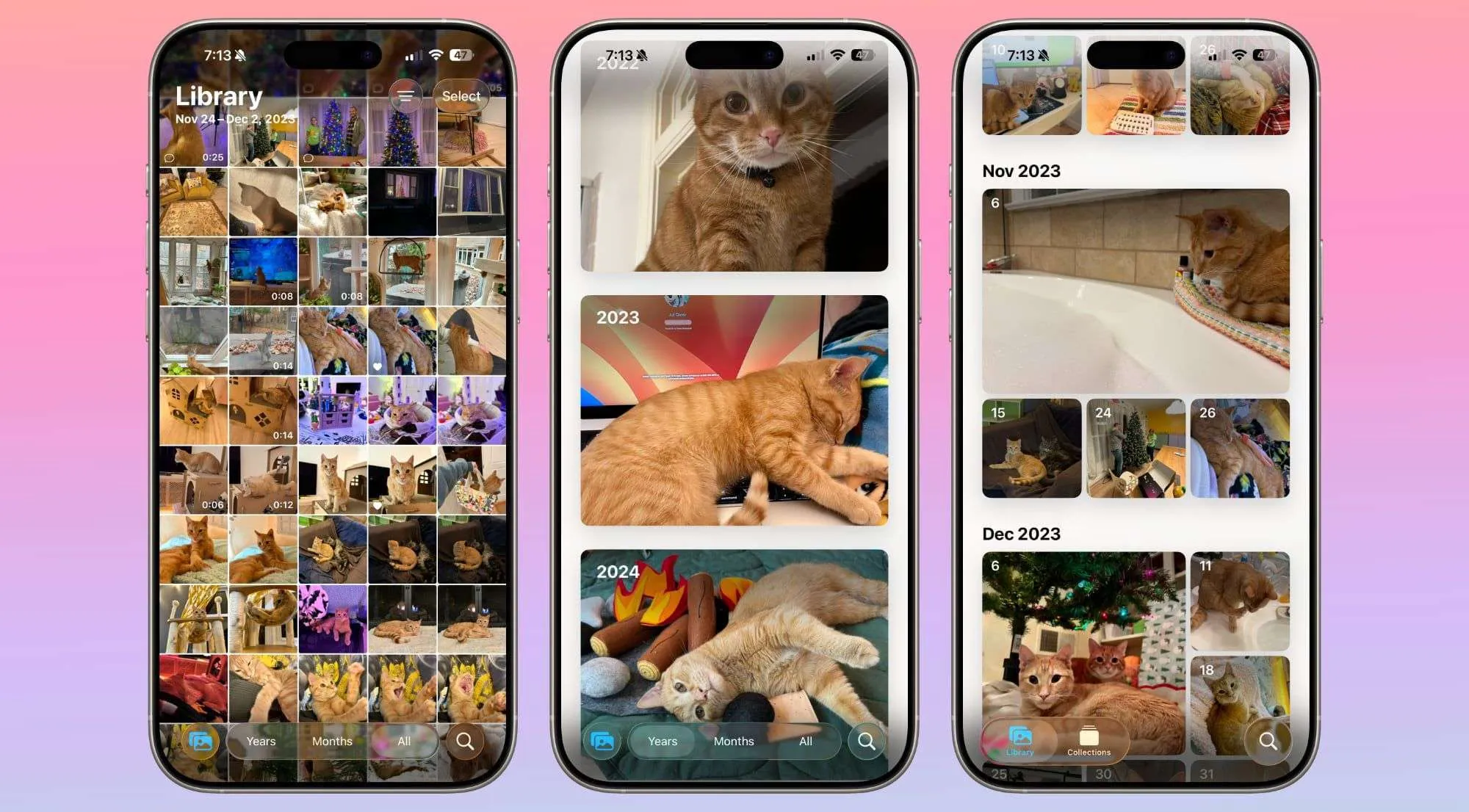
Scrolling in the Library view still displays options for switching to years and months, with buttons for returning to the tab bar or starting a search.
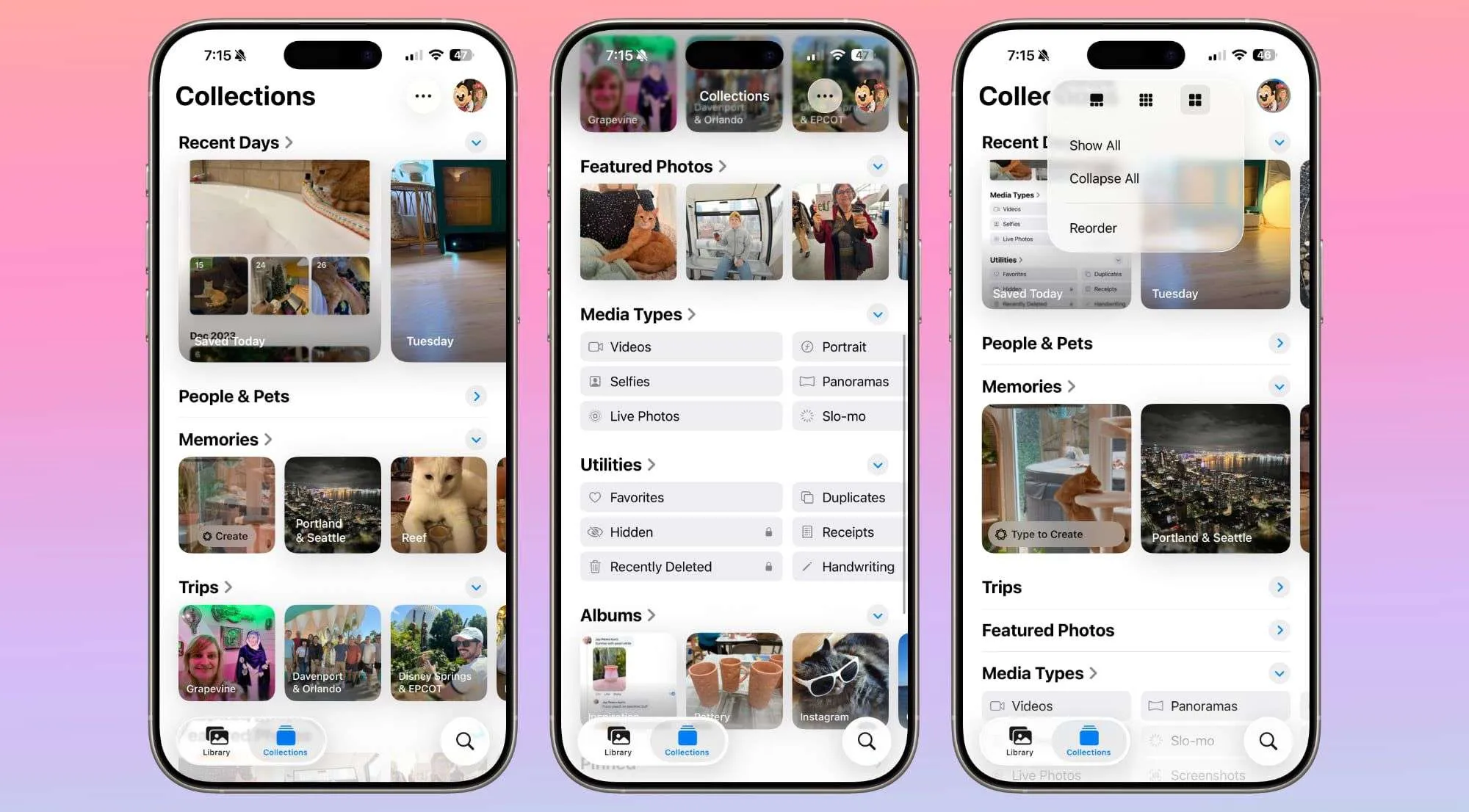
On the Collections tab, you’ll see all the different display options that were previously included in the unified view. Recent Days is located at the top of the Photos app, along with dedicated views like People & Pets, Pinned, Memories, Trips, Albums, and Featured Photos.
The dedicated view lets you see more of your collections on one screen. The Media Types and Utilities sections under Collections have larger, clearer buttons, so you can swipe or tap to access more options.
Liquid Glass Design
Like all iOS 26 apps, Photos has a Liquid Glass redesign. It’s one of the apps where the Liquid Glass look is most noticeable. The tab bar with two buttons is transparent to reveal the photos behind it. Even when it expands into the larger navigation bar with options for months and years, it remains uncluttered. With the more transparent display, the focus is on the photos, while the buttons fade into the background.
The tab bar, search button, select button, and other buttons in the Photos app have the same transparency and use the rounder look that Apple adopted this year. has.
Spatial Scenes
iOS 26 includes the Spatial Scenes feature, which adds additional depth and realism to any image. It separates the subject from the background and creates a subtle movement as you move your phone back and forth.
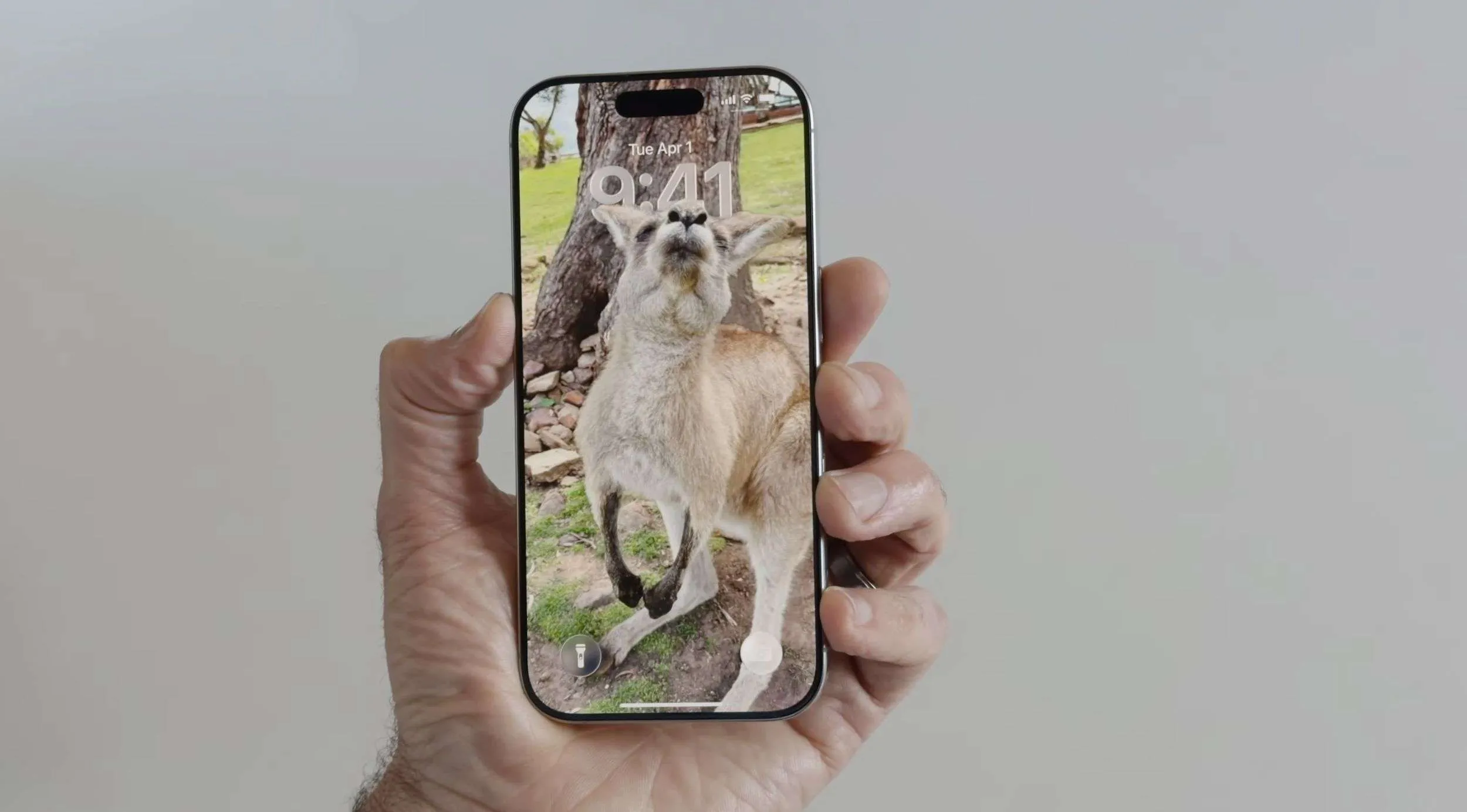
Spatial Scenes works with all photos, even with those who have been in their photo library for years. Spatial scenes uses generative AI to give flat pictures depth, but does not require Apple Intelligence. The function is available from the iPhone 12.
To use spatial scenes in the photo app, tap on an image and then onto the small hexagon symbol in the top right of the display. As soon as the function is activated, the depth effect becomes visible when you move your iPhone.
Collections
In the “Collections” area, there is a clearer button “Recording” so that you can easily recognize that you can reorganize the view shown. You can continue to change the order by pulling, but there is no longer an option to exclude certain collection types.
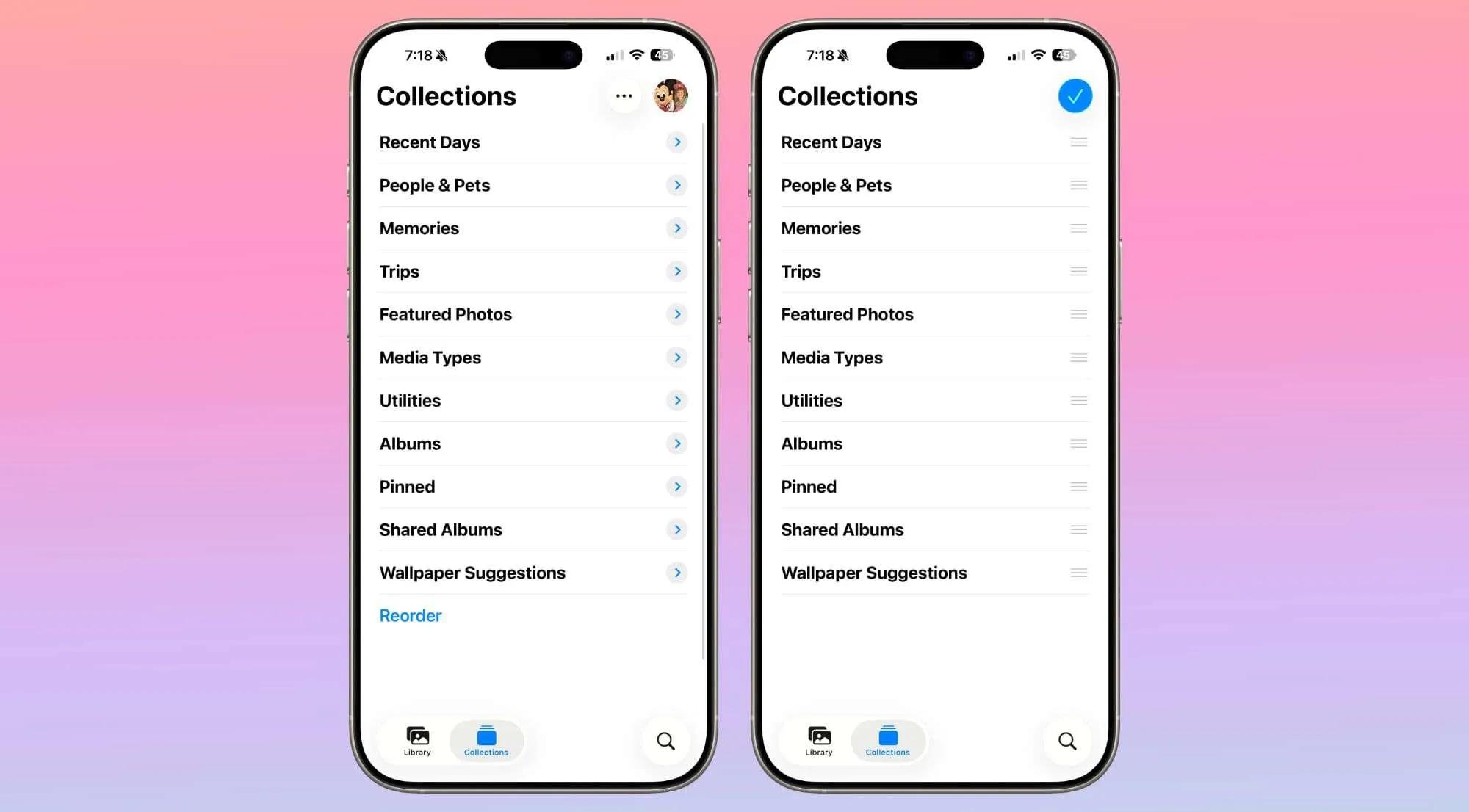
Collections can be collapsed until you tap on it. This is a new interface option. In the reduced state, only the name of the collection is displayed and no thumbnail of the content.
above there is a quick access option for the user interface with which you can reduce all collections, display all collections, reorganize or select another view. You can indicate collections in a view in which the miniature views of the top collection are larger than the others, in a view with all larger thumbnails or in a view with all smaller thumbnails.
You can read more about this topic in our iOS 26 summary and in our iOS 26 beta review.


