iOS 26 Camera App: New Features and New Design
The Camera app received some of the most striking design updates in iOS 26. Apple simplified the user interface to make various controls easier to access. Most of the new features focus on the design, but there are a few other notable changes.
iOS 26 with Liquid Glass Design
Like all iOS 26 apps, the Camera app has adopted the Liquid Glass look. Buttons are more rounded and float above the app’s background thanks to a new depth effect.
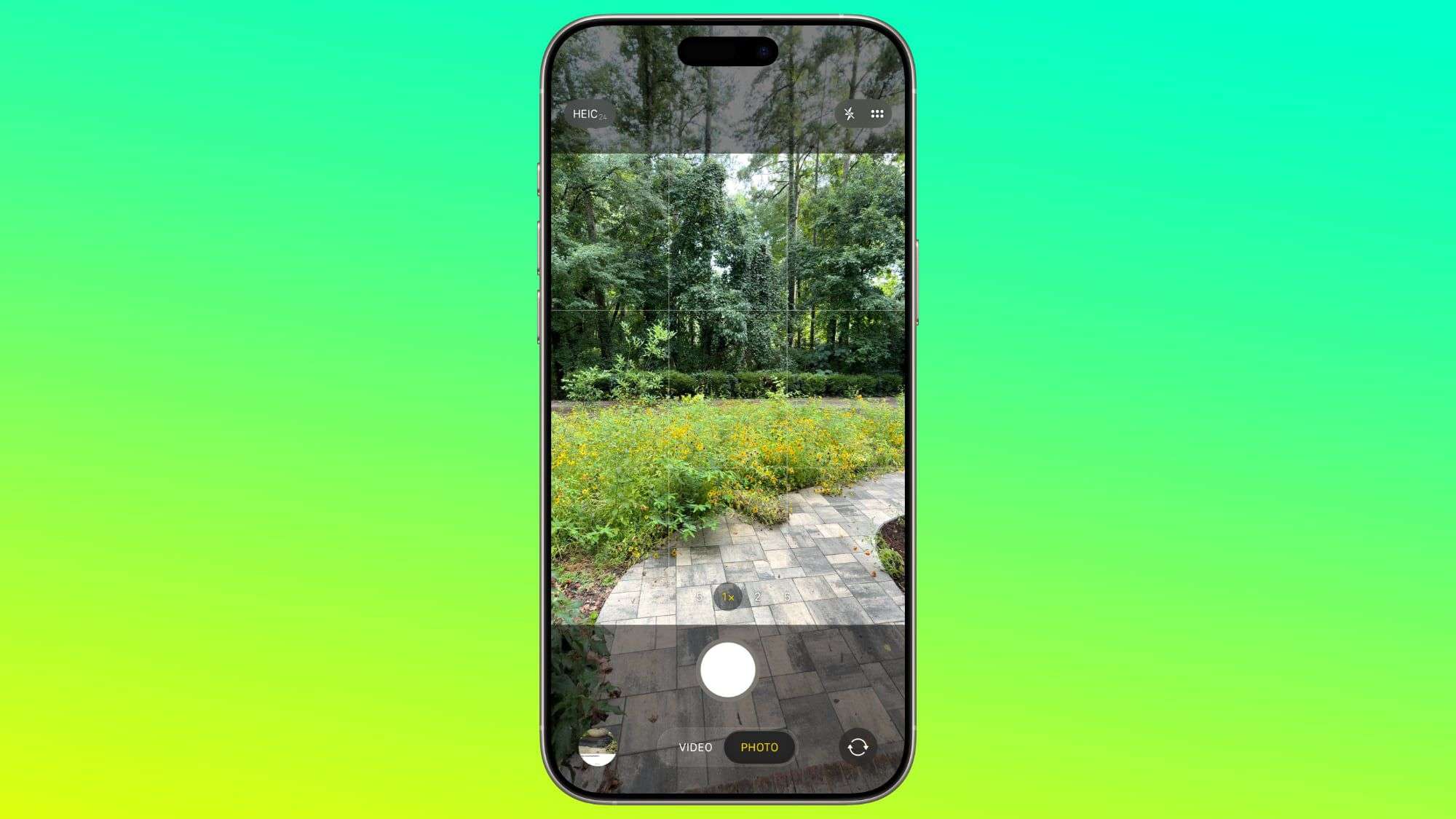
The area behind the camera shutter button and control buttons is slightly more transparent than before, allowing you to see the areas outside your frame more clearly. There’s also no bar behind the zoom buttons, making the interface appear a bit cleaner.
Two-tab layout
The navigation bar at the bottom of the Camera app has been redesigned in iOS 26. Instead of swiping between all photo and video modes, only two main options are displayed: “Photo” and “Video.”
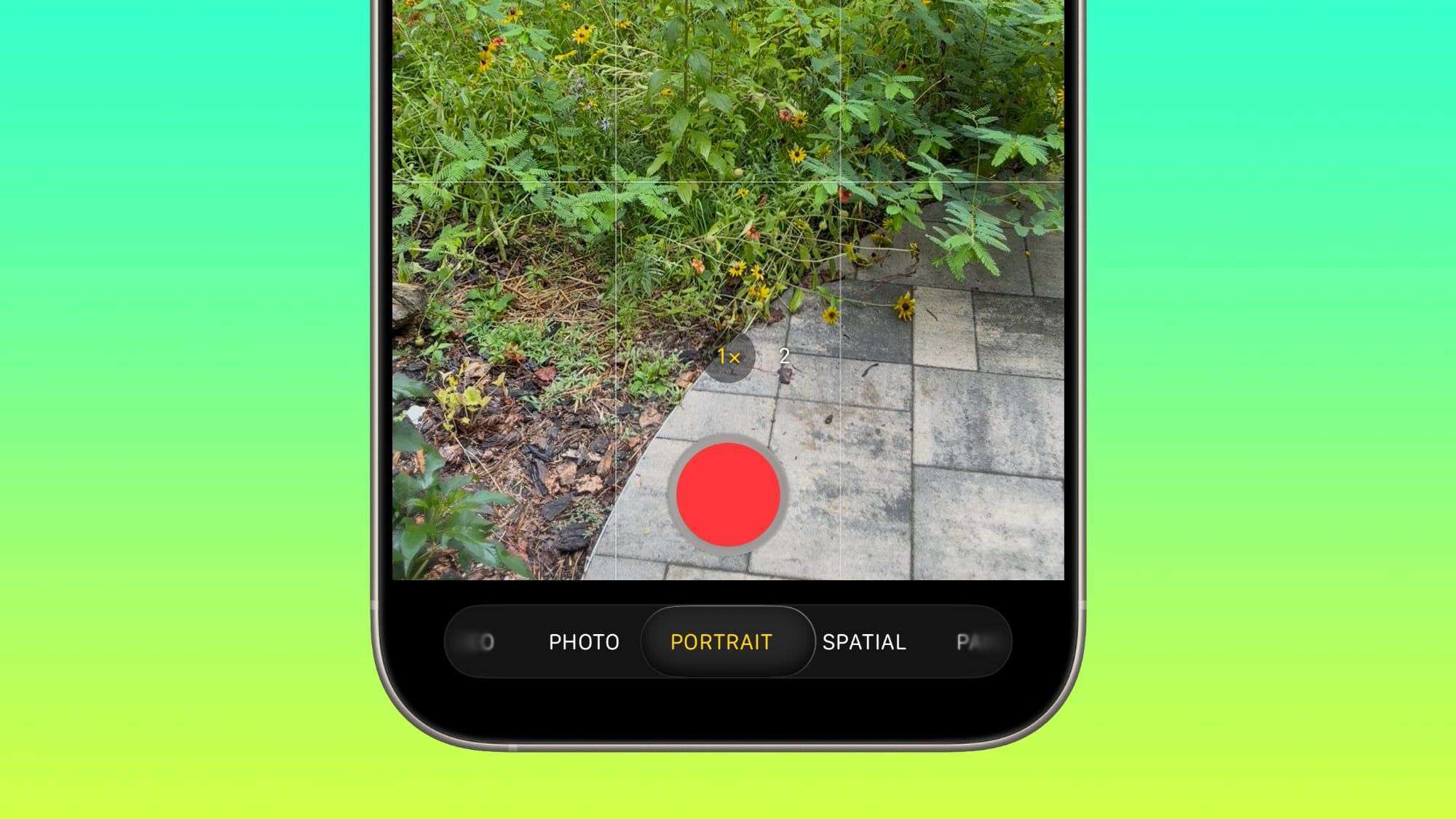
Although only the “Photo” and “Video” buttons are visible in the iOS 26 Camera app, you can swipe in the same way to access other options such as “Portrait,” “Panorama,” “Slow Motion,” “Cinema,” and more.
On cameras with multiple lenses, the small buttons for changing the focal length remain the same length, and the buttons for viewing the photo just taken or switching to the front camera have not changed their position. The photo view button is now round instead of square, in keeping with the Liquid Glass update, and Apple has moved the controls down on the display.
The photo and video buttons are located below the shutter button, instead of above it as before. The shutter button itself is no longer surrounded by a bright white ring, but has been replaced by Apple with a more discreet Liquid Glass ring. The size of the top and bottom bars has not changed.
Pop-out Menus
Some of the controls that were previously located at the top of the Camera app are now housed in pop-out menus. If you select a mode like “Photo,” you can tap the “Photo” button to see more options.
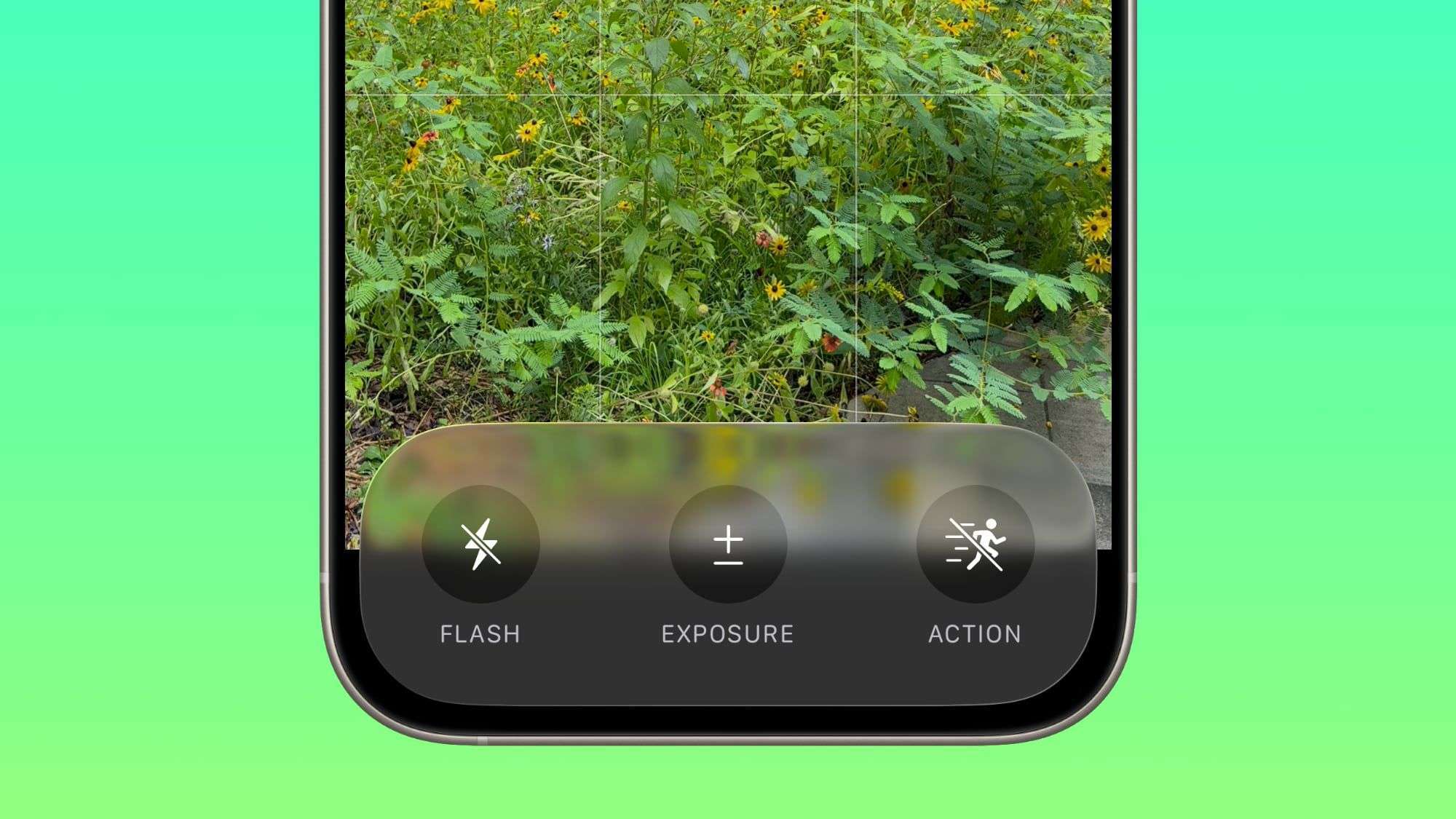
The menu has a liquid-glass design and offers large buttons for accessing flash, Live Photo settings, timer, exposure, styles, aspect ratio, and night mode. Tapping any of these options provides additional options for that setting. For example, tapping “Exposure” displays a slider that allows you to quickly adjust the exposure setting before taking the shot.
In Video mode, you can access Flash, Exposure, and Action by tapping. Most other modes also have at least one option that can be accessed via this new menu. These menu options are also accessible by tapping the menu icon in the top right of the display.
At the top of the Photos app, there are a few quick access buttons, allowing you to switch to RAW mode, tap Styles, or access Flash and Night Mode settings without having to open the menu. Context-specific settings such as the Macro Mode switch will continue to be displayed as before when needed.
In the Camera section of the Settings app, there are switches to display the indicators for flash, Live Photo, and Action Mode.
AirPods Remote Shutter
The AirPods Pro 2 and the AirPods 4 can be used as a camera shutter in iOS 26. This means you can take a photo by pressing the stem of the AirPods. To do this, connect your AirPods to your iPhone, open the Camera app, and hold down the AirPods style.
You can take a photo or start recording a video by holding down the AirPod. Once the video is finished, hold down again briefly to stop recording.
This feature requires iOS 26 and the new AirPods firmware. Using the AirPods as a remote shutter release works with both the camera app and third-party photo apps.
Cleaning warning
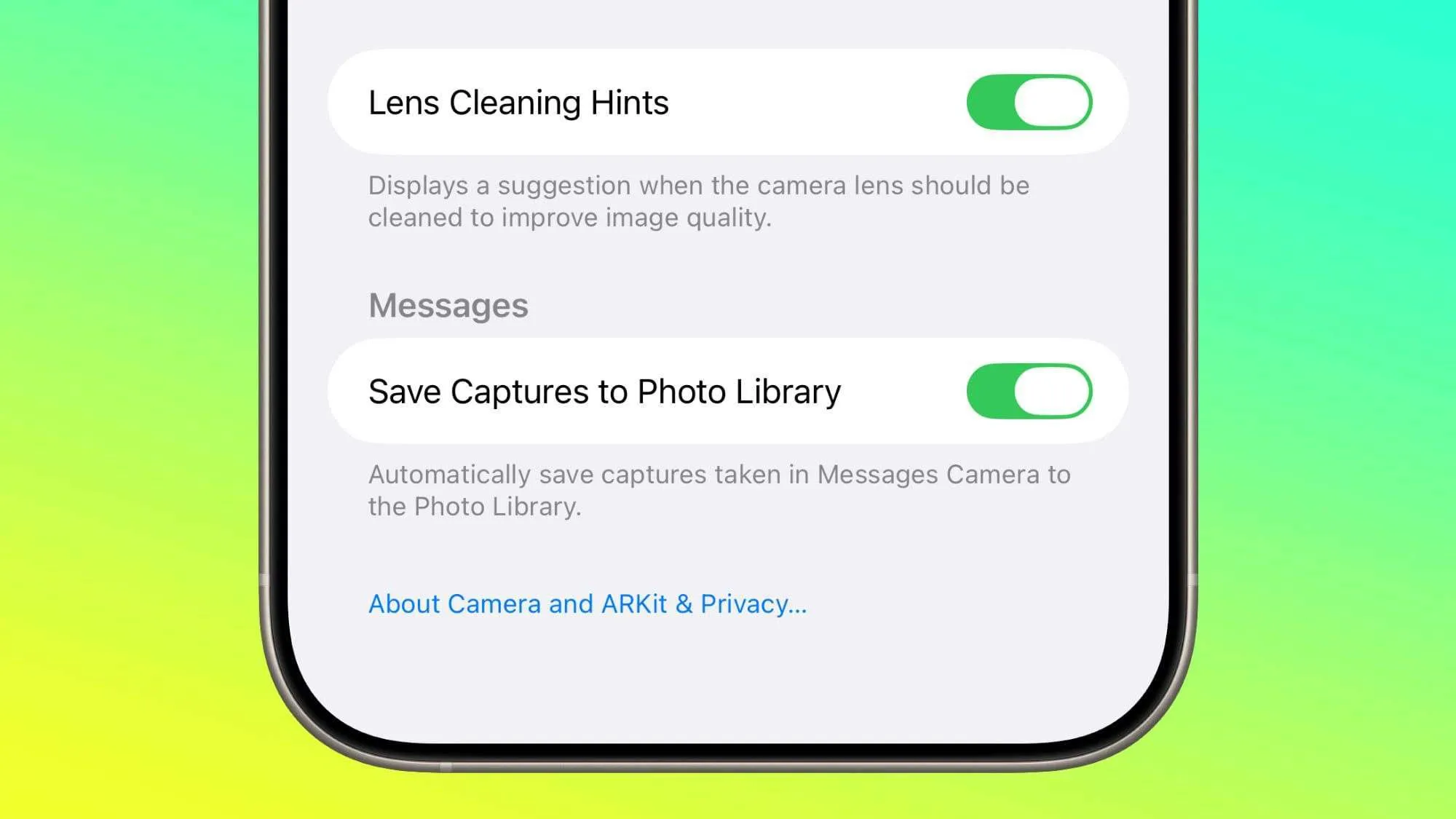
If your camera lens is dirty, your iPhone can see that the camera must be cleaned and sends you a corresponding notification.
Cinematic Mode API
Developers have access to a new Cinema Mode API in iOS 26. This allows third-party apps to record videos in Cinema Mode, just like with the built-in Camera app.
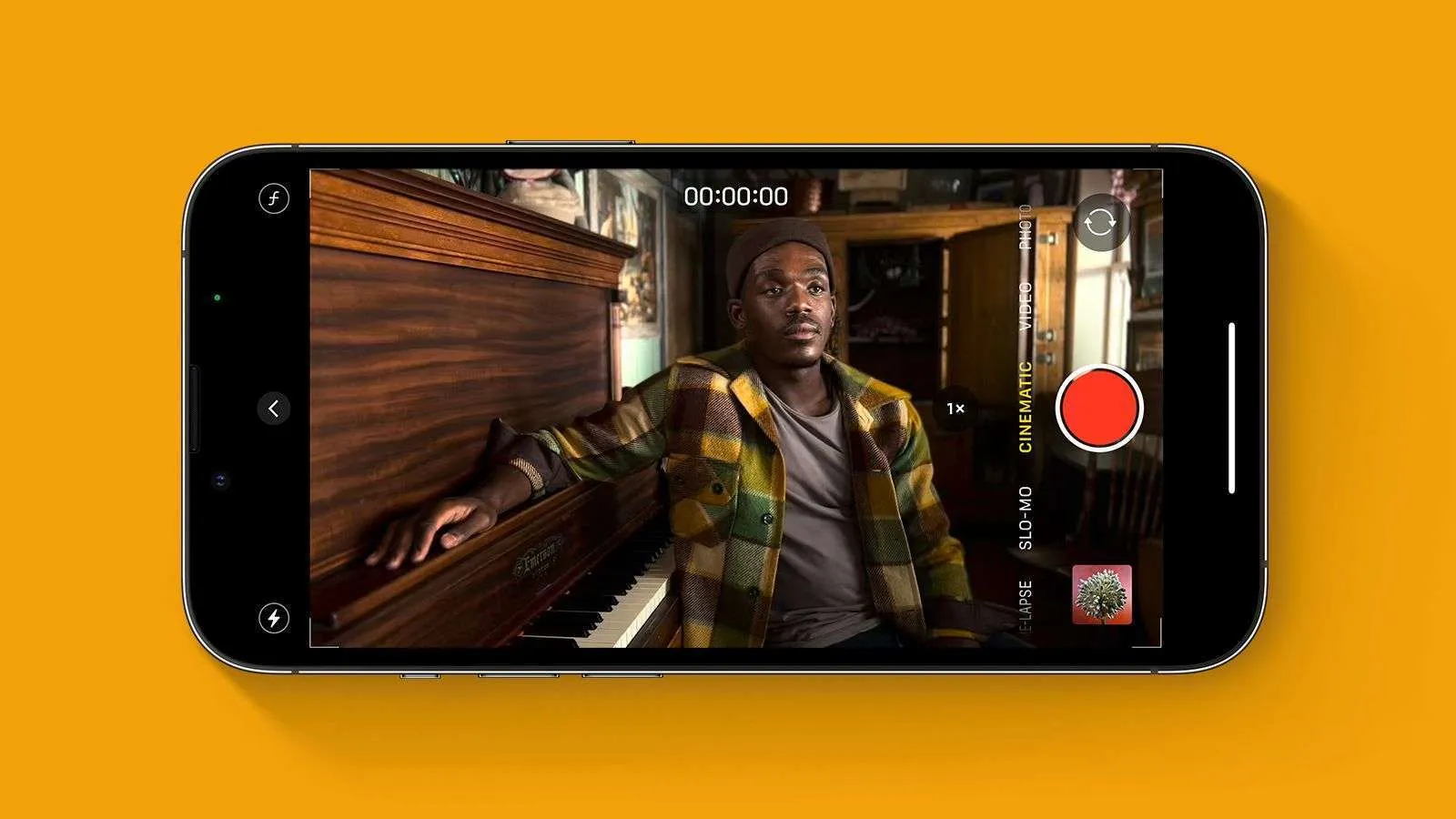
Cinema Mode supports shallow depth-of-field video recording and automatic focus switching between subjects. Apple uses focus shift to quickly switch focus from one subject to another, creating a cinematic recording experience.
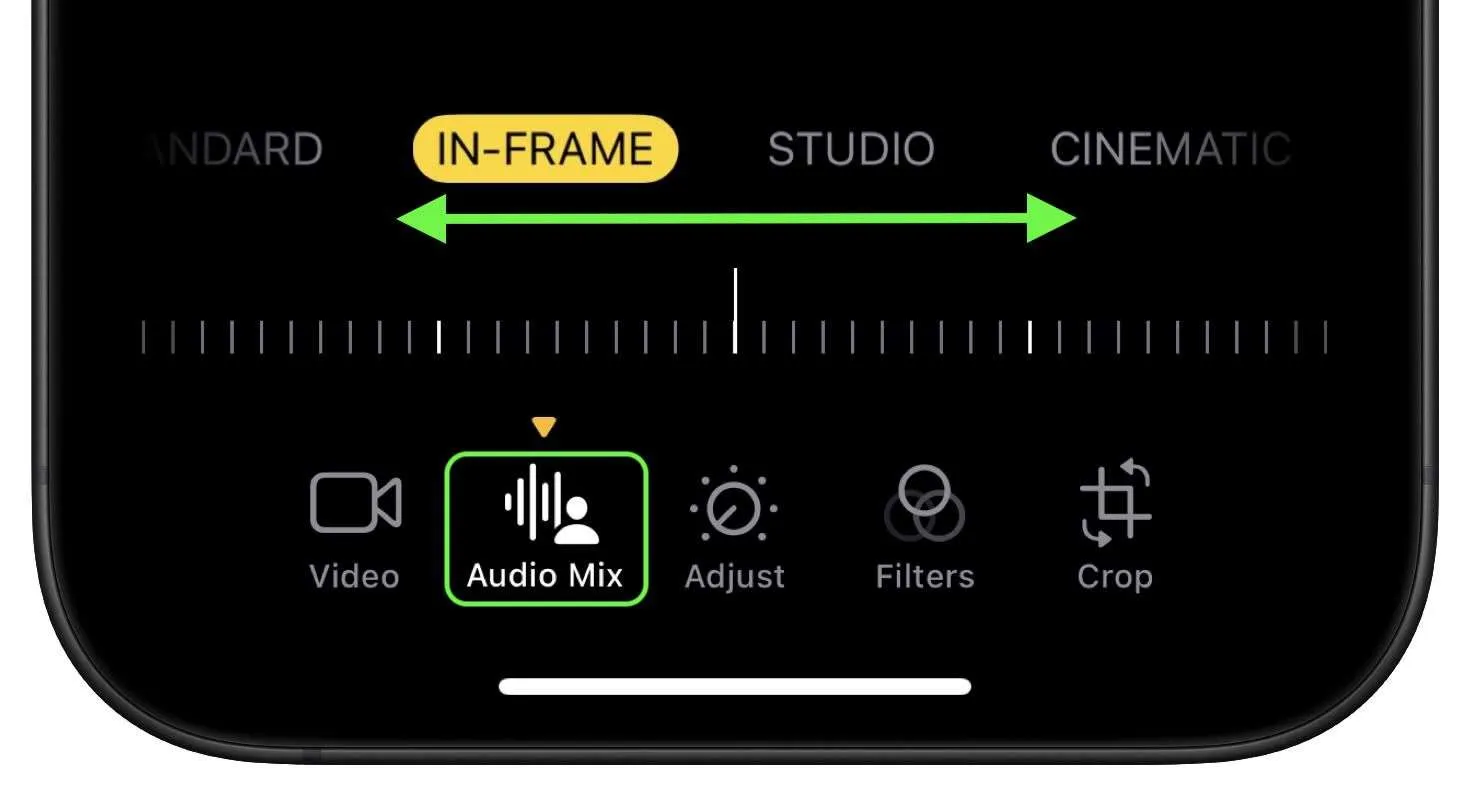
Apple also provides developers with an Audio Mix API to adjust audio after video recording. Third-party video recording apps may offer the same audio mix controls as the Camera app. Options include “In-Frame” to reduce noise and voices from out-of-frame sources, “Studio” to reduce background noise and reverb, and “Cinema” to insert voices into a forward-facing track while leaving ambient sounds in surround sound, similar to movie sound.
Mac Accessibility
With macOS Tahoe and iOS 26, your Mac can connect to your iPhone. Your iPhone’s Camera app can be used as a magnifying glass. The Magnifying Glass feature on the Mac leverages the iPhone’s zoom capabilities, with the iPhone’s video feed displayed on a connected Mac via Camera integration.
Apple showed a visually impaired student how to use an iPhone to magnify a whiteboard in a lecture. The video feed was transferred to her Mac.


