Apple iOS 26: Reduce Liquid Glass transparency
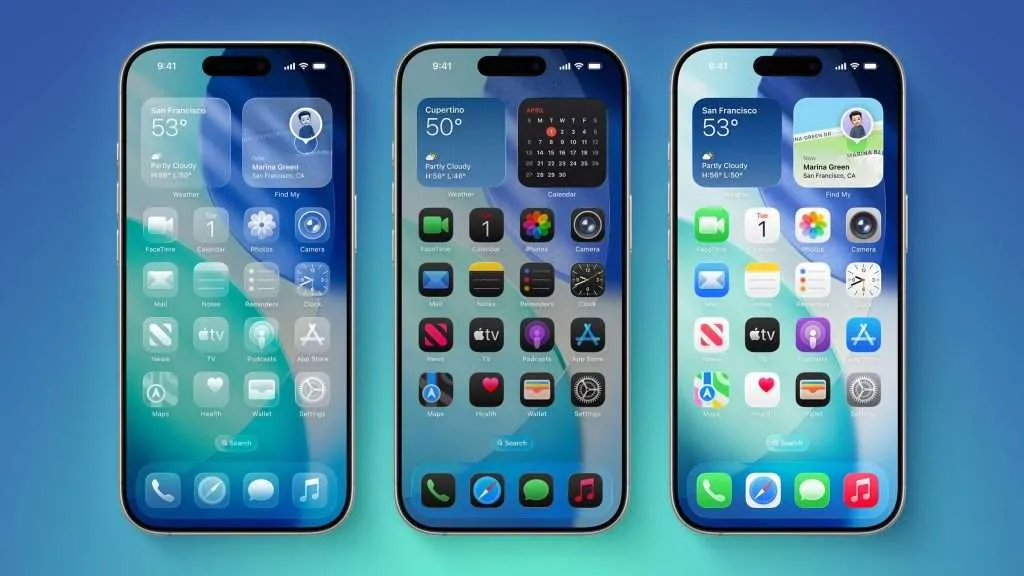
The Apple iOS 26 update, which is currently in beta phase, brings with it The new Liquid Glass design language offers a striking visual overhaul. However, if the translucent elements cause readability issues, or you simply prefer a more opaque interface, there’s a quick access setting that can help you improve the display.
iOS 26 and Liquid Glass
The Liquid Glass design creates transparency effects throughout the system interface and in standard apps. On the Home screen, the search bar, dock, and app folders are displayed with transparent backgrounds. The app icons themselves now feature a new, multi-layered glass appearance, adding visual depth and dimension to your device. There’s also a new “Clear Appearance” option that ups the ante even further.
While visually impressive, these transparency effects can sometimes impair readability, especially for those with visual impairments. Fortunately, Apple has integrated accessibility features to make the user interface more accessible.
How to reduce transparency
The quickest way to make the iOS 26 user interface more opaque is to use the “Reduce Transparency” setting:
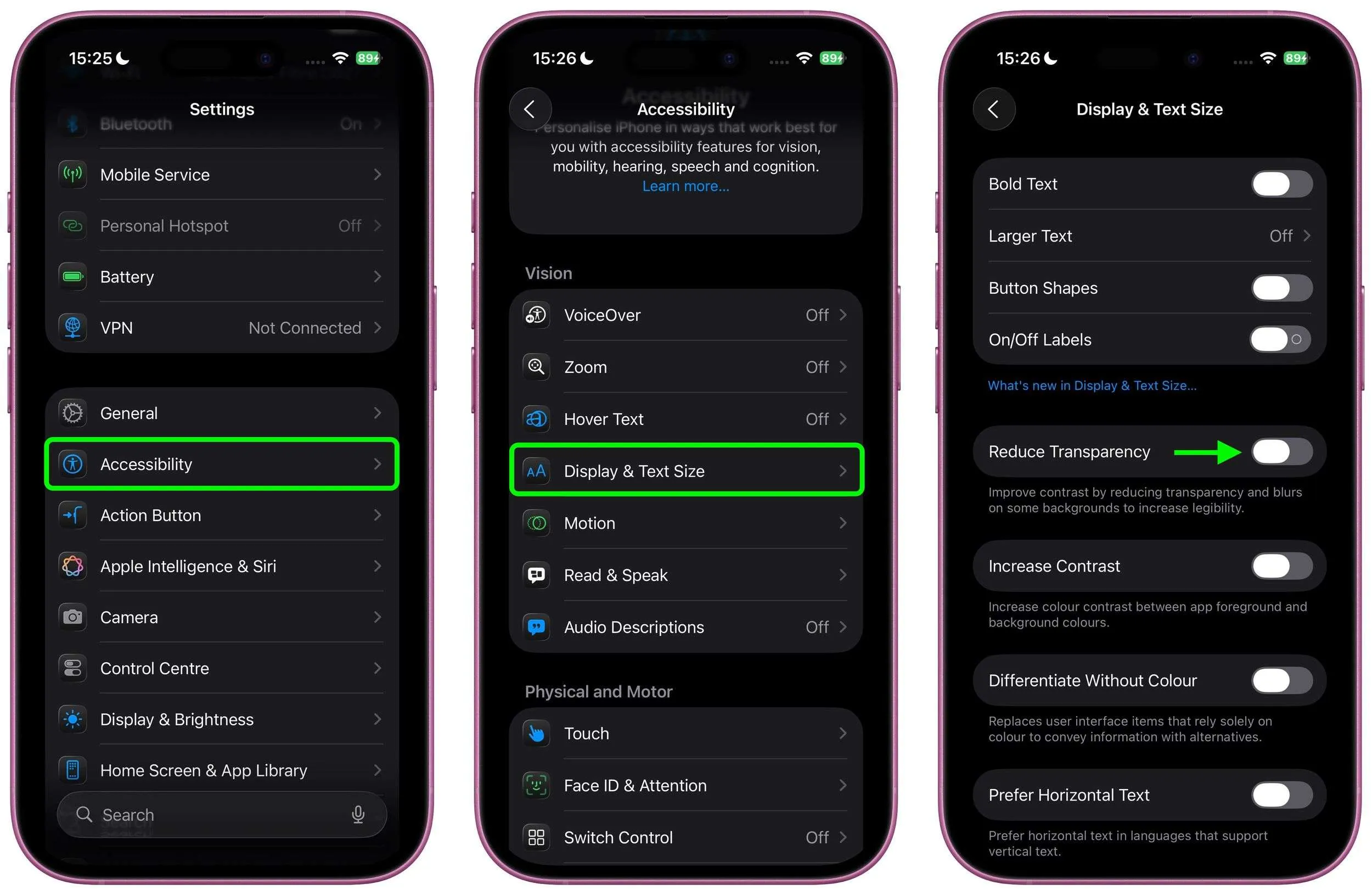
- Open Settings on your iPhone
- Tap Accessibility
- Select Display & Text size
- Enable “Reduce Transparency”
This setting adds darker backgrounds to translucent areas such as the Control Center, app icons, and app folders, so you should see greater contrast between elements throughout the system.
Note that “Reduce Transparency” does not completely remove all translucent elements or change button shapes. Translucent areas simply become more opaque, while maintaining the overall aesthetic of iOS 26.
“Reduce Transparency” as a Control Center shortcut
For quick access to this setting, you can add it to your Accessibility Shortcuts to access it from the Control Center interface:
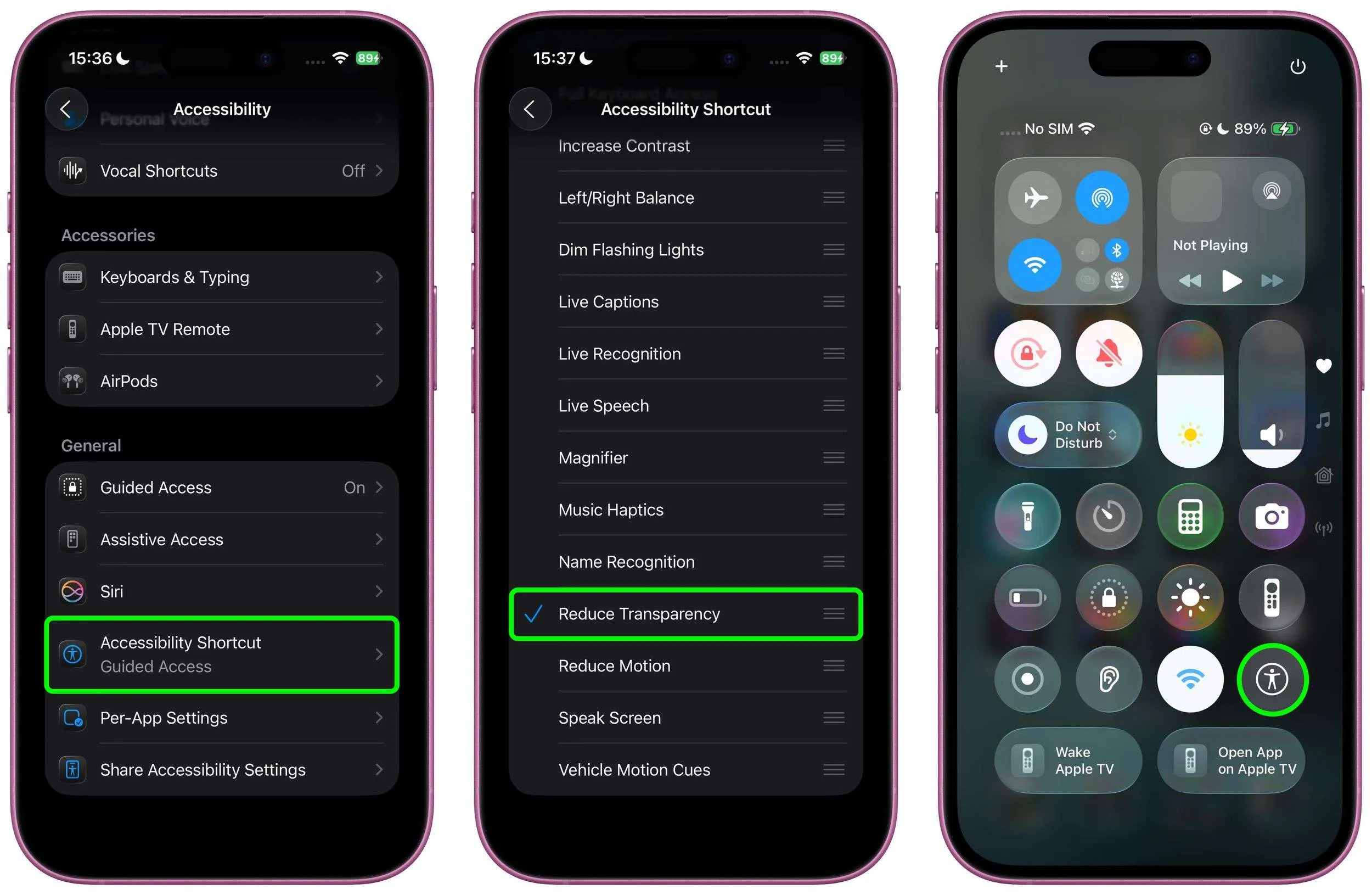
If you’d like, you can add the Accessibility Shortcut button to Control Center. To do so, long-press a space between the interface buttons and then tap “Add Control.” You can then quickly toggle the setting on and off directly from Control Center. This allows you to easily switch between the full Liquid Glass experience and a more opaque interface as needed.
Additional contrast options
If you continue to experience readability issues after enabling “Reduce Transparency,” go back to “Settings” -> “Accessibility” -> “Display & Text Size” and enable “Increase Contrast.” Note that activating “Reduce Transparency” and “Increase Contrast” simultaneously will cause most icons to lose their transparency.
The Liquid Glass design is still in beta phase, so Apple will likely continue to refine the visual effects based on feedback. A wider official launch of iOS 26 is expected sometime in September.


