Samsung Galaxy Z Fold6 and Galaxy Z Flip6: One UI 7 Beta is here

Samsung has announced the One UI 7 beta for the company’s latest foldable devices, the Galaxy Z Fold6 and Galaxy Z Flip6. The program is open to users in India, Korea, the UK, and the US, and here’s the first screenshot from the Galaxy Z Fold6. The entire package has a download size of 5GB and includes the latest security patch as of March 1, 2025.
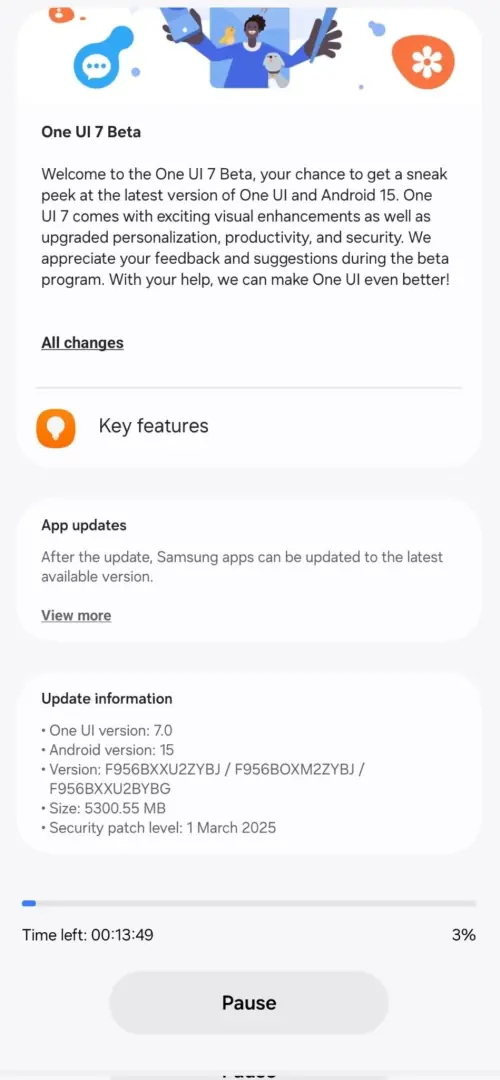
Here’s the full One UI 7 beta changelog for the Samsung Galaxy Z Fold6 and Galaxy Z Flip6 in text form. It may differ slightly between Flip6 and Fold6, but most of these features are also available on other One UI 7 devices, such as the Galaxy S25 series flagships.
Galaxy AI
Write like a pro
Let Galaxy Al help you with writing tasks wherever you can select text. You can correct spelling and grammar, change the tone, summarize, or apply formatting. You can even start with a short snippet and let Al do the writing for you.
Transcribe recorded calls
It’s easier than ever to review the contents of your recorded calls in the Samsung Phone app. You can view the entire conversation as a text transcript on the Recents screen
New look
Visual improvements
Enjoy a more sophisticated and unique look. One Ul 7 introduces a stunning redesign of key components, including buttons, menus, notifications, and control bars, and offers a more unified visual experience with curves and circles. Beautiful new colors, smooth animations, and an innovative blur effect unique to One UI make the information hierarchy clearer and help you focus on important information.
Redesigned icons and widgets
Fresh new app icons will look great on your home screen, with new visual metaphors and color schemes that make it easier to spot the app you need. Widgets have also been completely redesigned, with more colorful images and more unified layouts.
Improved Home Screen
Simplified Home Screen Grid
Your Home Screen now looks even better than before. A new default grid layout provides symmetry and makes it easier to use One Ul widgets in standard sizes.
Improved landscape view of the Home Screen
Get a more consistent look for your Home Screen, even when you use your phone horizontally. Widgets now have a similar aspect ratio in landscape mode and text labels appear below icons instead of next to them.
Customize your app and widget style
Make your Home Screen look just how you want it. You can now adjust the size of app icons and choose whether or not to display text labels below app icons and featured widgets.
New widget settings
Get the right look for your widgets. You can customize the shape, background color and transparency in the settings for each widget.
Larger Home screen folders
You can make folders on your Home screen bigger so you can open apps instantly without having to open the folder first.
Easier access to Finder
The Finder search bar has been moved to the bottom of the Apps screen so you can access it more easily with one hand. You can also add a Finder button to your Quick Screen so you can access it anytime.
Lock screen and Always On Display
Keep track of important tasks with the Now Bar
Check the information you need right now and launch important features without unlocking your phone. In-progress tasks appear in the Now Bar at the bottom of your lock screen so you can quickly check important information. Information includes media controls, interpreter, stopwatch, timer, voice recorder, Samsung Health, and more.
Customize your watch to suit your needs
Discover a variety of new watch styles for your lock screen. You can adjust the line thickness in the default clock style or try one of the new animated clocks to suit your taste.
More flexible editing
It’s easier than ever to edit your lock screen. You can resize your clock to any size and drag it to the position you want.
More widgets and shortcuts
You can now see more and do more, even when your phone is locked. Add a widget to view pictures and stories from your gallery, or try a shortcut that opens the QR code scanner with a quick swipe.
Quick panel and notifications
Separate notification and quick panels
Instantly access the panel you need, with more space for quick settings. Swipe down from the top right corner of the screen to open the quick settings panel. Swipe down from anywhere else at the top of the screen to open the notification panel. To return to the previous layout, you can view notifications and quick settings together in the quick panel settings.
Live notifications
Stay up to date with what’s happening. Live notifications show you the progress of ongoing activities like timers, voice recordings, exercises, and more, so you can quickly take action. Live notifications appear in the Now bar on the lock screen, in the status bar, and at the top of the notification panel.
New notification layout
The icons on notifications are now the same as the icon that appears on your home screen.
This makes it easy to see which app sent which notification. Grouped notifications appear as a stack of cards. Tap a stack to see all notifications in the group.
Customize your Quick Panel
Create the Quick Panel layout that works for you. You can tap the pencil icon at the top of the Quick Panel to enter edit mode, then move buttons and controls up and down to adjust them to your liking.
Take pictures with ease
New camera layout
Camera buttons, controls, and modes have been reorganized to make it easier to find the features you need and get a clearer preview of the image or video you’re taking.
Mode selection improvements
The More Modes menu has been redesigned. Instead of filling the entire screen and blocking the camera view, you can now select a mode from a small popup that only covers the bottom of the screen.
Improved zoom controls
It’s now easier to select the right zoom level. A lossless 2x zoom button is now available by default, and additional zoom options appear after you select a lens.
Save exposure settings for each mode
Control how bright or dark your images are with the Exposure option in the camera’s quick controls. Once you set the exposure for a mode, it stays set in that mode, even if you switch to a new mode and come back.
Improved Pro/Pro Video modes
The Pro and Pro Video modes have a simplified layout that makes it easier to focus on the image you’re taking or the video you’re recording. A new zoom control is available when shooting in Pro Video mode that lets you control the zoom speed for smooth transitions. The microphone controls in Pro Video mode have been moved to the quick controls.
Line up the perfect shot
Get help adjusting camera position with gridlines and levels. Gridlines can now be turned on and off separately from the horizontal level. There’s also a new option to display a vertical layer.
Enjoy your special moments
Freeform collages
Go beyond the preset layouts for collages in the Gallery. You can now adjust the size, position, and rotation of images in your collage to create your own unique layout.
Edit collages in Stories
Give your story’s collage the look you want. You now have full control to edit collages created in Stories. Replace images, remove or add images, or adjust the position and size.
Motion photo effects
Apply fun playback effects like slow motion or boomerang to your motion photos. After applying an effect, you can instantly share the result as a video.
Powerful video editing
Easily undo your edits
Don’t worry about making mistakes. When editing videos, undo and redo options are now available for actions like transformations, filters, and sound changes.
Animate your videos
Add fun animation effects to stickers and text in your videos in Studio. Choose between fade in, fade out, swipe, rotate, and more.
Manage your health
Stay mindful
The new mindfulness feature in Samsung Health can help you manage stress and anxiety in your daily life. Keep track of your moods and emotions, do breathing exercises and meditation, and more.
New Samsung Health badges
Stay motivated and work toward your health goals as you earn new badges in Samsung Health. Challenge yourself to earn the new badges for energy score, exercise, activity, food, water, body composition, and more.
Never forget your medication
You can now set medication reminders in Samsung Health so you always know when it’s time to take your medication. You can also check precautions and interactions for the medications you’re taking.
Check your health records
Securely access your health records from hospitals, clinics, and other healthcare providers, all in one place in Samsung Health.
Boost your productivity
Preview for minimized apps
When multiple pop-up windows of the same app are minimized, they’re combined into a single icon. Tapping the icon shows a preview of all the app’s open windows, making it easy to select the one you want.
Group your alarms
Create alarm groups that you want to control together in the Clock app. You can turn off all alarms in a group with a single tap.
Set all alarms to the same volume
For easier setup, all your alarms will use the same volume by default. If you want to set a different volume for each alarm, you can choose that in the clock settings.
Improved file picker
The new file picker makes it easier to attach and select files in a variety of apps. It’s easy to switch between different locations and categories, and previews are shown to make sure you get the right files.
See more on big screens
My Files lets you see even more than before on big screen devices. On the right side of the screen, you can see previews of supported files along with the file path, size, and date modified.
Advanced options for routines
Program your phone to do almost anything you want. Routines are more powerful than ever with if-else logic and the ability to pull data as variables.
Schedule tasks and events
Reschedule calendar events easily
Simply drag and drop an event from one date to another on your calendar in Month view to change the event date.
Show separate calendars on widgets
You now have more control over which calendars appear on your calendar widgets. You can select just one calendar and only show events from it on your home screen, or create 2 separate calendar widgets, each with a different calendar.
Count down the days until an important event
It’s easier than ever to create a countdown widget for an event on your calendar. Go to the event details, then select “Add countdown widget” from the “More options” menu. A widget will appear on your home screen showing the number of days until your birthday, anniversary, holiday, or any other event you choose.
Move all events from one calendar to another
Avoid the hassle of moving events one by one. You can now move all events from one calendar to another, for example, your birthday, anniversary, holiday, or any other event you choose. For example, migrate all events from your phone’s calendar to a cloud-based calendar.
More options for recurring reminders
When you create a recurring reminder, you can now select multiple dates to repeat, instead of just one.
Improved Quick Add menu
It’s now easier to quickly create reminders. The Quick Add menu now offers preset options for time and location conditions.
Automatically delete completed reminders
Eliminate the clutter in your reminders list. A new optional setting lets you automatically delete completed reminders after a certain amount of time.
Reuse completed reminders
You can now duplicate completed reminders, so you can reuse them without having to re-enter all the information.
Connect and share
Recommended devices for Quick Share
Don’t waste time looking for the right device to share. Devices signed in to your Samsung account and devices you’ve shared with in the past appear at the top of the list, making them easy to find.
Continue sharing over the Internet
Don’t worry about failed file transfers. When sharing files with Quick Share, if the devices are too far apart to transfer directly, you can transfer files to your device using Quick Share.
transmission will continue seamlessly over the internet using Wi-Fi or mobile data.
Protect your security
Check the security status of your devices
Know about security risks and fix them quickly. Knox Matrix monitors supported devices logged into your Samsung account using a secure private blockchain. Each device can check the security status of other devices and notify you of threats.
Protect yourself from security threats
Auto Blocker protects you even better against cyberattacks when maximum restrictions are enabled. 2G networks are now blocked and your phone will not automatically reconnect to Wi-Fi networks. These restrictions can prevent an attacker from intercepting your network traffic.
Battery and charging
More options for saving power
You now have more control over what happens when your phone is in power saving mode. Choose exactly the features you want to limit to save the right amount of battery for you. You can even change these options while power saving mode is enabled.
More control over battery protection
When you enable battery protection, you can now set the maximum charge level between 80% and 95%.
New charging effect
When you connect a charger, the charging confirmation is smaller and appears at the bottom of the screen instead of in the middle to avoid interruptions while making it easier to check the charging status.
Accessibility
Zoom in and out with just one finger
Zooming in and out is now even easier. For people who have difficulty with pinch zoom, you can now enable 1-finger zoom from the Assistant menu. Swipe up or right to zoom in. Swipe down or left to zoom out.
Improved screen controls
The Assistant menu now helps you control the screen even more. You can now double-tap and touch and hold by simply tapping a single button. New scroll controls let you move a specific distance on the screen by tapping the start and end points on the screen.
Customize your touch interactions
Get help choosing the settings that are most comfortable for you. New tests are available for the Touch and hold delay, Tap duration, and Ignore repeated touches settings. The test can tell you if your current settings are adequate or need adjusting.
More improvements
Rewatch videos
The video player will show a button at the end of each video that lets you start the video again from the beginning.
Improved contact list
For a more consistent experience, the same contact list now appears in both the Phone app and the Contacts app. Menus and options are the same in both places, so you can always find what you’re looking for. When you search for contacts, frequently searched contacts appear at the top of search results, helping you find them more easily. So you can quickly find the right person.
Quickly add boarding passes to Samsung Wallet
When you go to a supported flight or travel website that contains a boarding pass in Samsung Internet, you’ll see a button that lets you quickly and easily add it to Samsung Wallet.
Activity forecasts
Now you can easily check if the weather is suitable for outdoor activities like running, gardening, camping, and more. You can select up to 3 activities to display in the Weather app.
Custom location labels
It’s easier to keep track of different locations in the Weather app. You can now set custom labels for the added locations, such as home, office, school, or any other place you want to check the weather.
Next Level Gaming
Game Booster’s in-game panel has been redesigned so you can change settings faster without leaving the game.
Set performance for each game
Game Booster now lets you adjust performance settings for each game separately. You can set some games to maximum performance and others to save battery life so you can play longer. Find the settings that work best for you.


