Assign ChatGPT to the iPhone action button
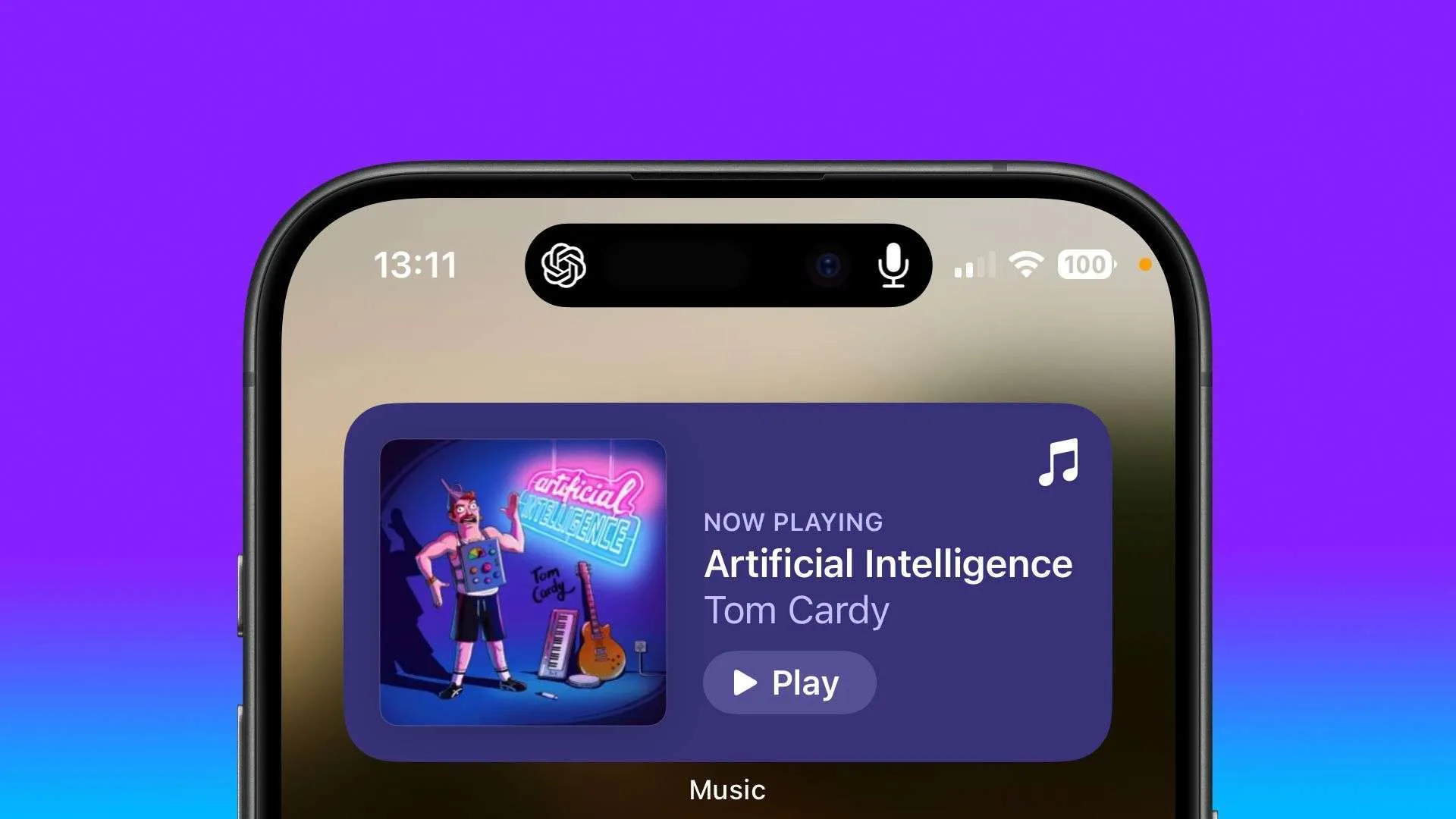
Apple currently does not allow iPhone users to replace the Siri function of the side button with another assistant. However, owners of an iPhone 15 Pro or newer iPhones can assign ChatGPT to the action button instead. With OpenAI’s free ChatGPT app for iOS, you can interact with the chatbot via text or voice. Assign voice mode directly to the action button to instantly jump into a spoken conversation and quickly switch to a significantly more powerful assistant hands-free.
Activate ChatGPT Voice
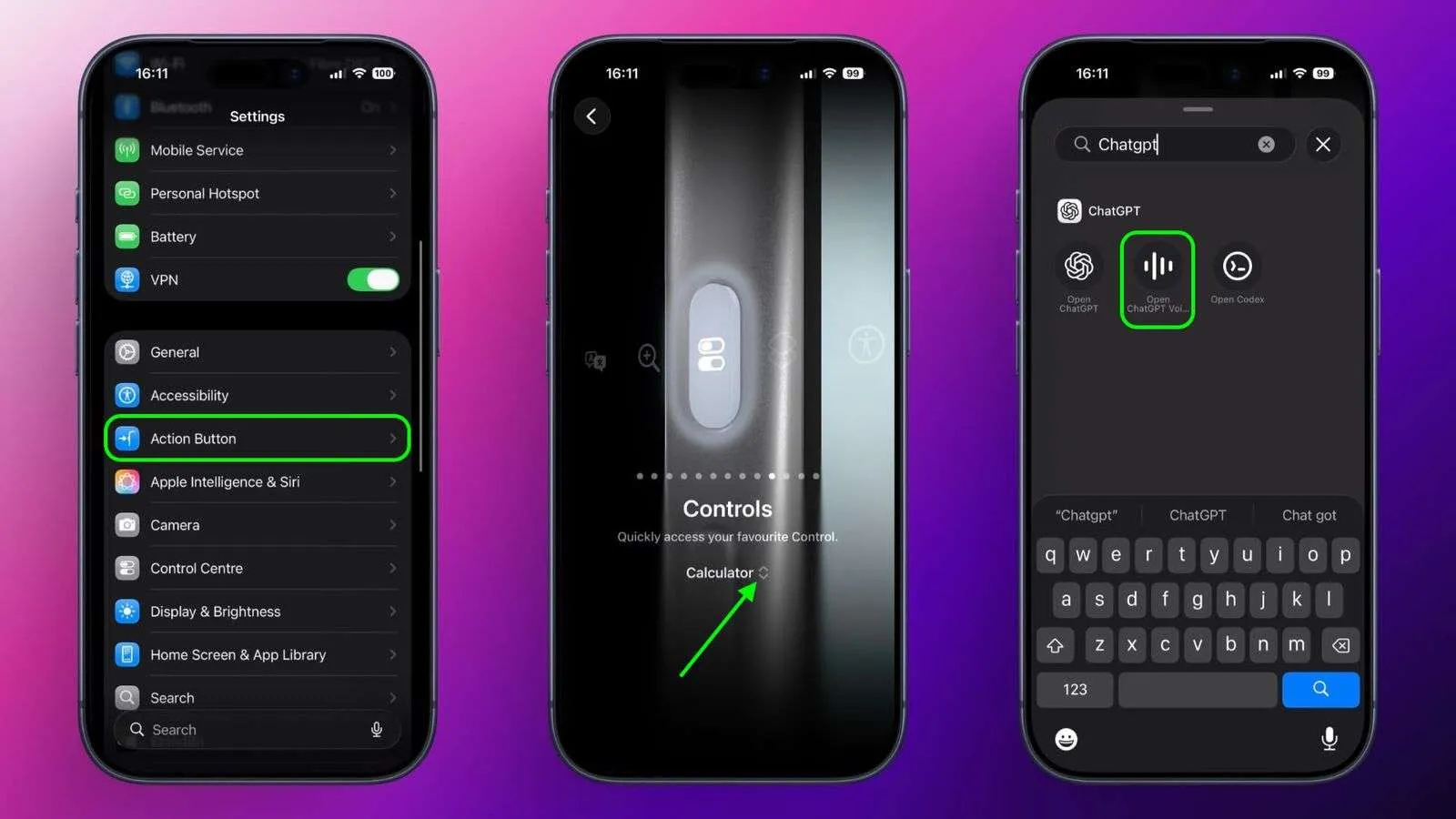
- Install the ChatGPT app and then sign in to your account or create a new one.
- Next, open the Settings app.
- Tap the Actions button.
- Swipe to Controls and Then tap the two arrows next to the currently assigned control.
- Enter “ChatGPT” in the control’s search field.
- Select the “Open ChatGPT Voice” control.
Press and hold the action button to activate the AI bot’s voice mode. The first time you activate it, the app may request microphone access. Tap “Allow” to proceed. You can then speak immediately.
Thanks to a recent update, voice conversations now take place in the same chat window as text-based prompts, instead of in a separate voice interface. Responses appear in real time, combining spoken information with on-screen text and model-generated visuals. This preserves the context of your conversation and makes switching between typing and speaking smoother.
Continue the conversation anywhere
You can also leave the app during a voice session without ending it. Swiping away will continue the conversation and display it in the Dynamic Island while the assistant listens and prepares a response. To end the session, tap the Dynamic Island to return to the app, and then tap “End.”
Note that while ChatGPT provides quick, physical access to a more comprehensive, context-aware assistant, it cannot perform Siri-like system actions such as accessing your calendar or setting an alarm.


