iOS 26: What Apple’s new Games app can do
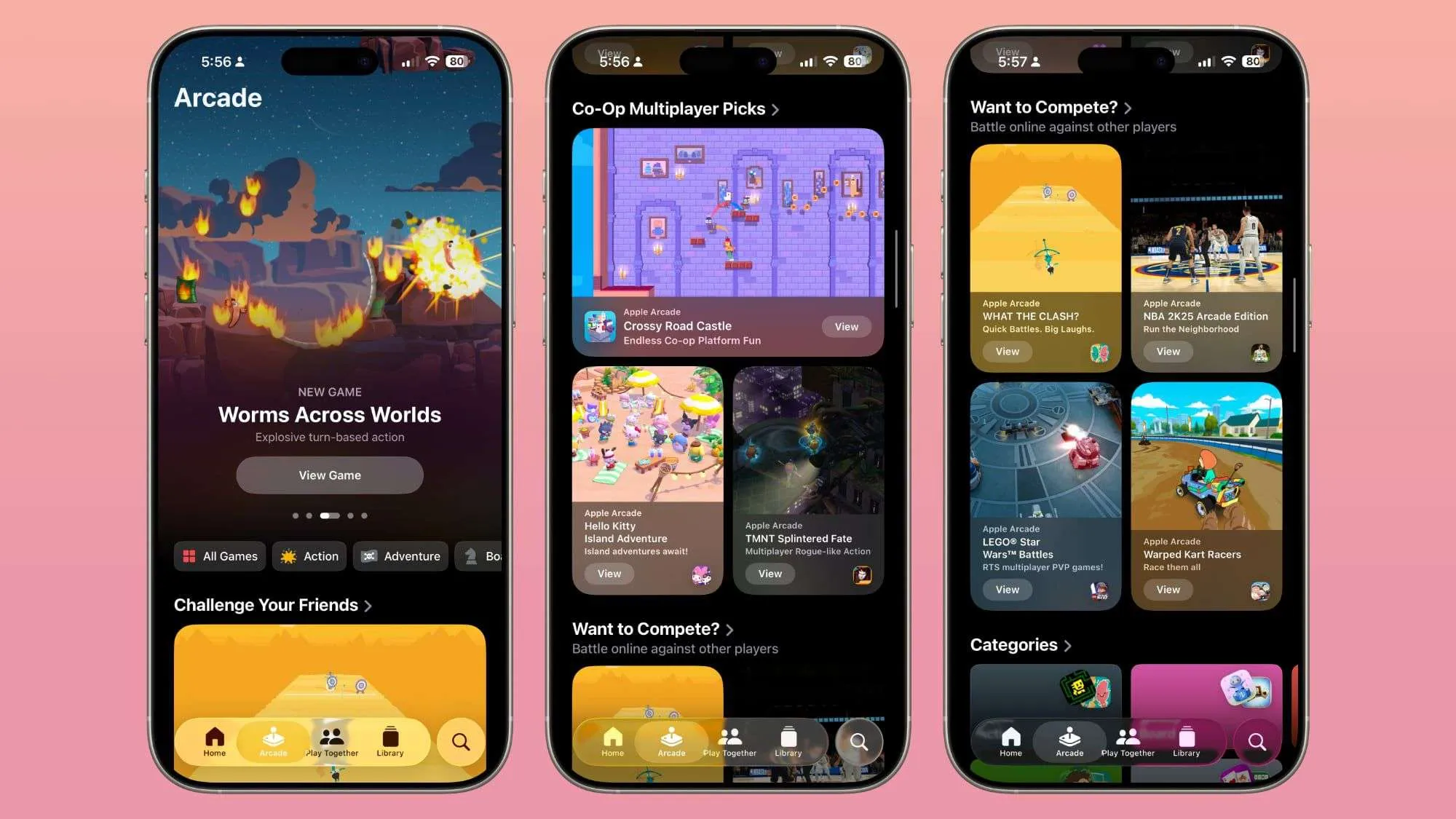
In iOS 26, iPadOS 26 and macOS Tahoe, Apple has a brand-new Games app. , designed as a one-stop shop for mobile gaming on Apple devices. The app offers features for discovering new games, as well as add-ons to further engage you. The Games app is very similar to the Games tab in the App Store, which will continue to exist. It’s as if Apple has expanded the Games tab into a full-fledged app.
Home view
The Home tab is the main view of the Games app and is customized for each user. There’s a “Continue Playing” section so you can access the last game you played with a tap. At the top of the interface is a large carousel with highlighted content such as game suggestions, friends’ achievements, and Games app features.
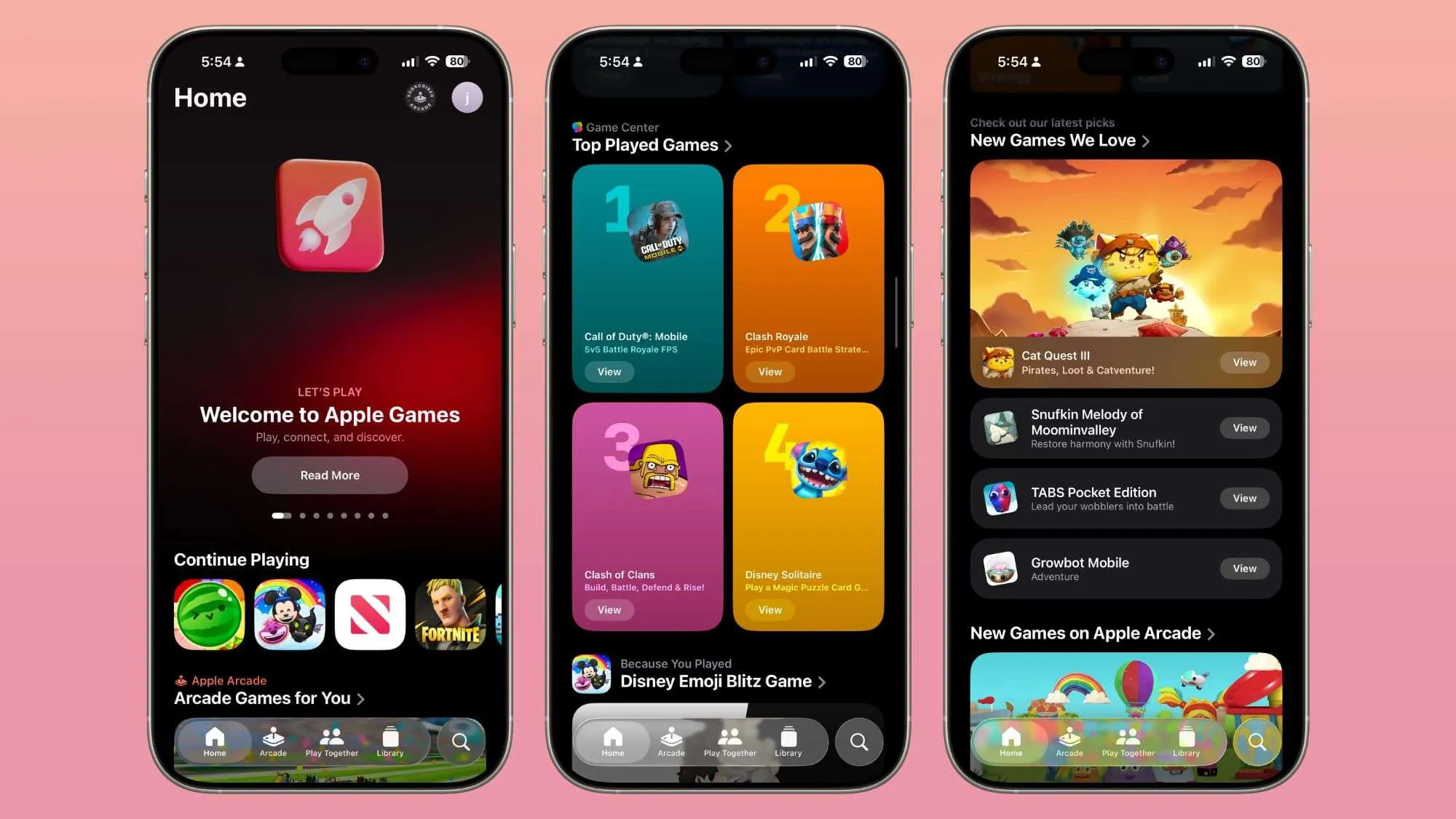
You can swipe through the content on the Home tab. This works similarly to the “Today” suggestions in the App Store. There are several sections you can scroll through to get content suggestions, some of which are tailored to your gaming history.
Some of the different sections:
- Arcade Games for You – Contains all Apple Arcade title suggestions.
- Friends Are Playing – Games your Game Center friends have recently played.
- Most Played Games – A ranked list of the most played iOS games.
- Because You Played – Suggestions based on a specific title you’ve previously played.
- Top Arcade Games – A ranked list of the best Apple Arcade games.
- New Games We Love – Recently released titles that aren’t part of Apple Arcade.
- New Games on Apple Arcade – Includes new titles on Apple Arcade, but not other App Store titles.
- Try Before You Buy – Games with demos you can try before you buy.
- Our Most Anticipated Games – Upcoming games available for pre-order.
- Friend Suggestions – Here you can invite people to be your Game Center friend via Messages.
- Top Free Games – A ranking of the best free games.
- Top Paid Games – A ranking of the best paid games on the App Store.
Events
Apple introduced events for games with iOS 15. Events for games appear in the Games app so you can see which games offer new content.
Events can include limited-time special gameplay, special trophies and items available for a short time, major content updates, crossovers, challenges, and more. more.
Apple Arcade
There’s a dedicated tab for Apple Arcade content, where Apple promotes its $6.99-per-month gaming service. The tab is divided into different sections with game recommendations, similar to the Apple Arcade tab. App Store section.
Unified Games Library
The Games app is divided into four tabs: Home, Arcade, Play Together, and Library. The “Library” tab contains all the games you’ve played on all your devices.
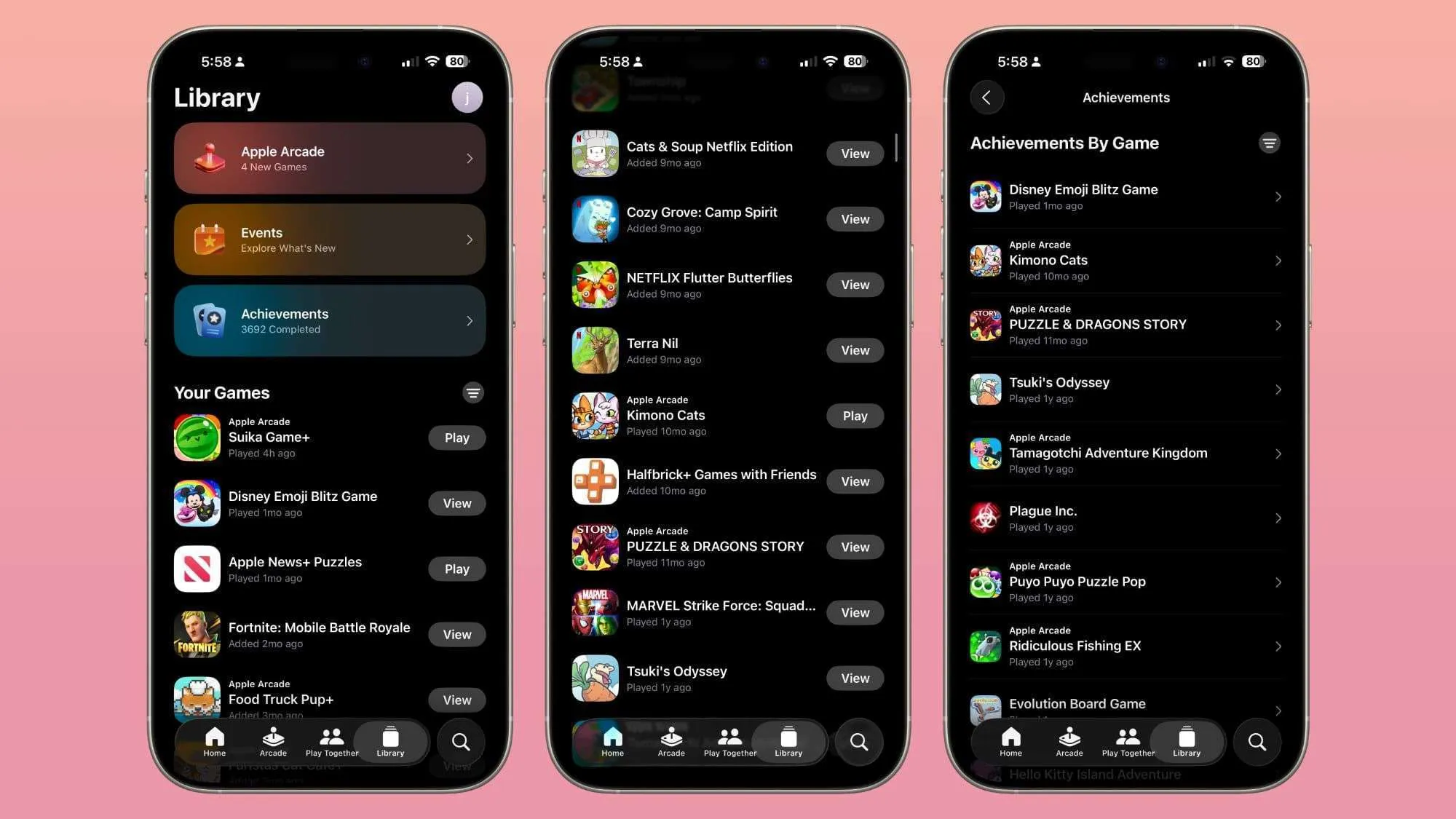
In the Library, you can see all your achievements in one place, separated by game, with filters for separating by platform. There are also quick links to new Apple Arcade titles and events.
Game Info
Tapping a game will show you when you last played it. You also have the option to launch or re-download it if you’ve deleted it or played it on a different device.
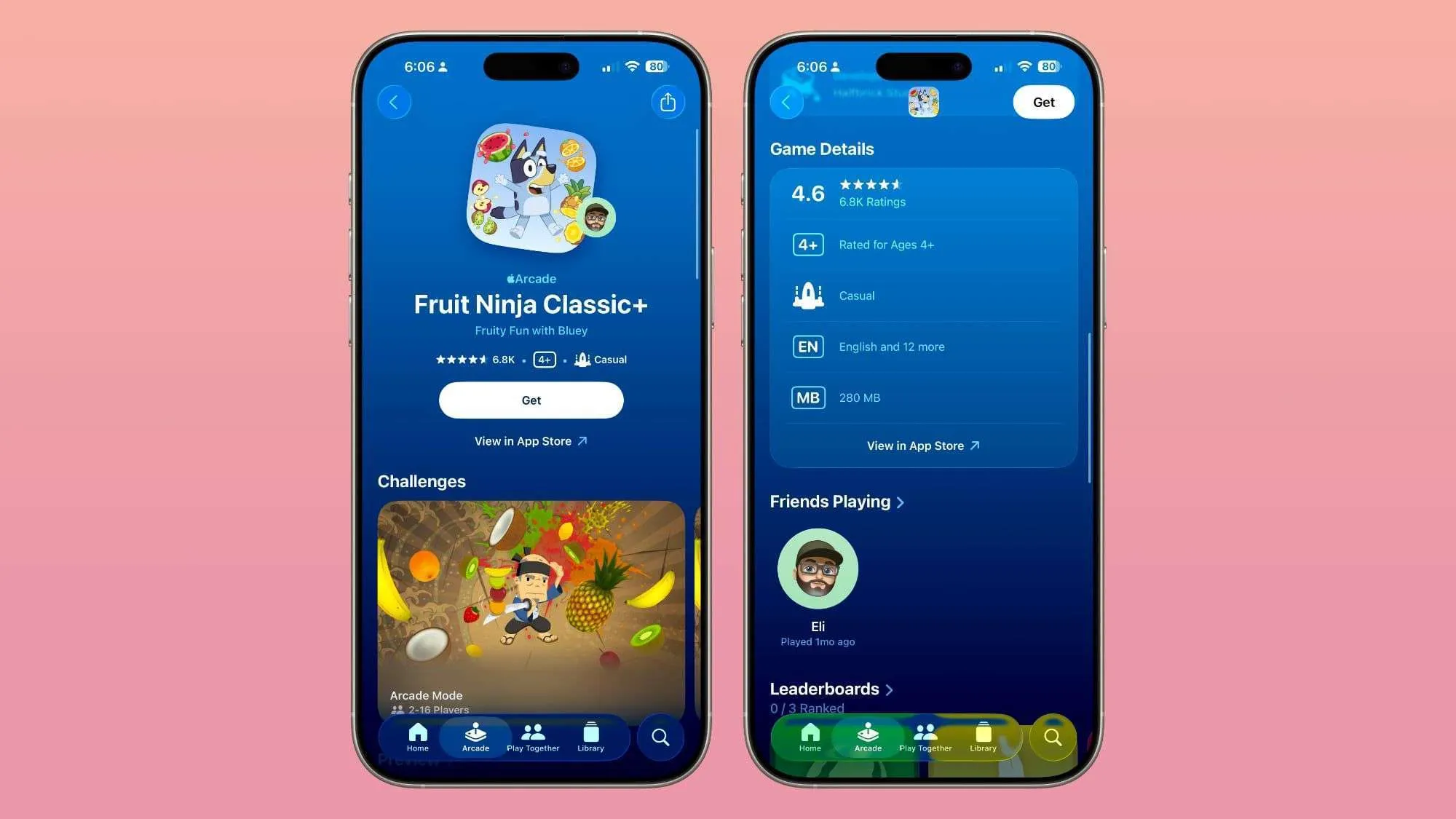
All games have a game details section that provides clear information about the game’s rating, type, controller support, and size.
Play Together
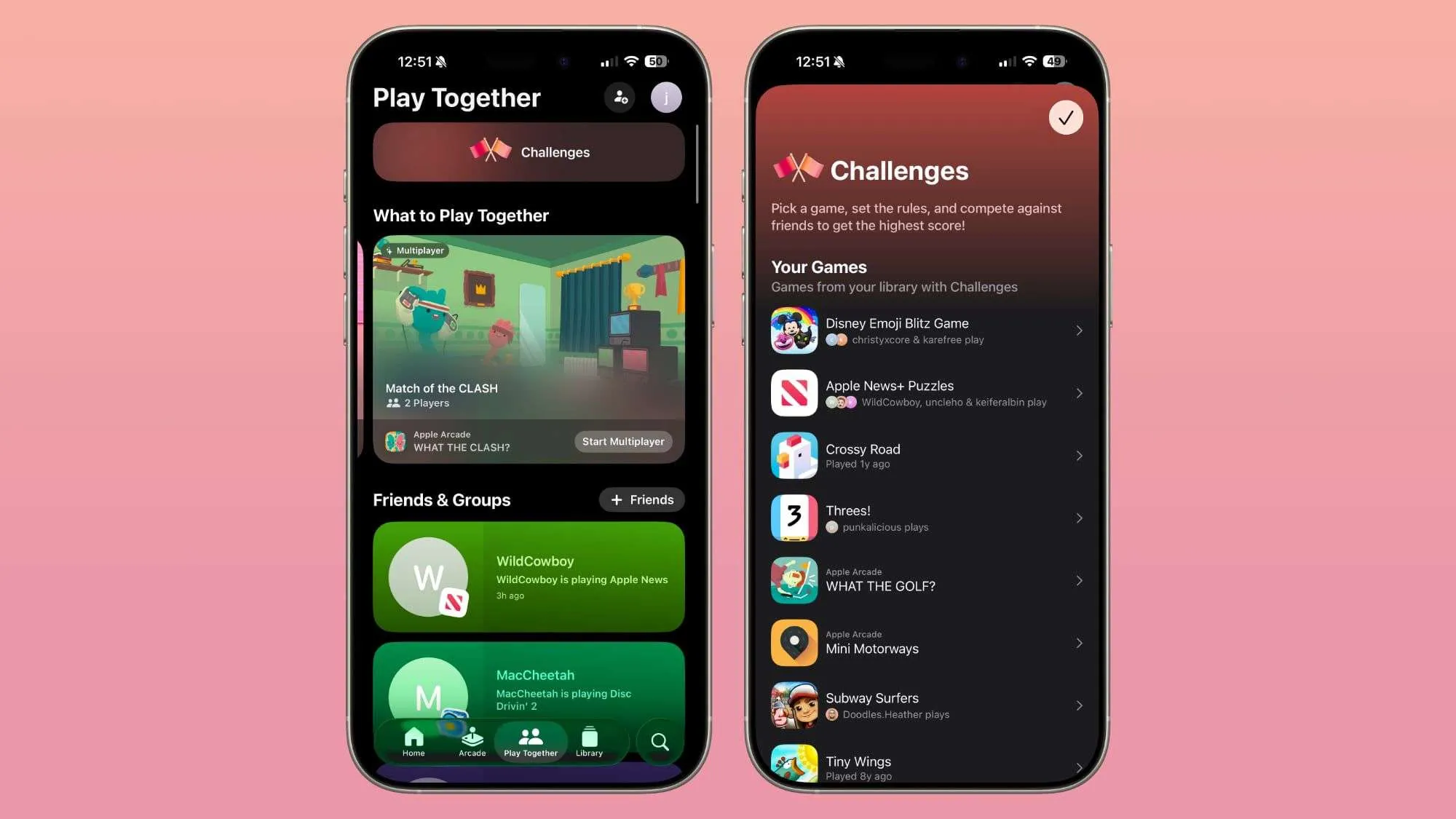
In the special tab “Play Together” you can see a list of games that play your friends, as well as suggestions for multiplayer games that you can play with others. There is also a special challenge tool, a new function.
Multiplayer games
For a multiplayer game you can tap the “Start” multiplayer option and then invite someone to play along. There is a list of friends with which you have already played multiplayer games, as well as a party code that you can send to someone, and an invitation link.
Both players must use iOS 26, IPADOS 26 or MacOS 26 (or higher) in order to be able to use the multiplayer functions of the Games app. Multiplayer games are games where you play in co-op or competition mode with one or more players.
Challenges
challenges are a separate multiplayer option for asynchronous competition gameplay in games that are traditionally only intended for individual players.
For challenges, you can select a game, set rules or parameters for the challenge and compete against friends to win. The challenge options range from the fastest loosening of a puzzle to reach the highest score. Every challenge is limited in time. For most games you can set a period of one day, three days or a week.
Game Center
The Games app clearly emphasizes the functions of the Game Center. The Game Center has been around for a long time to achieve success and play with friends, but it wasn’t as prominent in the past.
In the settings, there is still a game center area where you can invite friends and determine who you share your game activities. If you achieve a higher number of points than a friend in a game that you both play, a pop-up window is displayed.
Play mode
If you start a game, the game mode is activated. If you tap the control center in game mode, the “Overlay” option is displayed. Tap to display the best lists, invite friends and change the game settings such as volume, screen brightness and controller parameters.
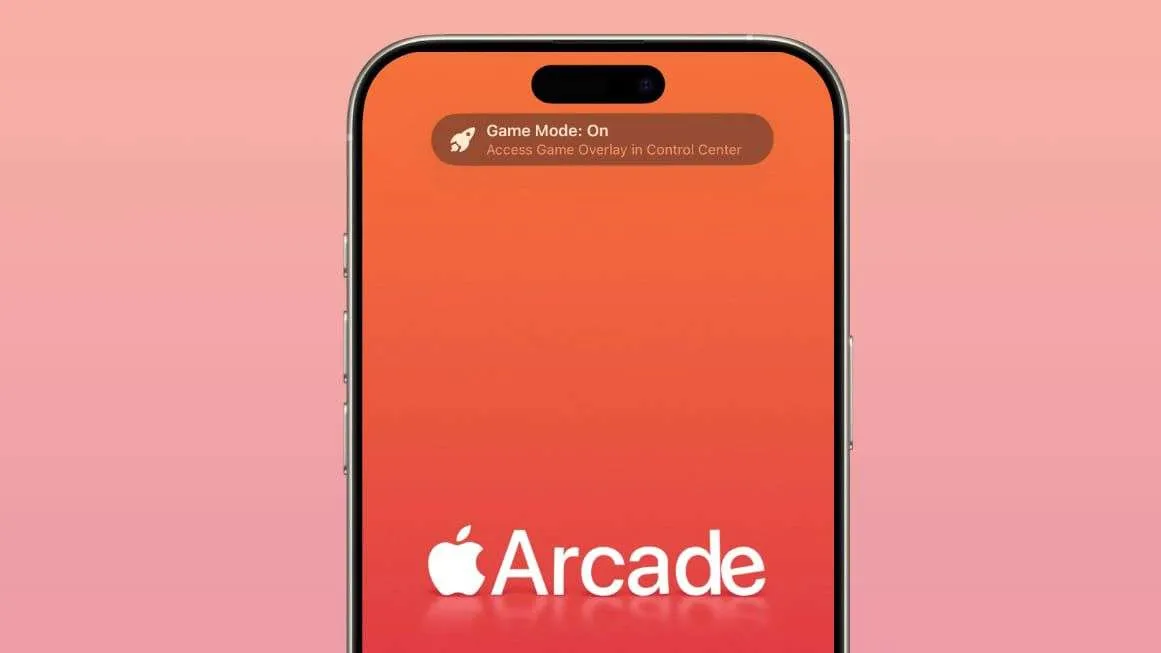
With the game mode, you can access the Game Center settings and social tools without having to leave the current game. The game mode is not a focus mode and does not block notifications or interrupts the device operation otherwise.
Further functions of the game app
If you tap your profile at the top of the Games app, you can invite friends to the Game Center and respond to friendship requests. You can also see your challenges and your game successes.
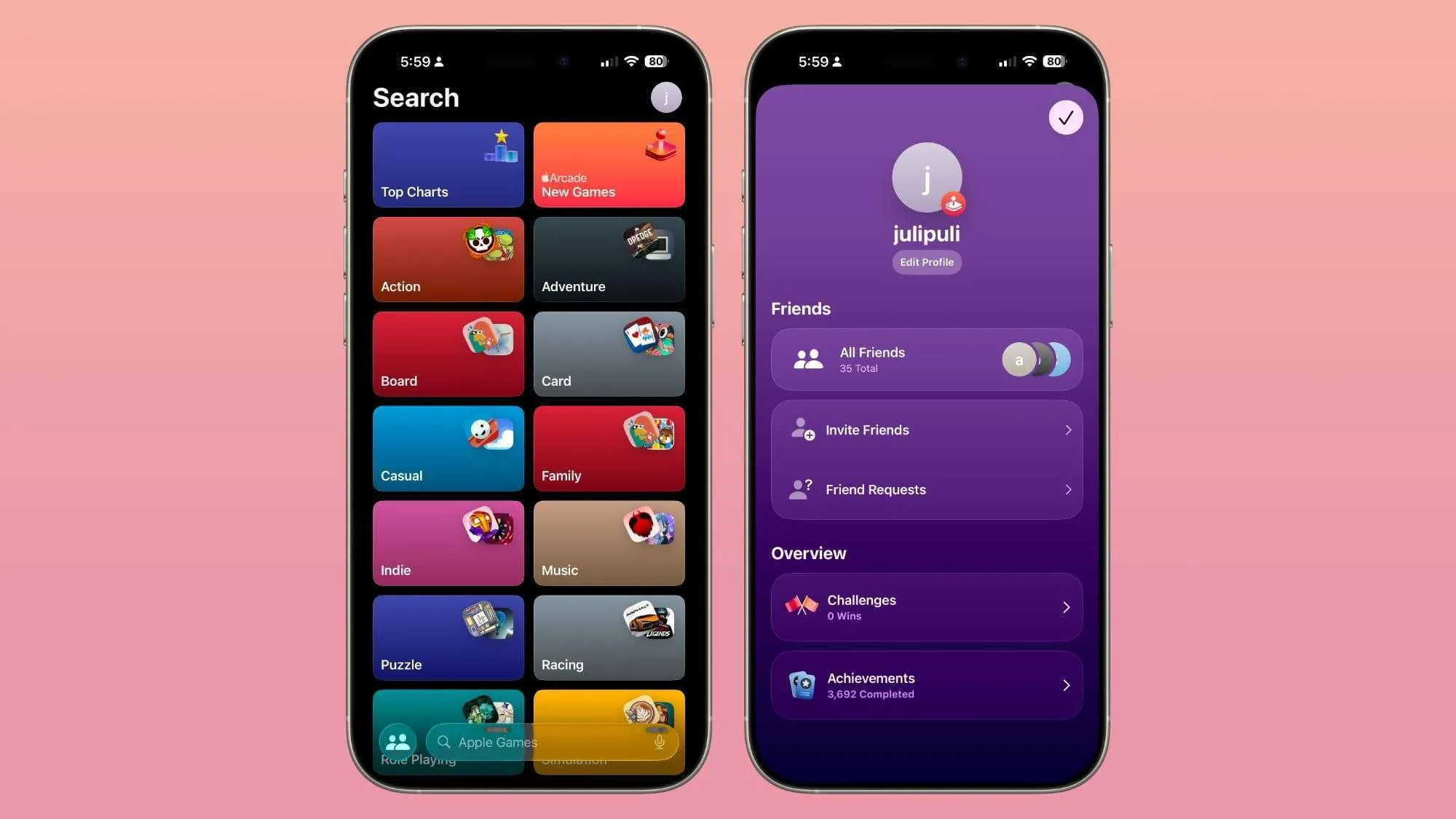
There is also a special search button that you can use to enter the name of a game or type through different game categories to find something new for playing.
Device compatibility
A device with iOS 26, IPADOS 26 or MacOS Tahoe is required for the use of the new functions of the Games app. For new functions such as challenges, both users need a device with the latest software.
The Games app is intended for playing with other Apple users. There is no function to play with Android devices or other platforms.
Read more
If you want more information, you can read our iOS 26 beta review or our iPadOS 26 beta review, which covers all the new features in both updates.


