Apple Intelligence: Everything you need to know

Apple Intelligence is the name of Apple’s artificial intelligence features, which were unveiled at WWDC in June 2024. The first Apple Intelligence features were introduced with iOS 18.1, iPadOS 18.1, and macOS Sequoia 15.1, with additional features added with iOS 18.2, iPadOS 18.2, and macOS Sequoia 15.2. However, it’s not all complete yet, and the remaining features are expected to be available throughout 2025.
Writing Tools
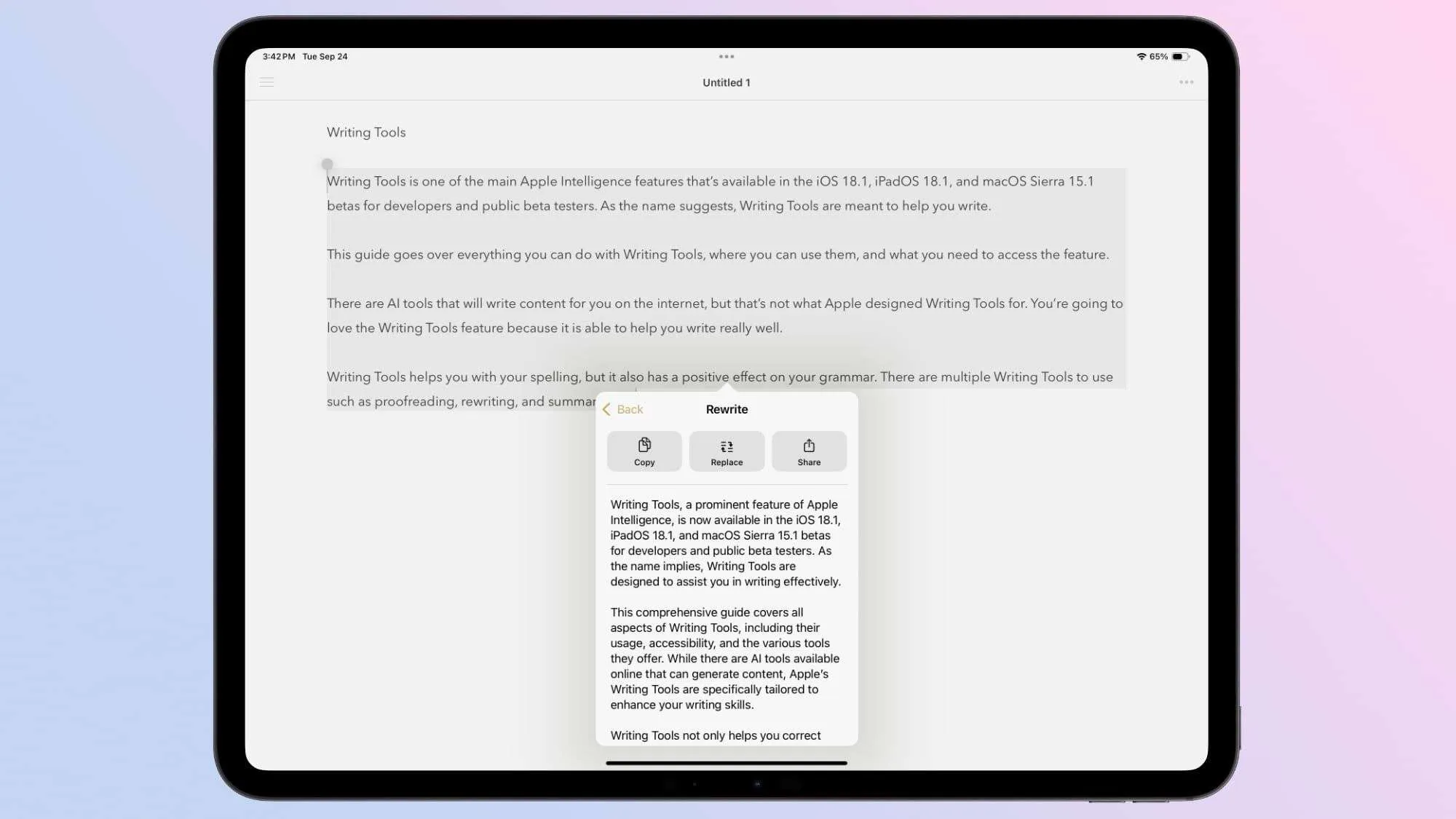
- Proofread text for spelling and grammatical errors, including word choice and sentence structure. You can accept all suggestions with a tap or review them individually with explanations.
- The Rewrite feature cleans up your text and adjusts the tone without compromising the content. Choose from “Friendly,” “Professional,” or “Concise.”
- You can select text and get a summary using Apple Intelligence. You can create a paragraph, highlight key points, create a list, or create a table. Summaries are available in Mail, Messages, and other formats.
- The Writing Tools option lets you describe changes to your text. You can choose any mood and writing style you want, with varying degrees of success. If you want to make something more flowery or detailed, you can do so with Writing Tools. You can also convert your text to another format, such as a poem.
- Writing Tools has a compose feature that leverages Siri ChatGPT integration. With this option, Siri ChatGPT can be used to compose text from scratch instead of simply rewriting it.
You can select any text on your iPhone, iPad, or Mac and access writing tools for summaries and other features using Apple Intelligence.
Siri with Apple Intelligence

- A glow appears around the edges of the display when Siri is activated and applies to iPhone, iPad, and CarPlay. On Mac, Siri windows can be placed anywhere. The glow animates in response to the sound of your voice, so you can tell when Siri is listening without interrupting other activities.
- Double-tapping the bottom edge of the screen opens the Type Siri interface, allowing you to type requests instead of speaking them. On Mac, you need to press the Command key twice to access Type Siri. Type Siri includes suggested requests to help you answer your questions faster.
- Siri can maintain context between requests, allowing you to ask a question and then refer to it in a second response. For example, if you ask what the temperature is in Raleigh and then follow up with, “What’s the humidity?”, Siri will ask. should know what you mean in Raleigh.
- If you stumble over your words while speaking to Siri or change your meaning mid-sentence, Siri will follow along.
- Siri uses Apple’s product knowledge and support database to answer questions about your device’s features and settings. Natural language search can even help you find settings whose exact names you don’t know.

- The Summarize button lets you summarize all your incoming emails. It also shows you a brief summary of an email in your inbox list, rather than the first few lines.
- Mail displays time-sensitive messages first, where appropriate, and places them at the top of your inbox, so you can immediately see what’s important.
- Smart Reply offers quick, one-tap replies to sent emails with contextual options based on the email content.
- Multiple Mail notifications are summarized on your lock screen, allowing you to see the contents of an email without having to open the app.
Messages

- Messages offers smart reply options for incoming texts. These analyze the content of messages and offer appropriate response suggestions.
- Multiple Message notifications are summarized on your lock screen.
- You can use all the writing tools in the Messages app to proofread and refine your scheduled messages.
Photos

- Create a memory movie with a description, such as “My cat in 2024” or “Berlin in summer.” The feature automatically selects suitable photos and songs. However, you can customize the settings using the Memory Mixes feature or set a mood for the audio direction. You can also add specific scenes and images you want to see across the entire memory when creating the prompt.
- Natural language search is available in Photos. Simply describe what you’re looking for, such as “Eric skating.”
- Search also finds specific moments in video clips.
- Search offers smart, comprehensive suggestions to narrow your search.
Clean Up
The Photos app also offers the Clean Up feature, which lets you remove unwanted objects from your photos. The Clean Up tool in the Photos app automatically detects unwanted objects in images. You can also tap, circle, or swipe over unwanted objects to remove them.

Magnifying an image can help remove minor blemishes and issues using your finger as a brush. The tool is smart enough not to remove parts of a person, even when a person or main subject is selected.
The Clean Up feature works with all images in the Photos library, including older images and images taken with other devices such as a point-and-shoot or DSLR.
Notification Summaries
In Notes and other apps, you can record audio and receive a transcript along with a summary of your transcript. This is useful for recording lectures and other audio files. Transcription isn’t an Apple Intelligence feature, but summaries are.
Focus Modes
There’s a dedicated Focus mode for reducing interruptions, which shows you only important notifications that require your attention and hides everything else.

When you customize an existing Focus mode or create a new one, there’s a new toggle to enable Intelligent Breakthrough and Silencing. This option allows important notifications to interrupt you while silencing unimportant notifications, which is the same as the Reduce Notifications Focus.
You can override notification settings for specific apps and people, as was possible before iOS 18.1.
Notification Summaries

Your incoming notifications are summarized, so you can see at a glance what’s new for each app.
Phone App
Summaries of transcriptions generated from your phone calls are supported. You can record a phone call and receive a transcription in iOS 18. This isn’t an Apple Intelligence feature. However, to get a transcript summary without having to read the entire text, Apple Intelligence is required.

Note that you can start a recording by tapping the record button in the upper left corner of the display during a phone call. All participants will be notified of the call recording before the recording begins.
Recorded phone calls are saved in the Notes app, where you can view a transcript and receive a summary.
Safari
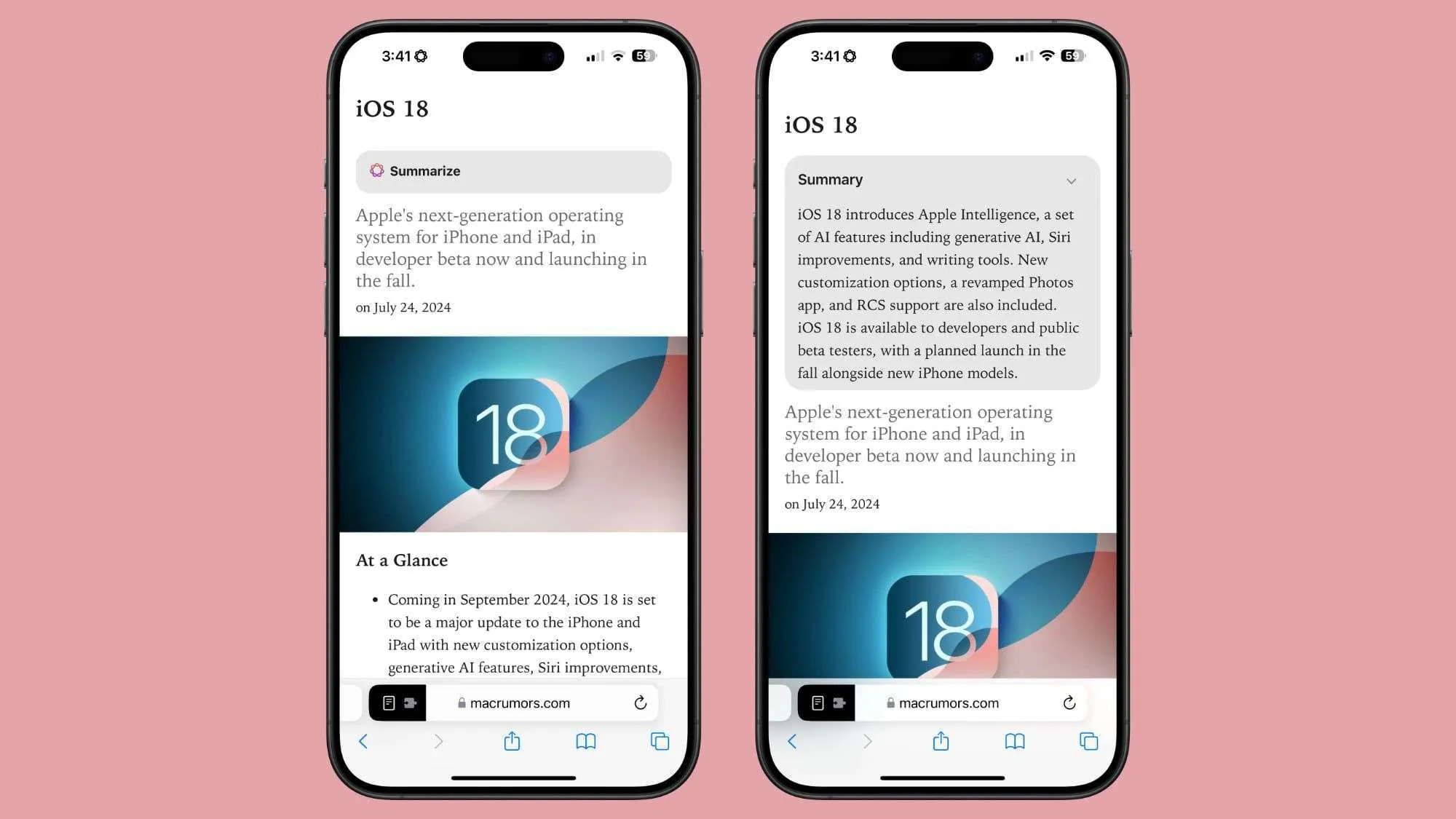
While reading an article in Read mode, you can optionally have Apple Intelligence summarize the article for you.
Image Playground
Image Playground lets you create cartoon-style images using a text-based prompt. Apple provides built-in suggestions and concepts to choose from, such as costumes, locations, objects, and themes.
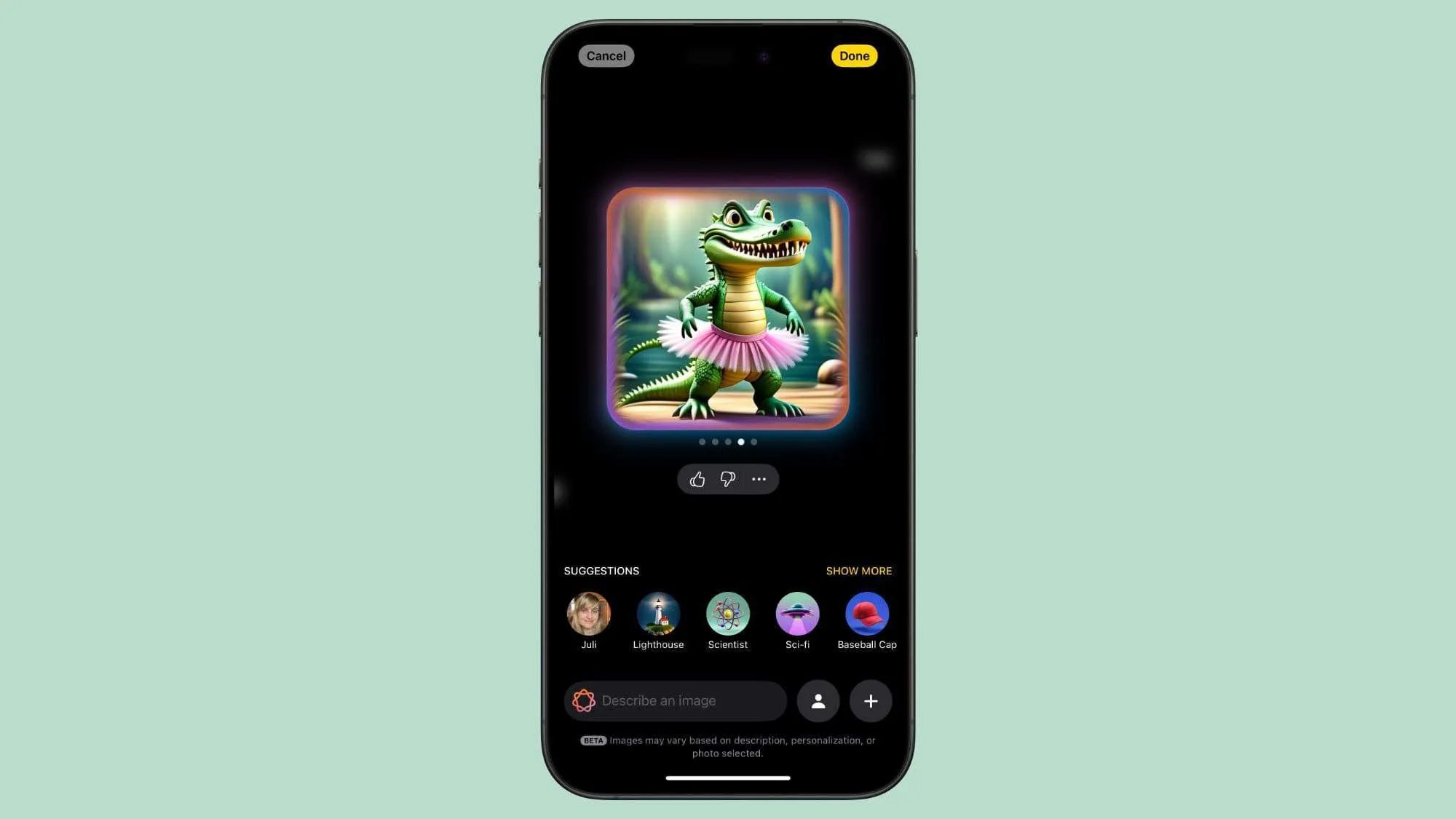
You can start with a basic suggestion or photo and then expand on it until you achieve the desired result. You can remove suggestions at any time and save your favorite creations for use in other apps. When creating with Image Playground, you have several options to choose from.
Image Playground only offers animation and illustration styles, so creating photorealistic images isn’t possible.
Image Wand
Image Wand is essentially the same as Image Playground, but in the Notes app. Once you’ve taken notes, you can circle a blank space or text, and Image Wand will add a contextually relevant image.

So, if you have notes about photosynthesis, you can add a picture of a plant under the sun. Image Wand can’t create complex images, so if you want a picture of the internal structure of mitochondria, you’re out of luck, but it can create a stylized image featuring the organelle.
On an iPad, you can use Apple Pencil to create a rough sketch of your notes and then refine it with Image Wand.
Genmoji
Genmoji are custom emoji characters that you can create using a text-based description. If you can’t find an emoji but need it, like a duck eating a sandwich or an alligator skateboarding, Genmoji can create it for you.
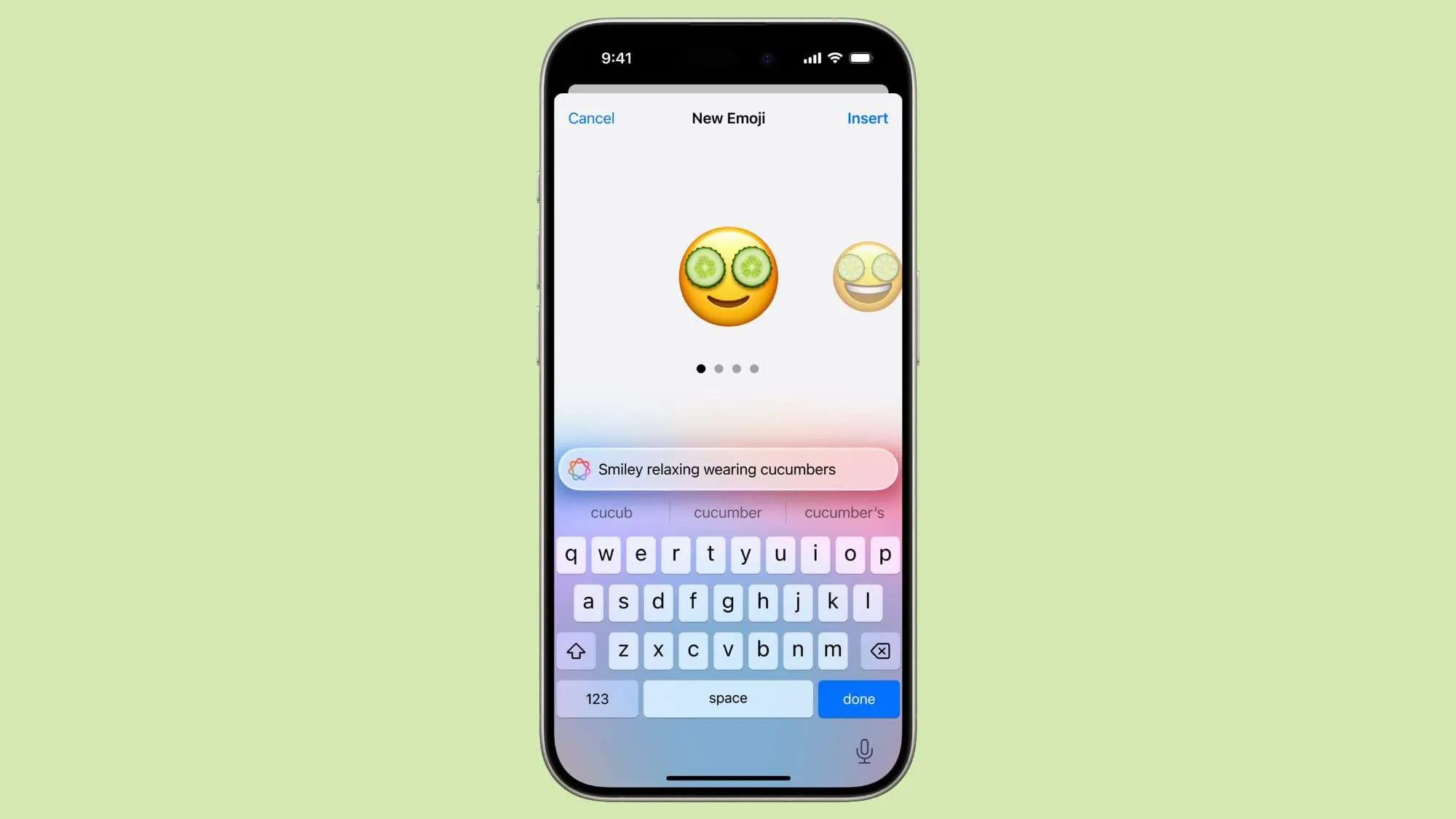
Genmoji are not unlike the images from Image Playground, but the generation system wants to add a person when there are many requests.
You can choose yourself, a friend, or a family member, or simply use a generic emoji as a base.
In Messages and other apps, Genmoji behave like emojis, but they won’t display correctly on devices running prior to iOS 18.1 or on Android devices.
To create a Genmoji character, tap the emoji keyboard and then tap the emoji with the “+” button next to the search bar. From there, you can type your idea.
Siri ChatGPT Integration
The Siri ChatGPT integration allows requests to be forwarded to OpenAI’s ChatGPT. ChatGPT is disabled by default, but you can enable it in the “Apple Intelligence and Siri” section of the Settings app.

When ChatGPT integration is enabled, Siri consults ChatGPT for complex requests. Complex requests can include creating an image, generating text from scratch, developing recipe ideas based on the contents of the fridge, describing photo content, and much more.
Siri analyzes each request to see if ChatGPT needs to respond to it. You can also automatically invoke ChatGPT for a request by using a request like “Ask ChatGPT to give me a chocolate chip cookie recipe.”
Siri will ask for your permission before asking ChatGPT. However, you can disable this additional permission step by unchecking “Approve ChatGPT requests” in the ChatGPT settings in the Settings section.
You don’t need an account to use ChatGPT. ChatGPT is free, but you can log in with a paid account. If you’re not logged in, OpenAI won’t save any of your ChatGPT requests, nor will your data be used to train ChatGPT. If you log in, ChatGPT can save a copy of your requests. Apple does not save ChatGPT requests.
ChatGPT can be used with Siri, but is also integrated with Writing Tools and Visual Intelligence. With Writing Tools, ChatGPT can generate text and use “Visual Intelligence” to answer questions about the camera image.
Visual Intelligence
“Visual Intelligence” is a feature of the iPhone 16 that utilizes the camera control button. Long-pressing the button enters “Visual Intelligence” mode, where the Camera app can recognize your surroundings.

For example, if you point the camera at a store, you can see reviews, opening hours, and other information. If you take a photo of an object, you can get more information about the object from ChatGPT or use it with Google Search to find similar images. Google Search is great for finding products.
Other Visual Intelligence features include reading text aloud, recognizing phone numbers and addresses for adding to the Contacts app, copying text, and summarizing long passages of text.
Planned Apple Intelligence Features
Additional Languages
Apple Intelligence currently supports localized English in Australia, Canada, New Zealand, South Africa, Ireland, and the United Kingdom, in addition to US English. More languages will be available with an update scheduled for release in April. Newly added languages include French, German, Italian, Portuguese, Spanish, Japanese, Korean, and Simplified Chinese.
Priority Notifications
Priority notifications appear at the top of your notification stack, so you see the most important messages first.
Siri
Some initial Siri updates are already available, such as Siri’s new glow that wraps around the edges of the display and ChatGPT integration. More Siri features will be added in an update later in 2025. Apple is working on screen recognition, personal context, and the ability to perform more actions within and between apps.
With screen recognition, Siri can take action when you ask something about your display. If you’re looking at a photo and want to send it to your friend Eric, you can tell Siri, “Send this picture to Eric,” and Siri will understand and perform it.
With personal context, Siri can learn more about you, your communication partners, and your device usage. The ability to perform more actions within and between apps will significantly improve Siri’s power. You’ll be able to move files from one app to another and control app features with Siri that weren’t previously possible. This feature works in both third-party and Apple apps.
Apple Intelligence Settings
In the Privacy & Security section of the Settings app, you can access an app’s settings. You can access an Apple Intelligence report that allows you to export your Apple Intelligence data. This is part of Apple’s commitment to transparency around Apple Intelligence. Biometric authentication is required to access and export Apple Intelligence data.
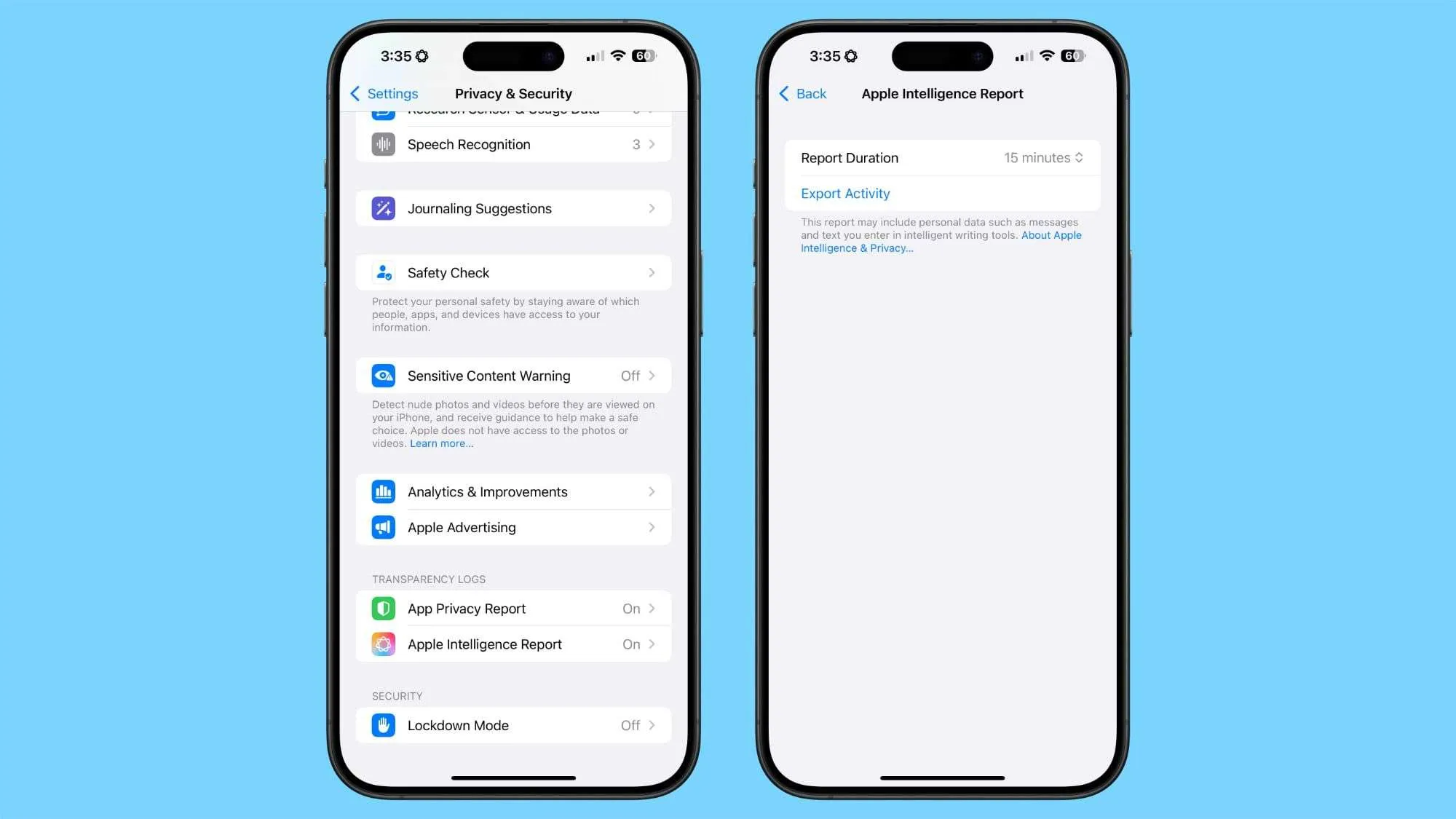
You can also disable Apple Intelligence by turning off the setting under “Apple Intelligence” and “Siri” in the Settings app.
Apple Intelligence Availability
Apple Intelligence is currently only available in US English. Localized English is supported in Australia, Canada, New Zealand, South Africa, and the UK.
Personal Context helps Siri better utilize your personal data, such as emails and messages. This feature is built into your device and allows Siri to learn more about you, your communication partners, and your device usage. For example, you can use Personal Context to ask Siri to find a specific message or to remind you when you’ve taken a photo you’re looking for.
Apple Intelligence Requirements
Apple Intelligence requires a device with one of the latest Apple chips and 8 GB of RAM. Eligible models are listed below.
- All iPhone 16 models
- iPhone 15 Pro and iPhone 15 Pro Max
- All iPads with Apple chipsets
- iPad mini A17 Pro
- All Macs with Apple chipsets
Apple plans to add support for additional languages throughout 2025, including Chinese, English (India), English (Singapore), French, German, Italian, Japanese, Korean, Portuguese, Spanish, and Vietnamese. Apple Intelligence will be available on iPhone and iPad in the European Union in April 2025.
Outlook
Additional Apple Intelligence features will be available in future updates. Apple originally planned to add new Siri features. The new Siri features were introduced for iOS 18.4, but aren’t ready yet, so we’ll have to wait a bit longer. Apple will likely hold off on the new Siri features until iOS 18.5.


