10 new macOS Tahoe features to try out
Apple’s new Liquid Glass design has garnered most of the attention in the macOS Tahoe news, but there are some new features that will make your Mac better than ever, including some that aren’t so obvious. We’ve compiled 10 useful macOS Tahoe features you should know about.


Customize the menu bar in macOS Tahoe
With macOS Tahoe, you have more control over the layout of your menu bar. You can rearrange the menu bar, remove unused items, and add Control Center widgets for quick access to your most frequently used settings.

To customize your menu bar, go to System Preferences > Menu Bar > Menu Bar Controls or open Control Center, click Edit Controls, and then click the “+” in the menu bar. You can uncheck boxes to remove items and add new options from first- and third-party apps using the “Add Controls” option.
Customize the lock screen font
With macOS Tahoe, you can customize the clock that appears on your Mac’s lock screen. You can’t resize it like in iOS 26, but you can change the font style and weight.

To customize your clock, go to System Preferences > Wallpaper > Clock Appearance. You can choose from six different fonts and adjust the font weight with a slider. You can choose to display the clock on your lock screen or on the lock screen and screen saver.
Live Activities
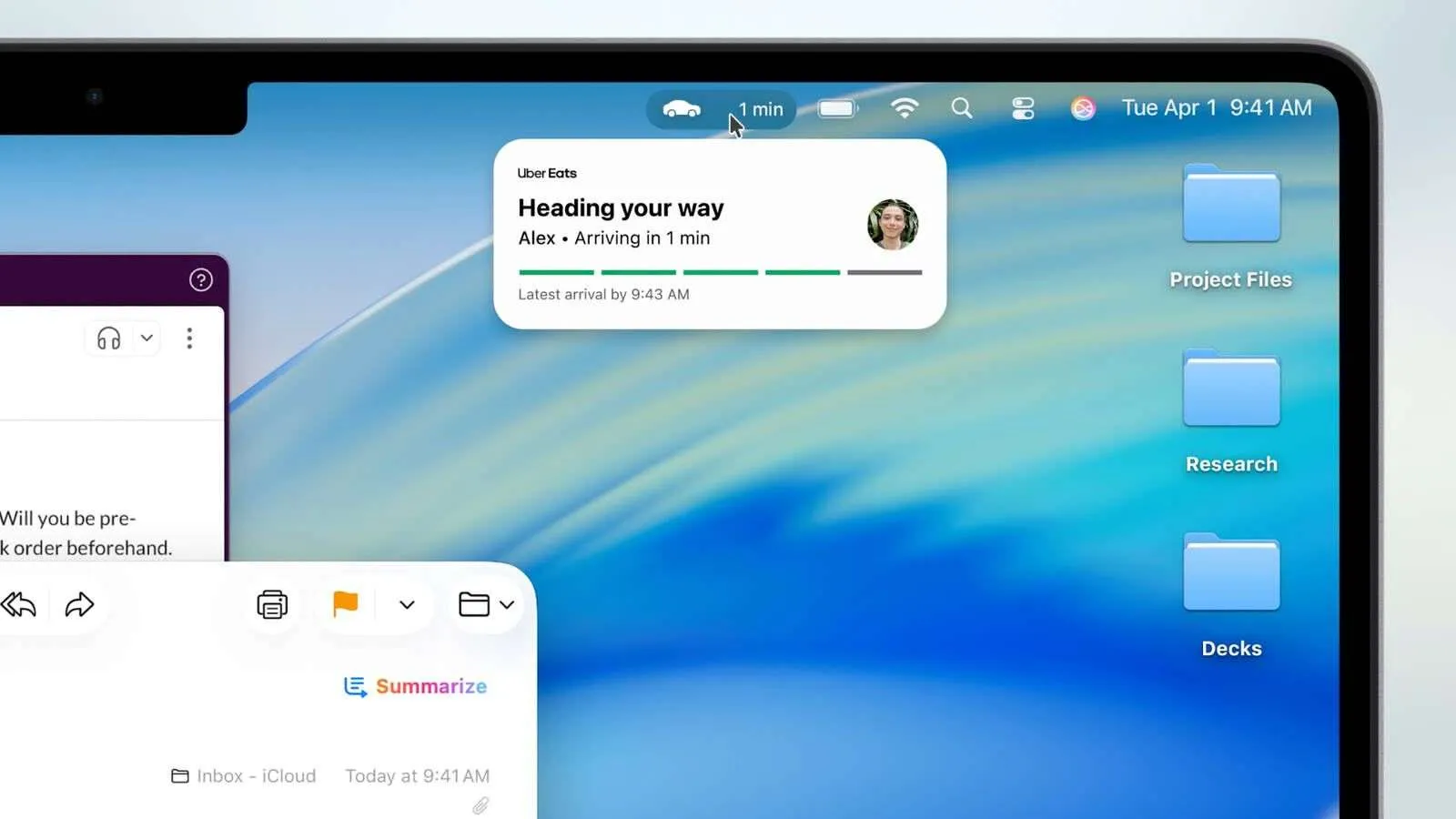
If you have an iPhone and a Mac, you can now sync Live Activities between your devices. If you have an active Live Activity on your iPhone, such as an ongoing flight, an upcoming Uber ride, or a live sports game, it will automatically appear in your Mac’s menu bar using the iPhone Mirroring feature.
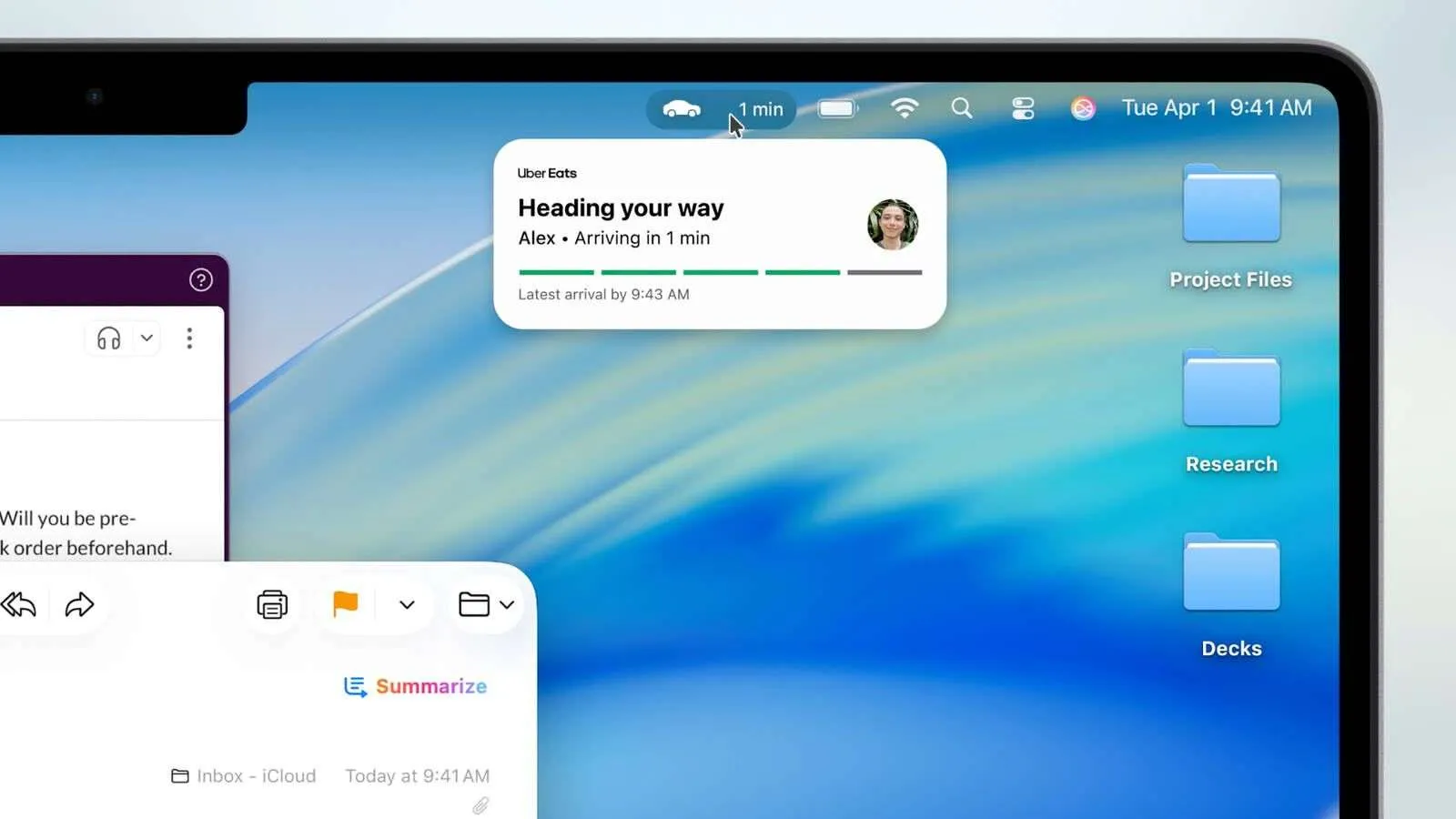
Live Activities are automatically synced when iPhone Mirroring is enabled. You can enable it using iPhone Mirroring on your Mac. Click on any live activity to open the associated iPhone app via iPhone mirroring.
Clipboard History
Spotlight now integrates a clipboard history that tracks your copied and pasted files. This is deleted every eight hours, so nothing is stored long-term. However, it’s useful if you need to find something you copied earlier in the day.

To access the clipboard, press Command+Space to open Spotlight, then press Command+4 to switch to clipboard view. Click on any item to copy it.
Clipboard History is disabled by default. You’ll need to enable it in the Spotlight pane of System Preferences before you can use it.
Optimize Spotlight search results
If you use Spotlight to search for something within an app, macOS Tahoe lets you add filters directly to the search bar. Open Spotlight, enter a search term, and click a filter at the top to narrow down the results. For example, if you want to find PDFs sent to you in the Mail app, you can type “PDF” and then click “Mail.”
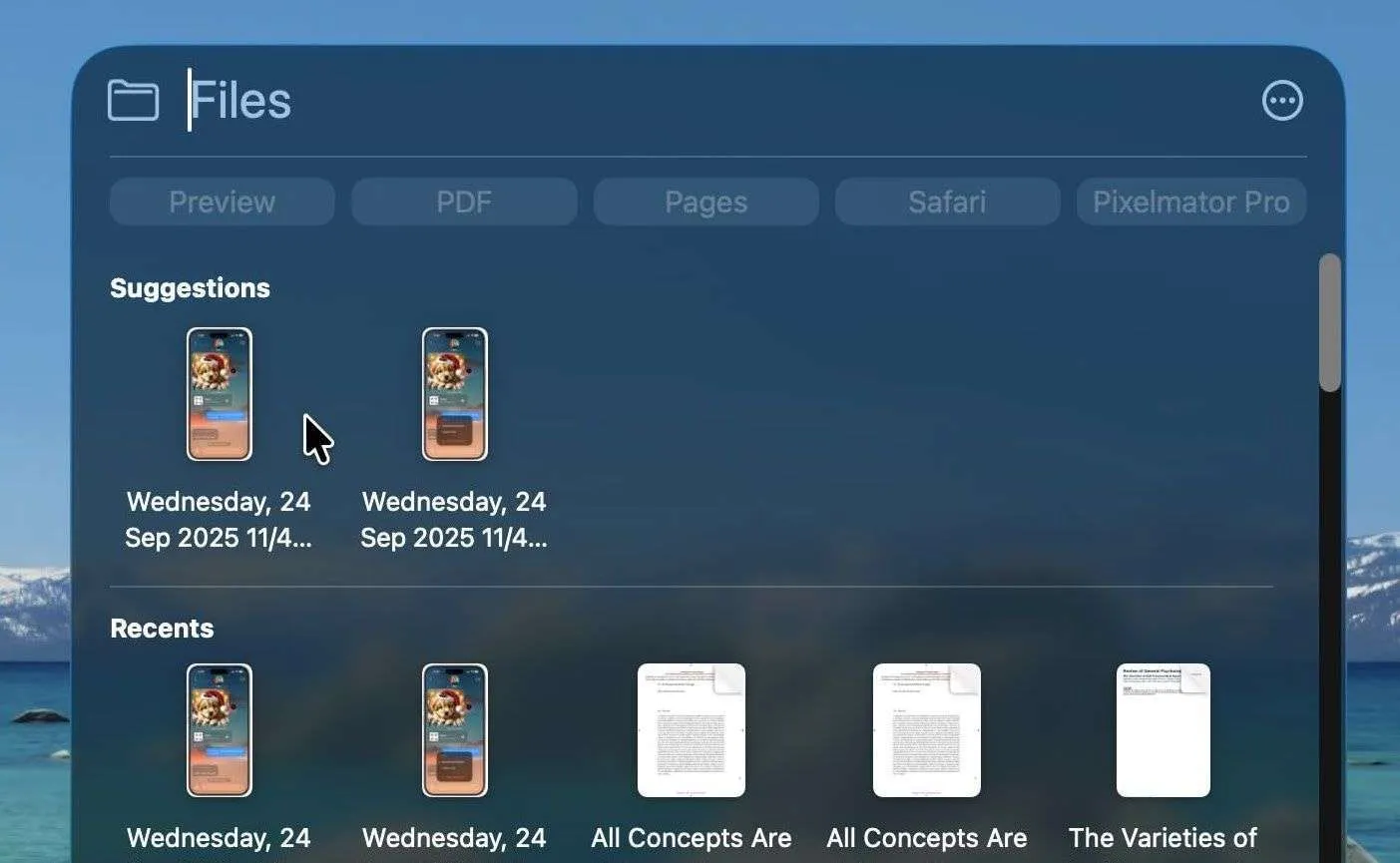
A faster way to search is to type the app name, such as “Mail,” press Tab, and then enter your second filter term, such as “mail.” E.g., “PDF.”
Search websites faster
Spotlight lets you search websites without having to open Safari and navigate to the desired website. Simply type the name of a website like Etsy or Amazon, press Tab, and then type what you want to search for.
Search tabs
When you search in Spotlight, the results also show any open Safari tabs. If you often have dozens of tabs open at once, this can be a great way to find the tab you want instead of clicking through each one individually. Open tabs appear at the top of the list when you enter a relevant search term.
Using Quick Keys
Quick Keys are keyboard shortcuts that let you perform actions in Spotlight with just a few characters. A quick key lets you type a few letters to perform a task you repeat frequently, such as sending someone a message or opening an app.

To use Quick Keys, open Spotlight by pressing Command + Space, then press Command + 3 to go to Actions. Type the desired action, such as “Send a message.” For example, type “Open ChatGPT,” and then, when it appears, click the “Add Quick Key” option.
From there, you can enter between 1 and 12 letters as a keyboard shortcut, such as “gpt.” The next time you want to perform this action, simply enter the shortcut key.
Create Automations
macOS Tahoe features iOS-style shortcut automations that can be executed automatically based on time, system events, or other triggers. This functionality was previously unavailable.
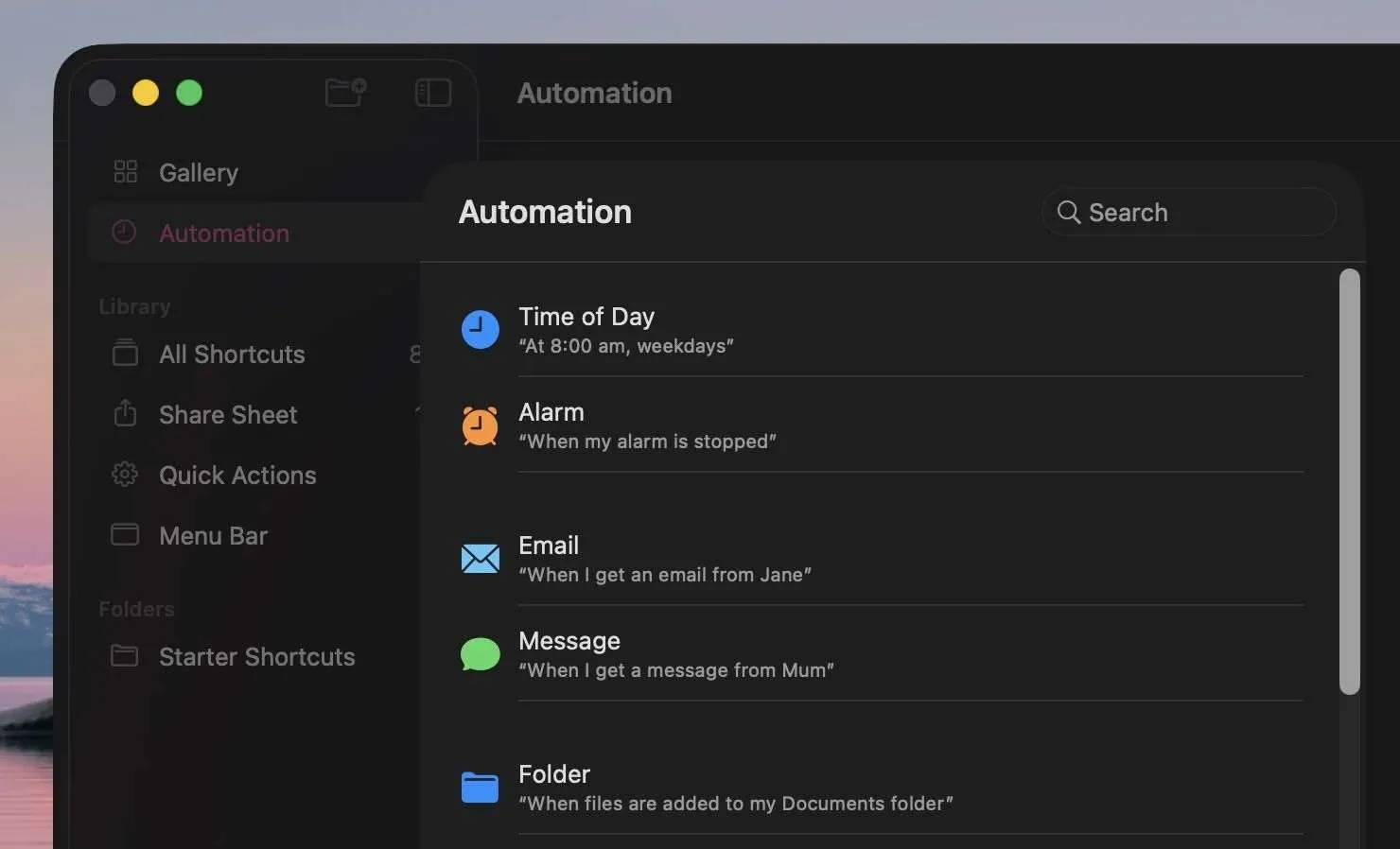
Open the Shortcuts app, click the “Automation” option in the sidebar, and then click the “+” icon to create an automation. Triggers can include the time of day, opening an app, connecting a display or accessory, activating a focus mode, reaching a certain battery level, saving a file to a specific folder, and more.
Safari Picture in Picture
Picture-in-Picture has been available in Safari for several years, but macOS Tahoe offers easier activation, new controls, and customization options.
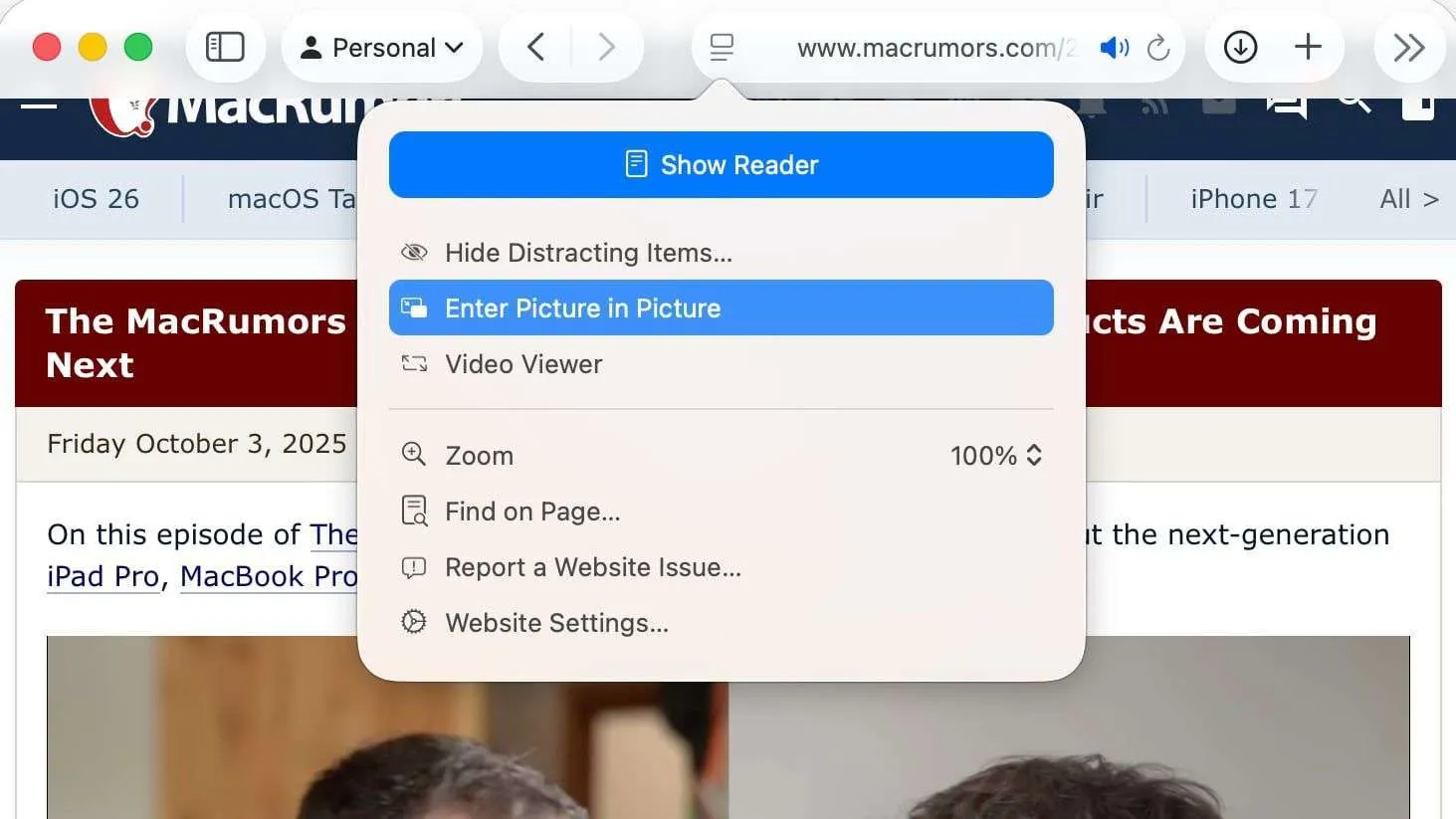
In an article with a video, click the sidebar icon on the left side of the URL bar to activate Picture in Picture mode. You can now access playback controls to skip forward and backward, and you can skip ads directly in the picture-in-picture window.
View Spotlight History
You can see your past Spotlight searches and actions in macOS Tahoe, so you can easily return to something you’ve done before. With Spotlight open, press the up arrow to cycle through your previous queries.
Gaming Energy Saver Mode
macOS Tahoe updates Energy Saver Mode so it’s optimized for gaming, helping you extend your gaming sessions. You can set Power Saving Mode to automatically activate when your Mac is unplugged, or let your Mac intelligently manage its power.
Enabling Power Saving Mode doesn’t affect gameplay, as it slows game performance.
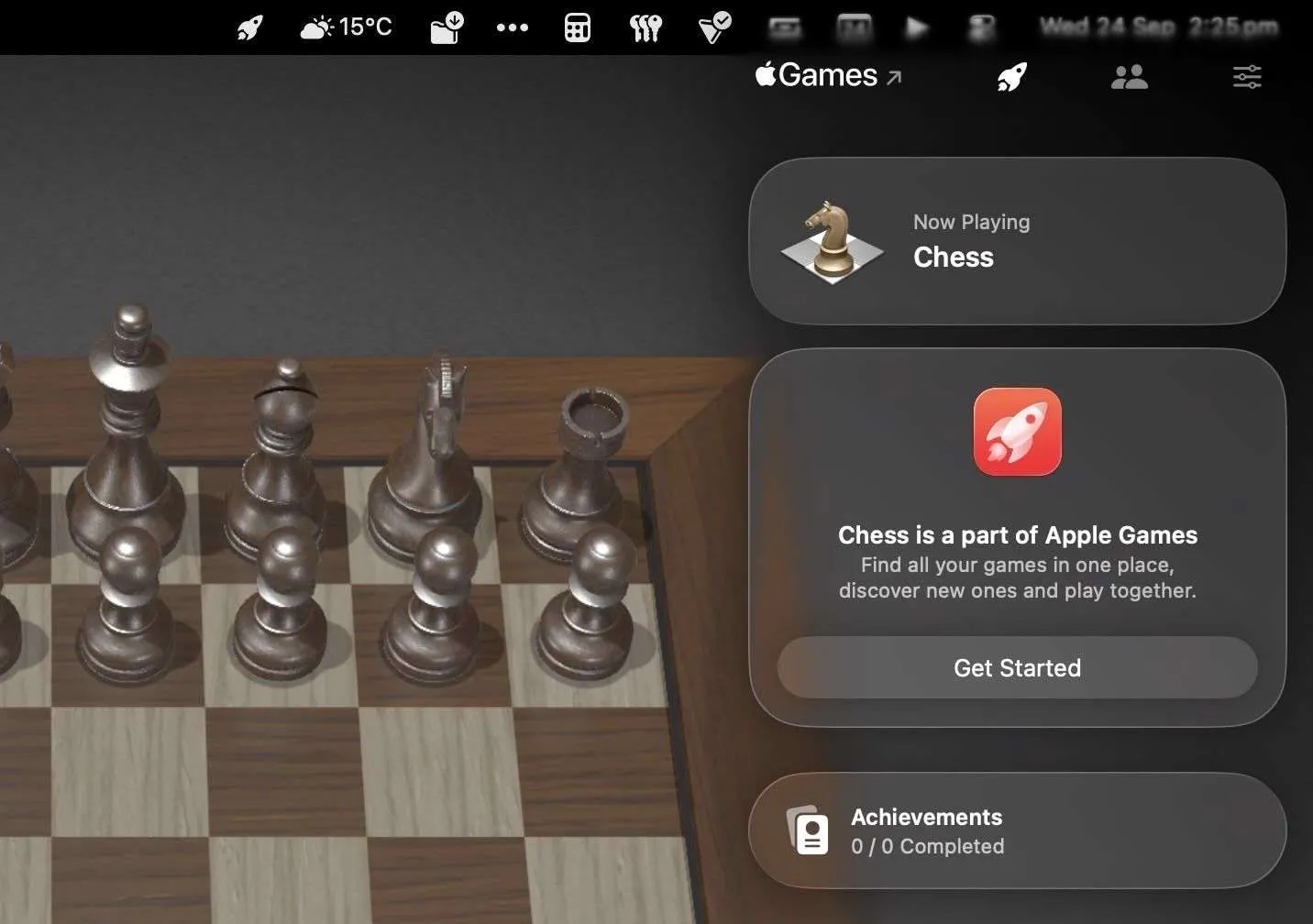
Game Overlay
When playing in macOS Tahoe, you can open a new game overlay by pressing Command + Esc. From the game overlay, you can view achievements and leaderboards, connect with friends, and adjust settings like brightness and volume.
macOS Tahoe offers these useful features along with a beautiful new design. Whether you customize your workspace, optimize your workflow with shortcuts, or automate recurring tasks, these features make working on your Mac or MacBook significantly more productive.


