Apple Maps in iOS 26: Location History and Better Routes
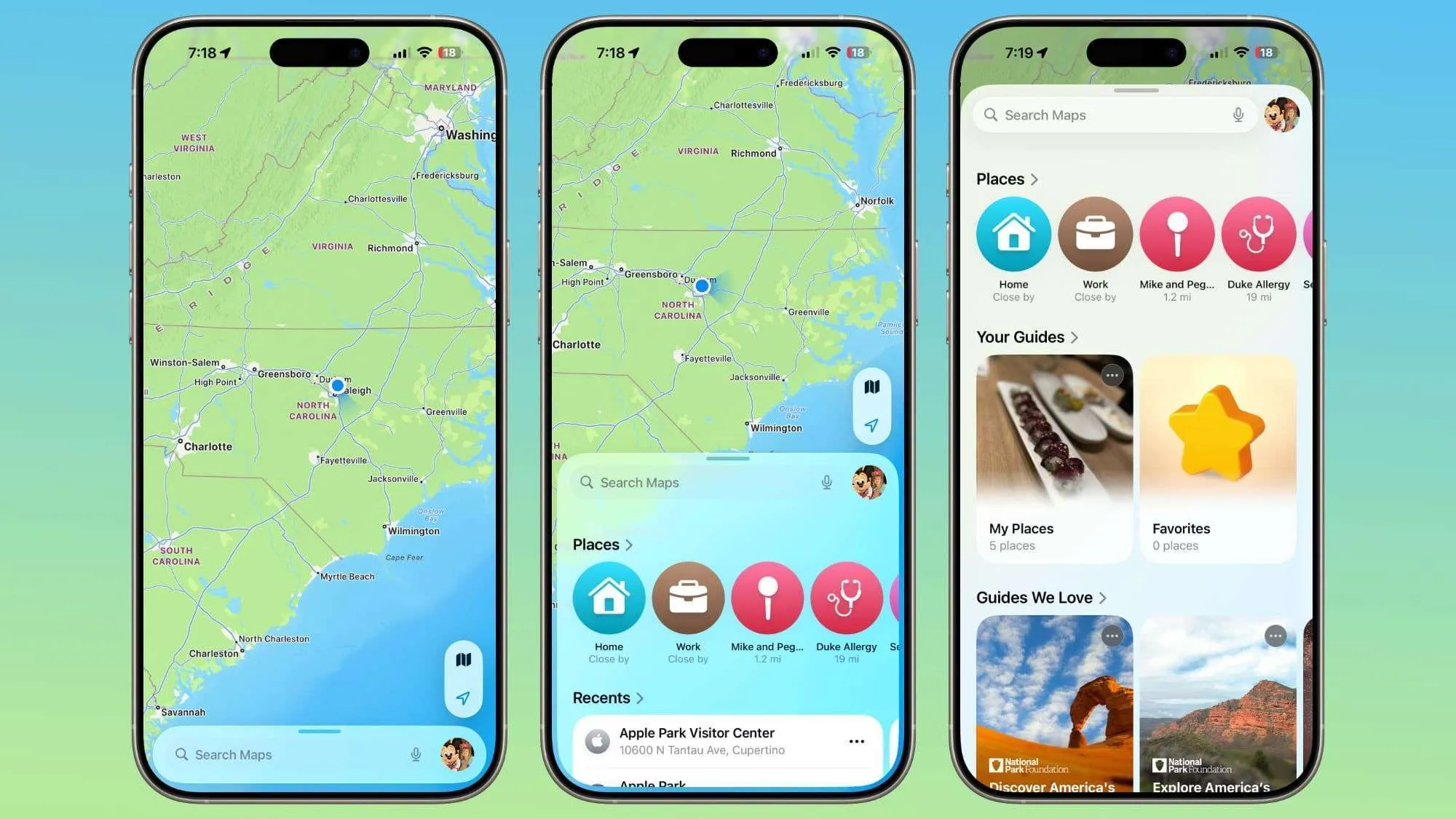
The Apple Maps app in iOS 26 includes some useful new features that let you track where you’ve been and receive notifications when there are delays that affect your daily commute. We’ve compiled all the new features in Maps in this guide.

Visited Places
Apple Maps can track the places you’ve visited, whether in your hometown or while traveling. It can record the restaurants, shops, parks, and attractions you visit, so you can look back and remember where you’ve been.
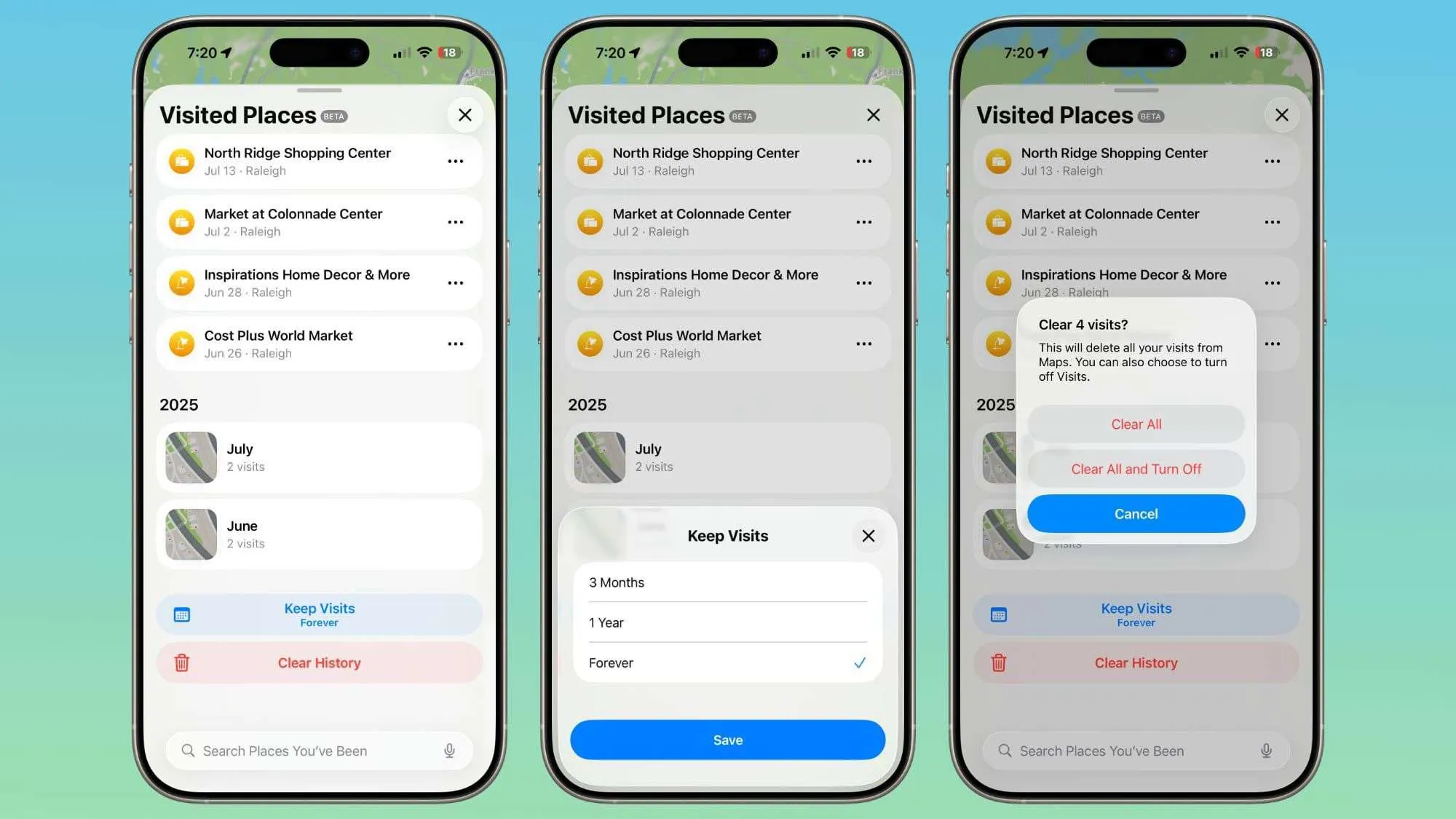
Google has long offered a timeline that automatically saves visits to places. Apple’s new “Visited Places” option corresponds to the functionality of the Google Maps timeline. After upgrading to iOS 26, the Maps app will open. You’ll receive a notification about the new feature so you can enable or disable it.
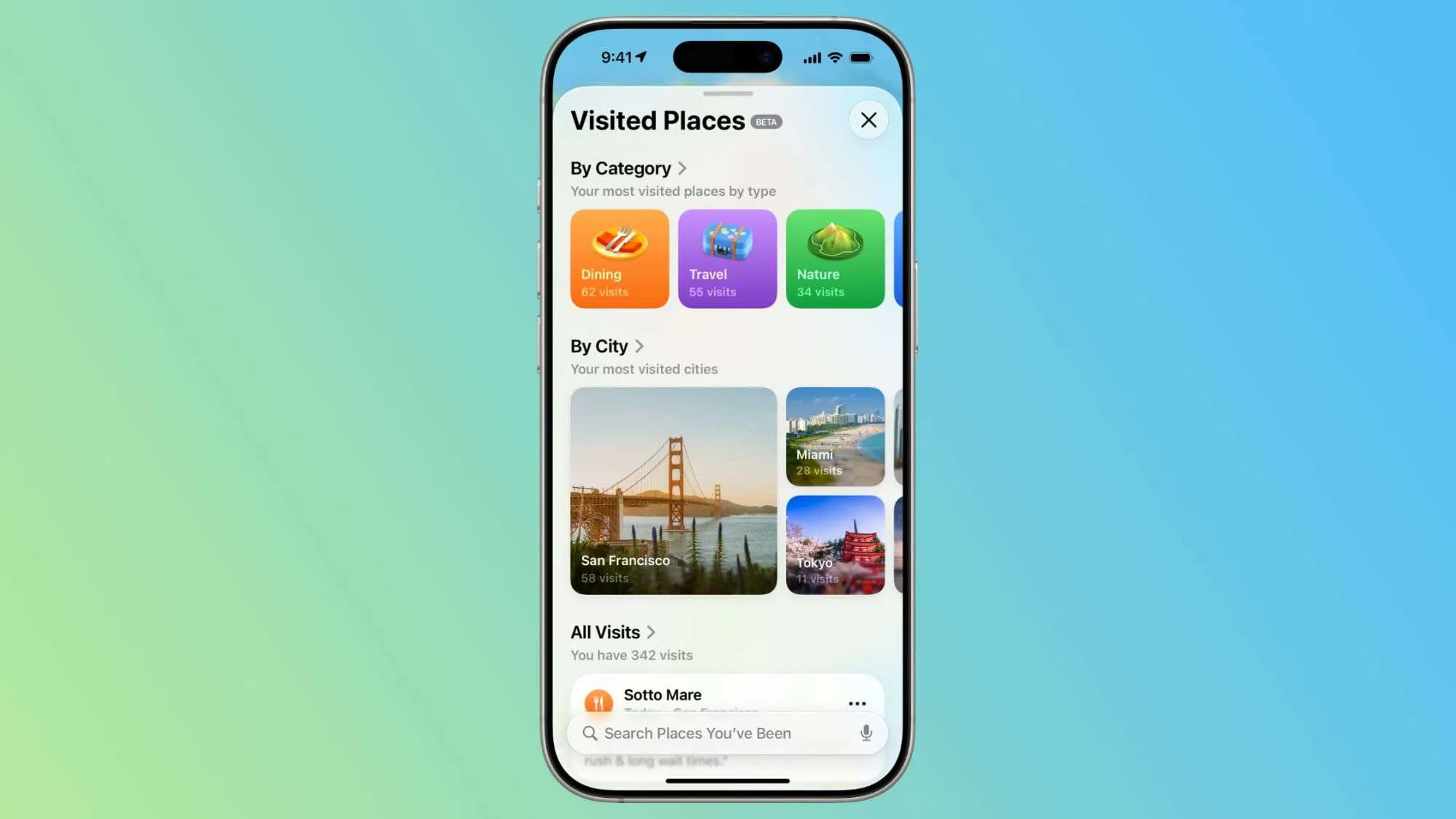
You can see your visited places by opening Apple Maps, tapping your profile picture, tapping “Places,” and then “Places Visited.” This interface lists the places you’ve visited by month, and also offers a search function.
You can change the length of time your visits are saved (three months, one year, and indefinitely) and clear your recent history. You can also remove places individually by tapping them and report incorrect location information. When you clear your history, Apple Maps will open an option that lets you delete everything, or delete everything and disable “Places Visited” entirely.
If you want to disable “Places Visited” or enable it later, you can do so in Settings > Apps > Maps > Location. There, deactivate “Visited Places.” You can also access the switch under “Privacy and Security” > “Location Services” > “Maps.”
For “Visited Places” to work, the “Precise Location” feature must be enabled. Your visited places are stored on the device. The information is not uploaded to Apple’s servers.
Preferred Routes
Apple Maps uses the device’s internal intelligence to optimize location determination. Learns your preferred routes to frequently visited locations like work, home, and school and remembers when you typically visit these places.
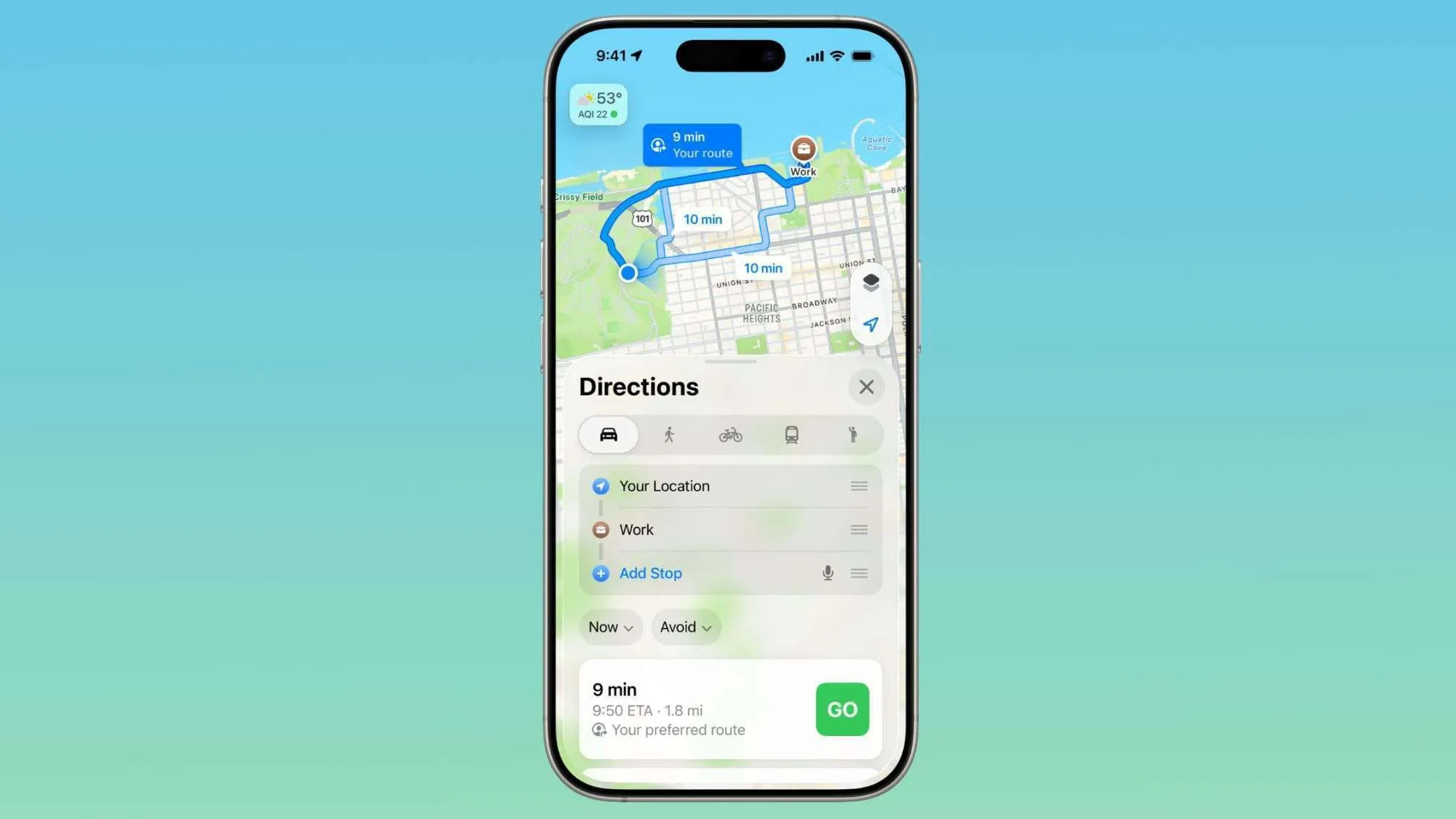
If a road closure or traffic jam affects your commute, the Maps app can notify you and offer an alternative route to help you arrive on time.
A widget with map suggestions on the iOS 26 home screen displays the same information if route issues arise. This feature is integrated in the background and only appears when needed. If your commute is short and there are no busy roads, it may not appear.
You can enable or disable the feature under Settings > Maps > Location.
Liquid Glass
Apple Maps has also adopted the new Liquid Glass design and made some subtle changes to the user interface. The search bar and navigation menu are transparent, allowing the map background to be partially visible. The location symbols are larger than before.
Icons have a layered glass look, and the various menus, cards, and buttons are rounder than before. The Share Sheet has a pop-up design and is also transparent.
The “Library” tab, which was previously opened by tapping the profile picture, is now called “Places” and features improved spacing and a new “Places Visited” section. Driving directions are displayed in a smaller pop-up bar instead of occupying the top of the map display. Arrival time, travel time, and distance are displayed more clearly.
Voice Controls
The “Voice Volume” section in Apple Maps is now called “Voice Controls.” There are additional toggles for “Mute,” “Alerts Only,” and “Unmute,” making the directions display more intuitive.
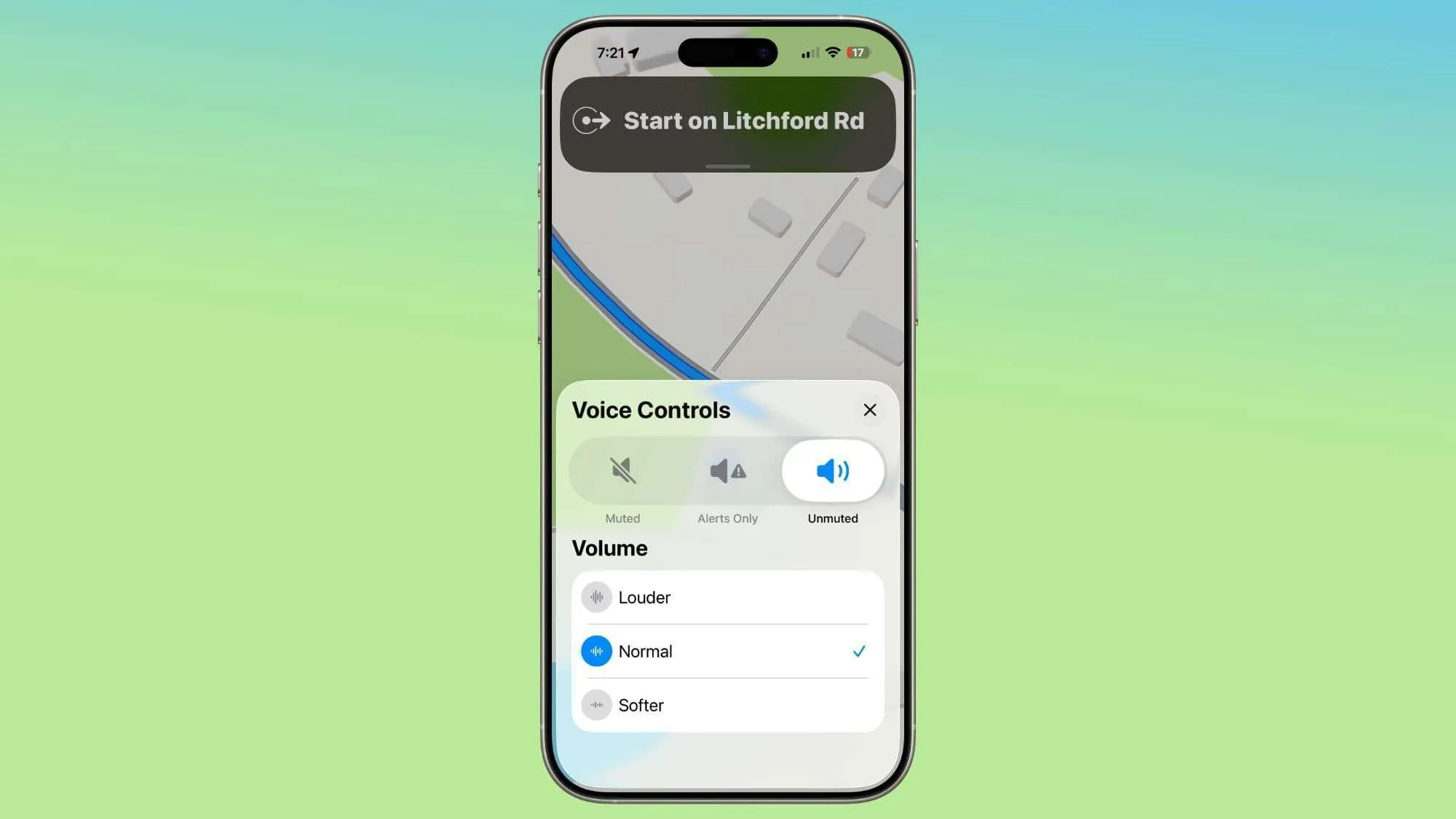
These controls already existed in iOS 18, but only as a switch without explanation on the right side of the display if the directions run.
Places information
If you tap or enter it in Apple Maps, the “Call”, “Menu” and “website” buttons are now shown more clearly in the user interface, as well as the opening times of the location and the order option, if available.

In addition, there is now a floating button to call down directions to a place. This is always available in the app at the bottom right.
Improved Incident Reports
Apple Maps has a new “Incident” button in iOS 26 that appears on the right side of the iPhone when getting turn-by-turn directions. This makes it easier to report incidents such as accidents, traffic jams, construction, and speed cameras. Additional incident types have also been added.
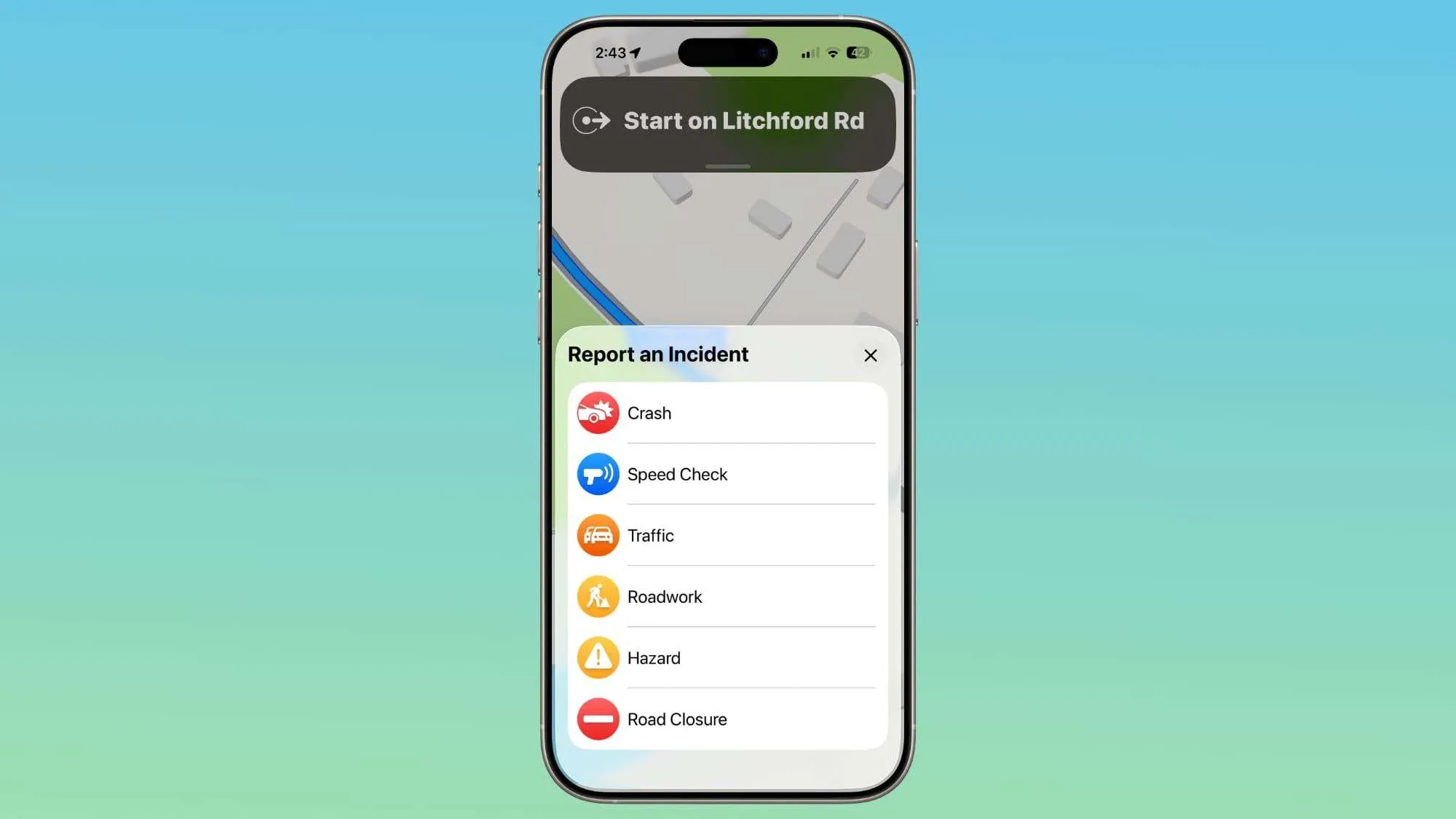
You can report an accident, speed control, traffic, street work, dangers or road closures. In iOS 18, the options are limited to crash, speed testing and dangers.
We also have an overview of less known iOS 26 functions.


